This article will walk you through the process of creating a standard product and a composite product in LSX via importing that will be linked (ie: cases and packs).
In this example the case (4/6 pack) product will be the standard product and the pack (6 pack) product will be the composite product when all is done.
We will have two standard products that we will first import into LSX. Once they have been imported, we will then export those two products into a new spreadsheet which will then be edited and imported into LSX to change the one product from a standard product into a composite product.
1. Open your File Explorer and navigate to where you have the spreadsheet that contains both products where one is the standard product and the second will be the composite product (pack).
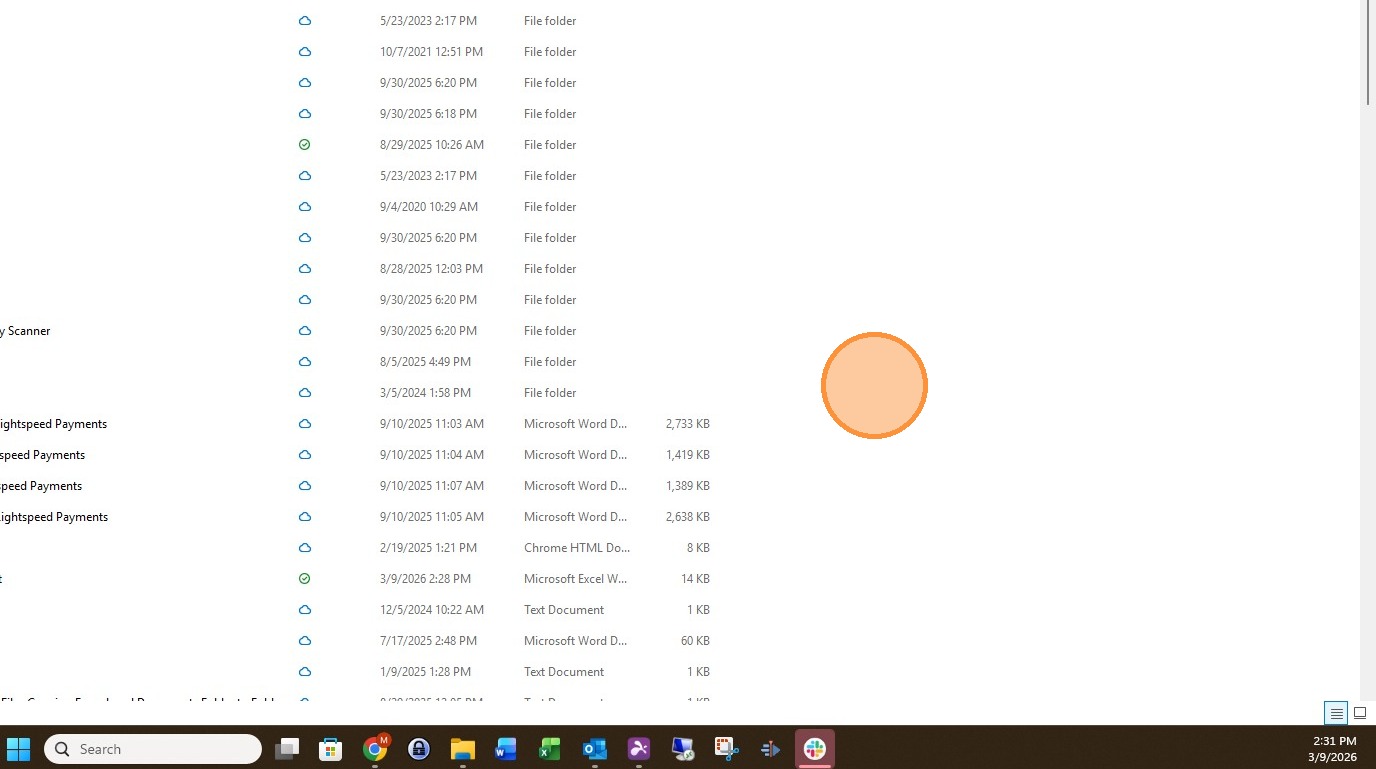
2. Open the Excel spreadsheet.
3. Here we will see the two products.
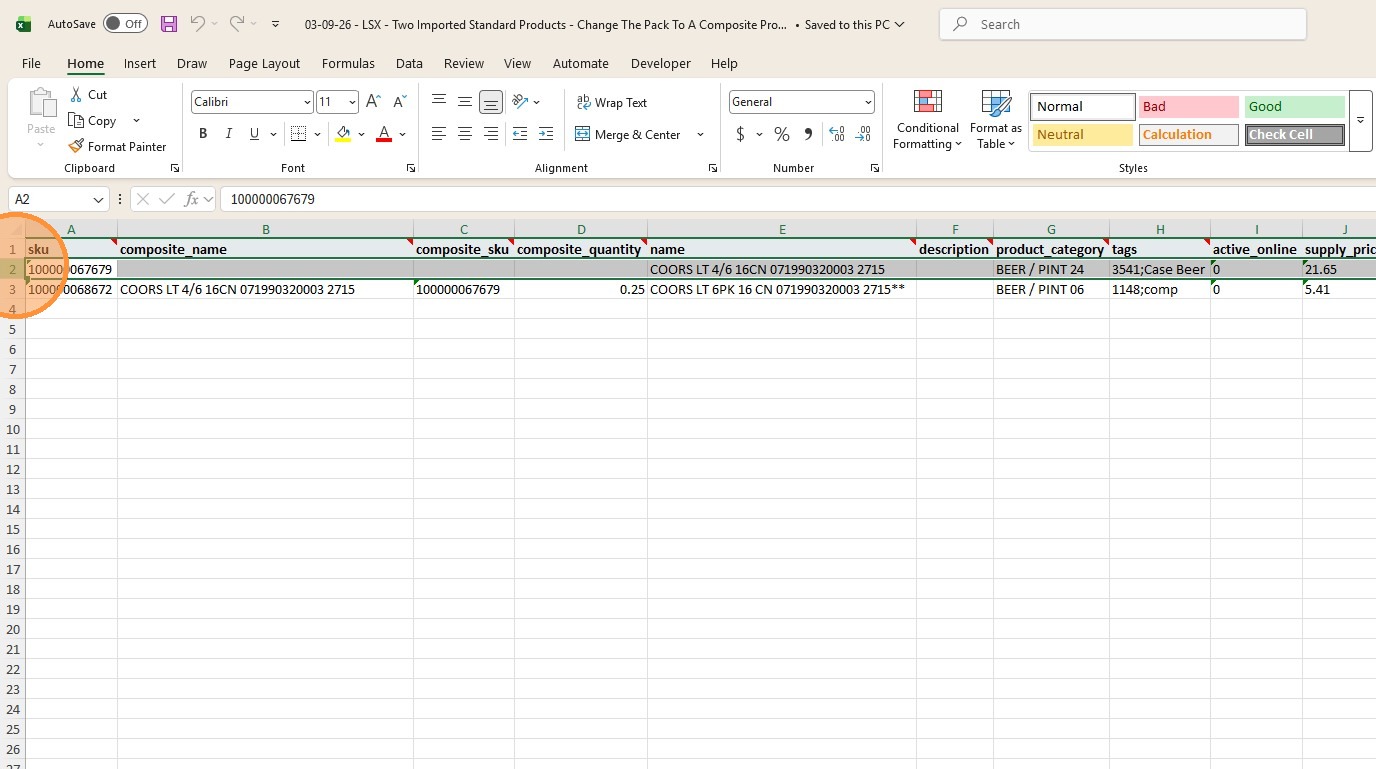
4. The product in row 2 will be the standard product and it is named "COORS LT 4/6 16CN 071990320003 2715" and the product in row 3 will first be a standard product but will later be changed to a composite product and it is named "COORS LT 6PK 16 CN 071990320003 2715 **".
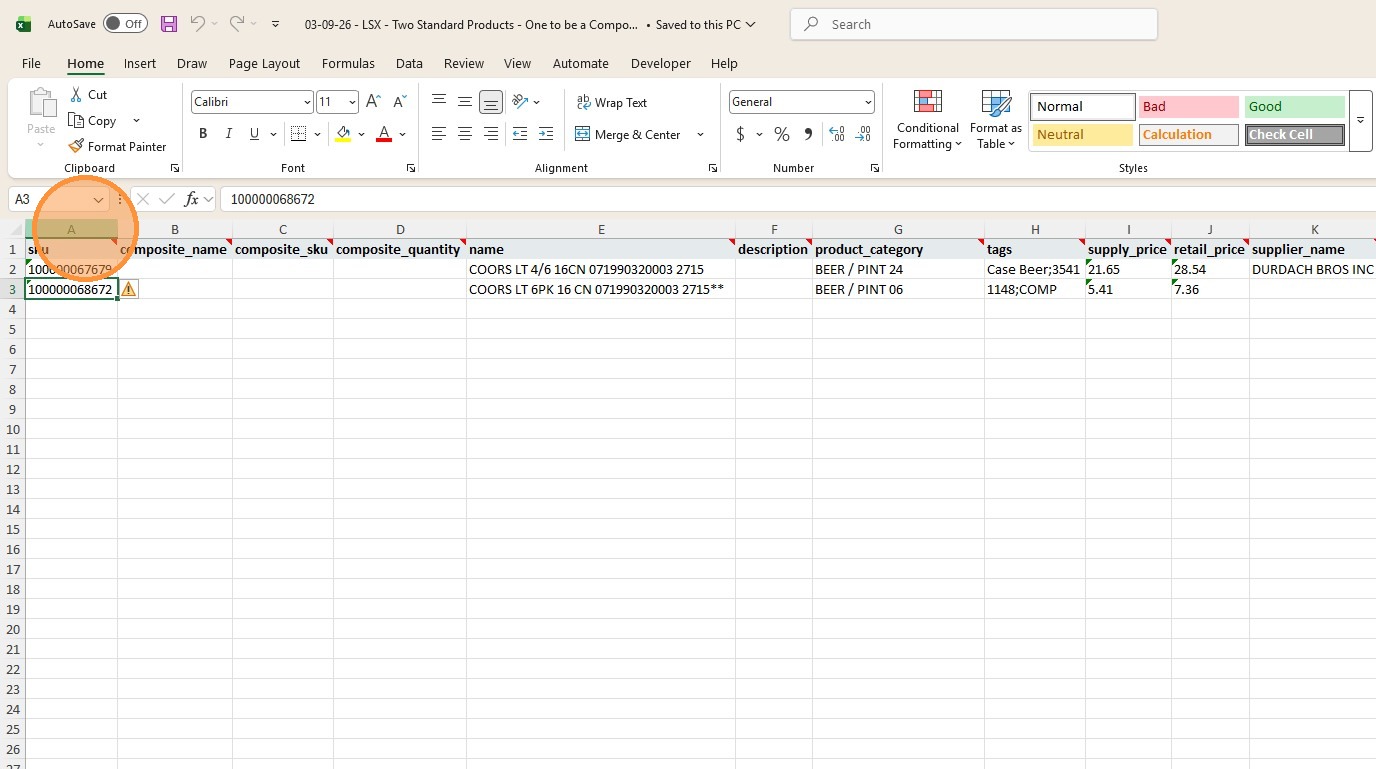
5. We will leave columns "B", "C", and "D" without any values as both products that are being imported now are standard products.
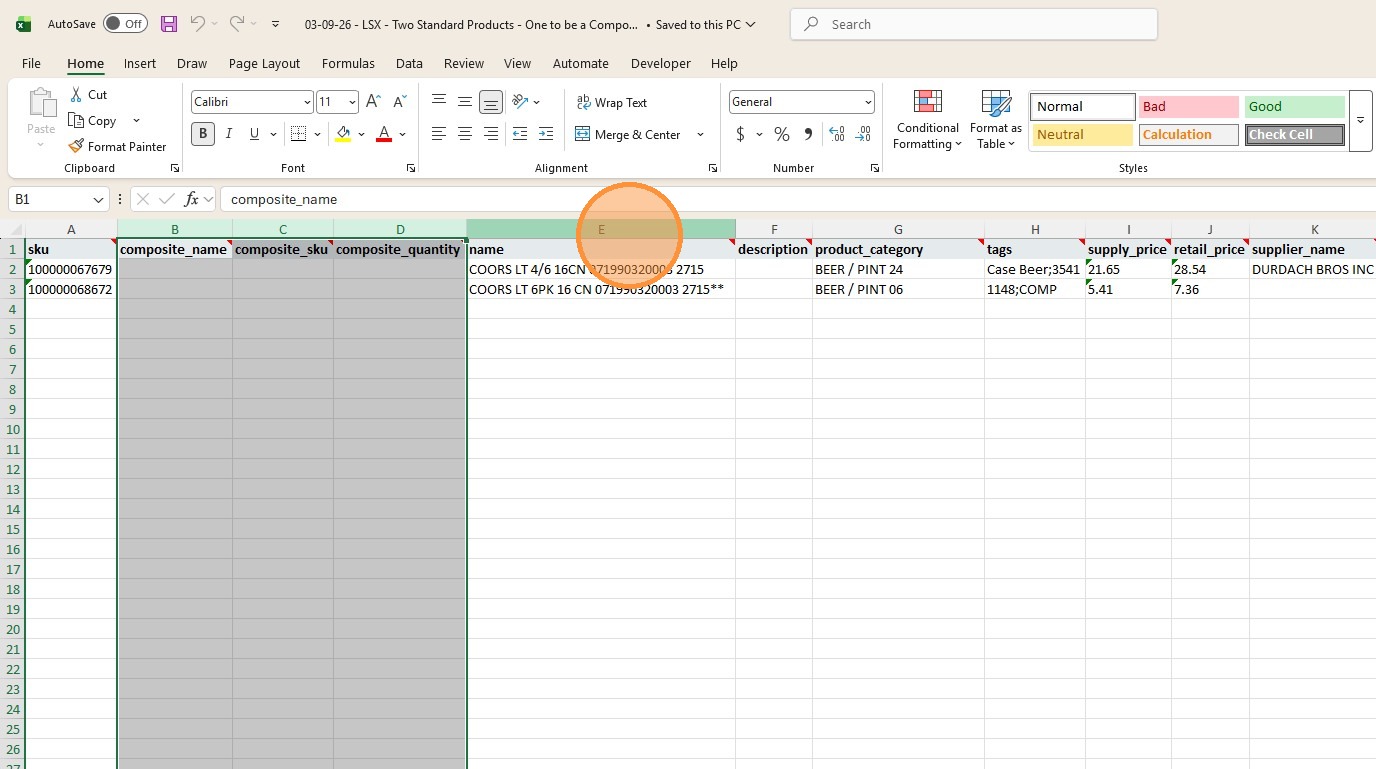
6. Once the two initial standard products are ready, save the spreadsheet and close it.
7. Log into the LSX account that you will be importing the products into.
8. Go into "Products" from the left window pane.
9. Click "Import" in the main window pane.
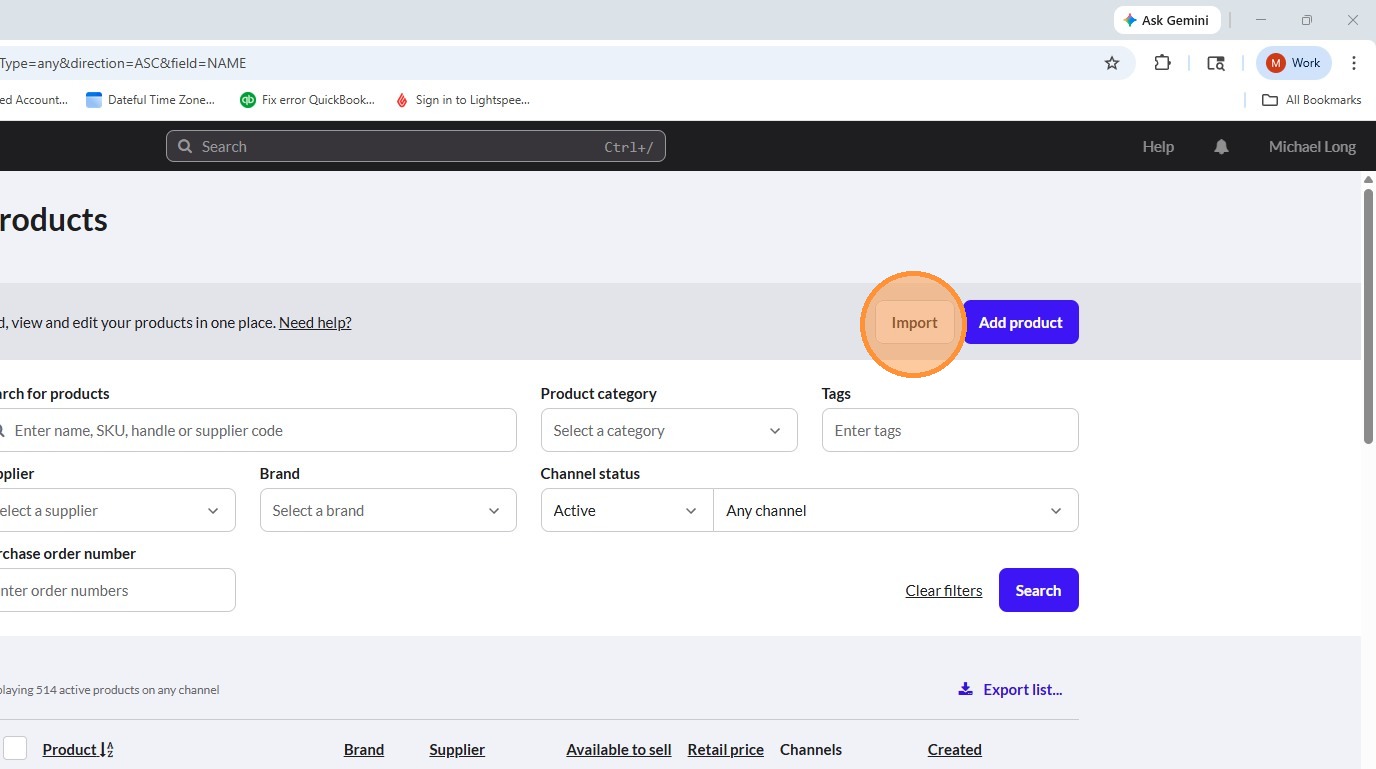
10. Click "Select file to upload"
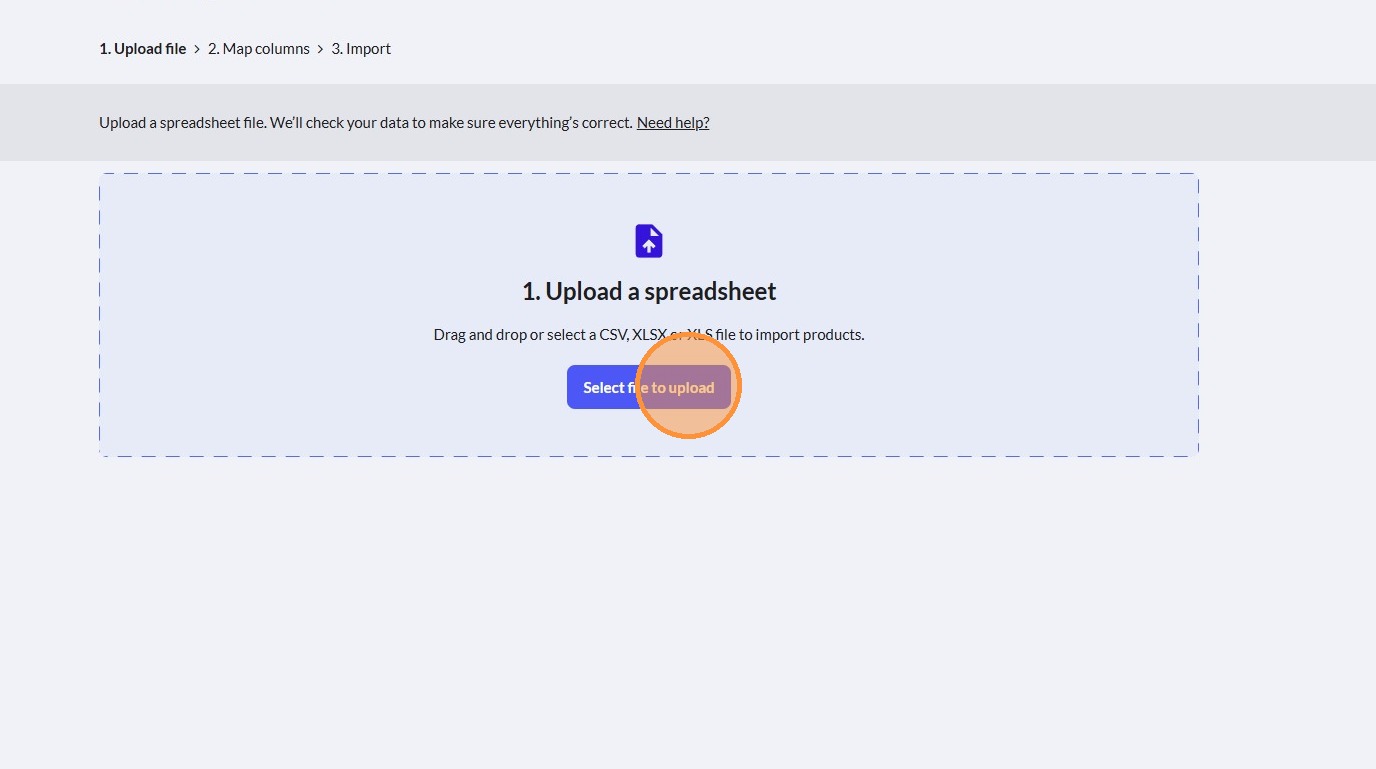
11. Navigate to the location of the first spreadsheet that you will use to import the two standard products.
12. Click the first spreadsheet that will be imported to select it.
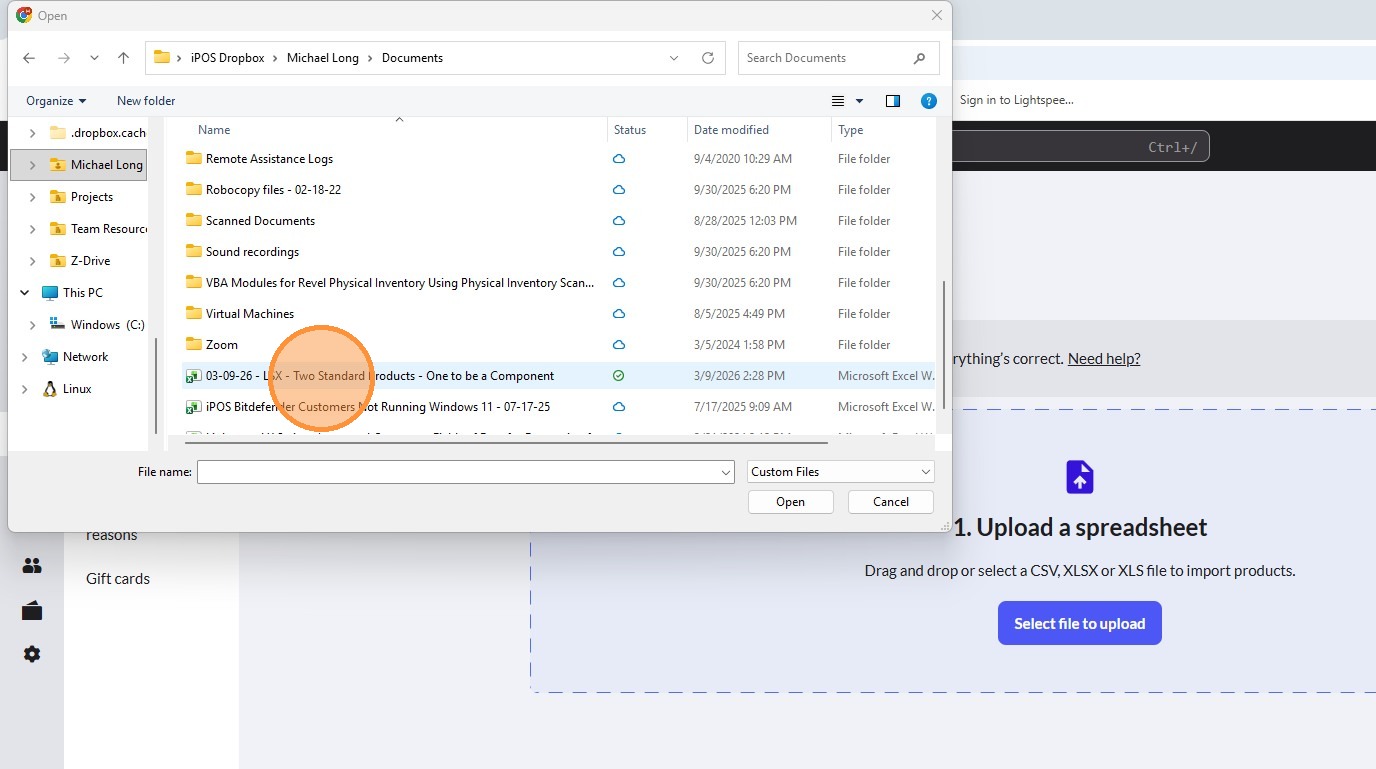
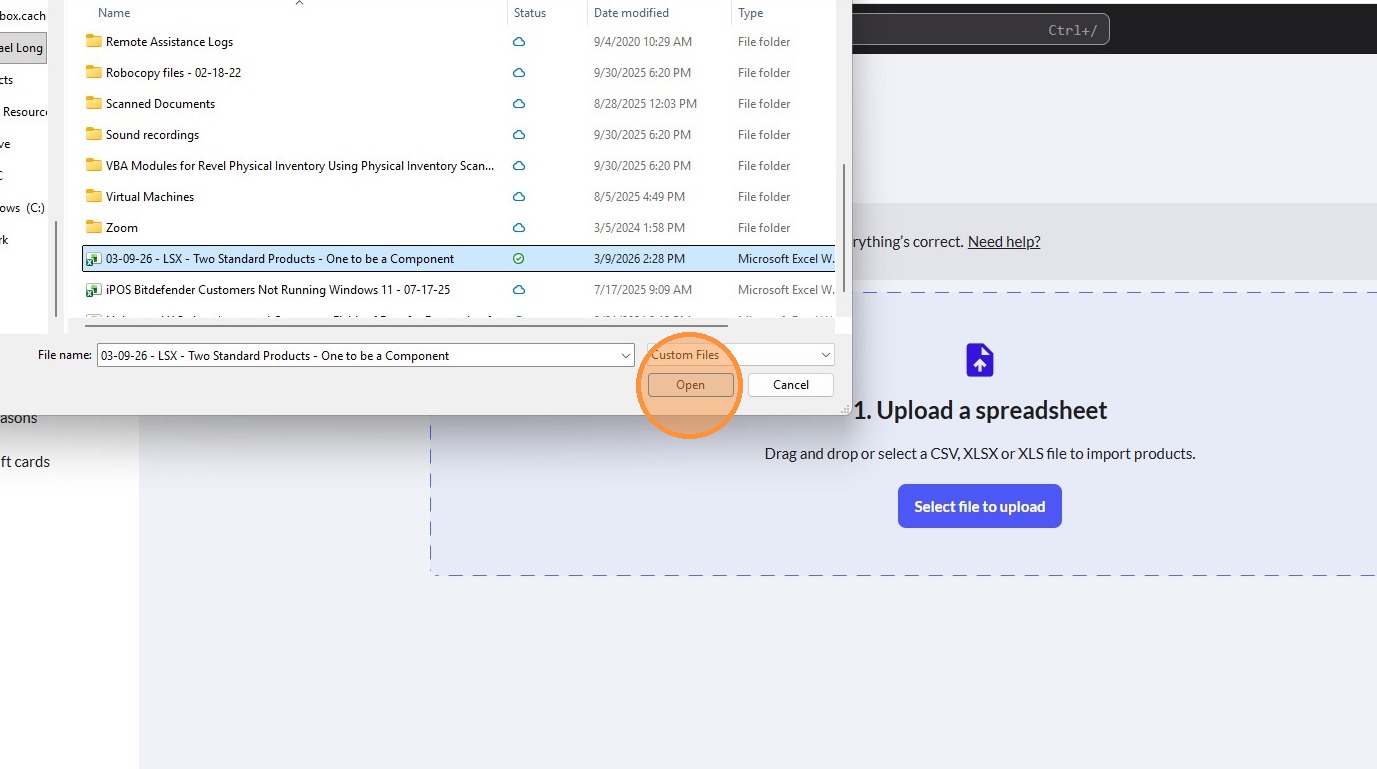
13. Click "Open".
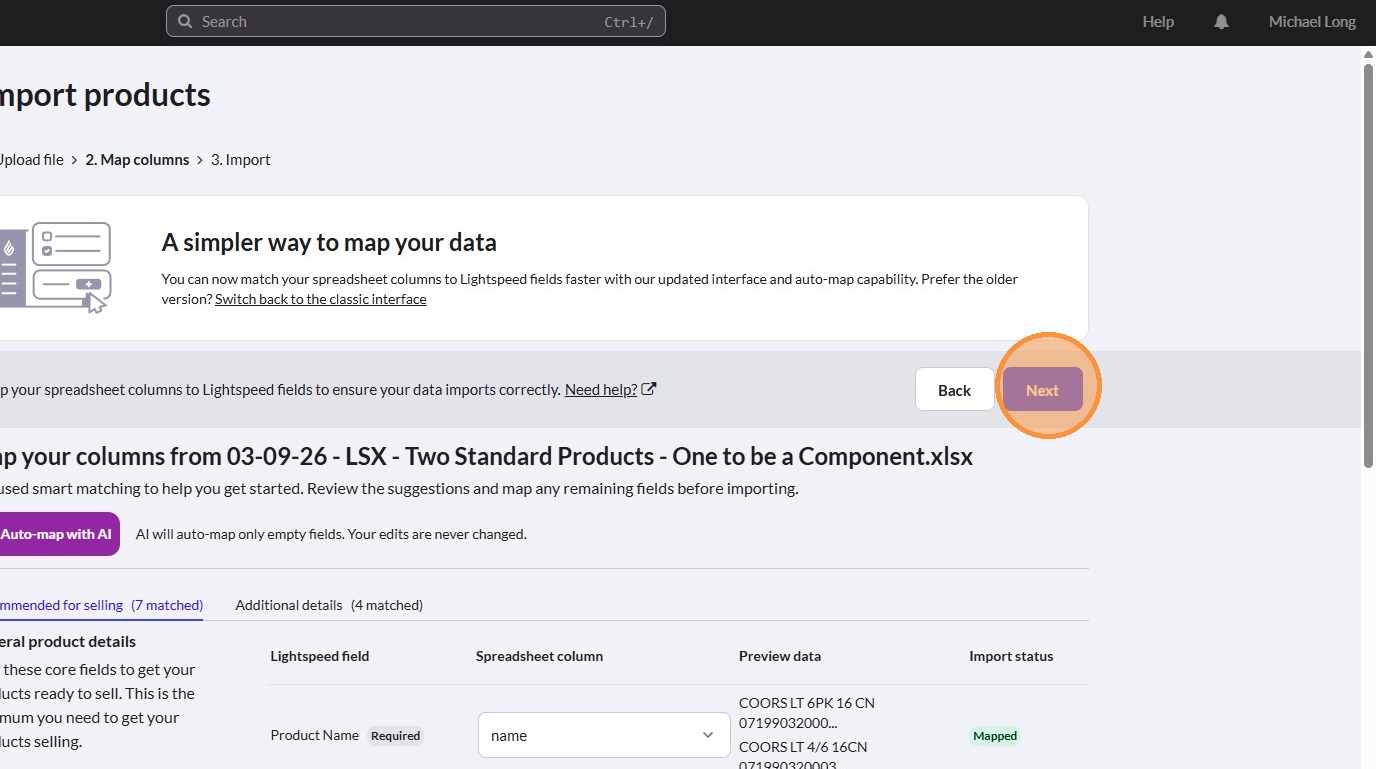
14. Click "Next".
15. Click "Import products".
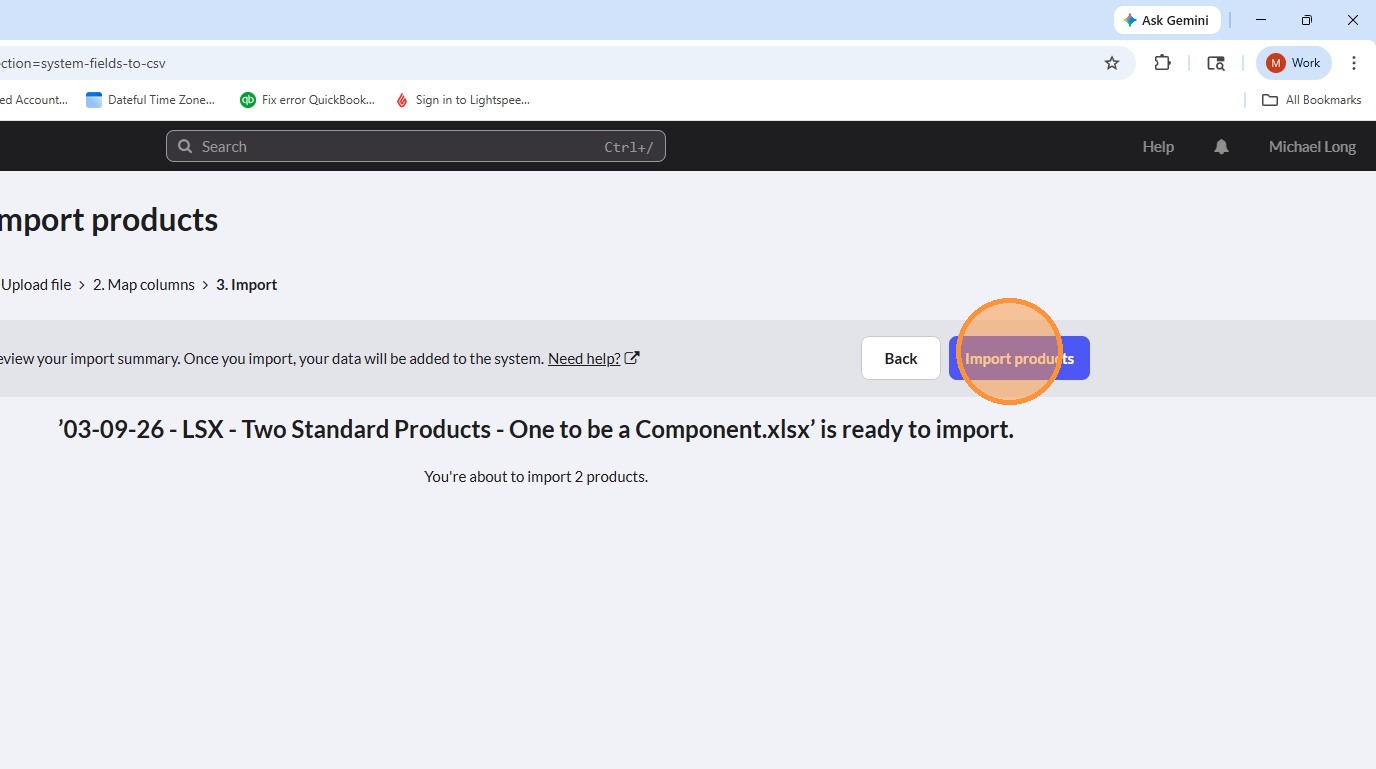
16. Wait for a few moments for the first import to complete and then click the bell icon in the upper right hand corner.
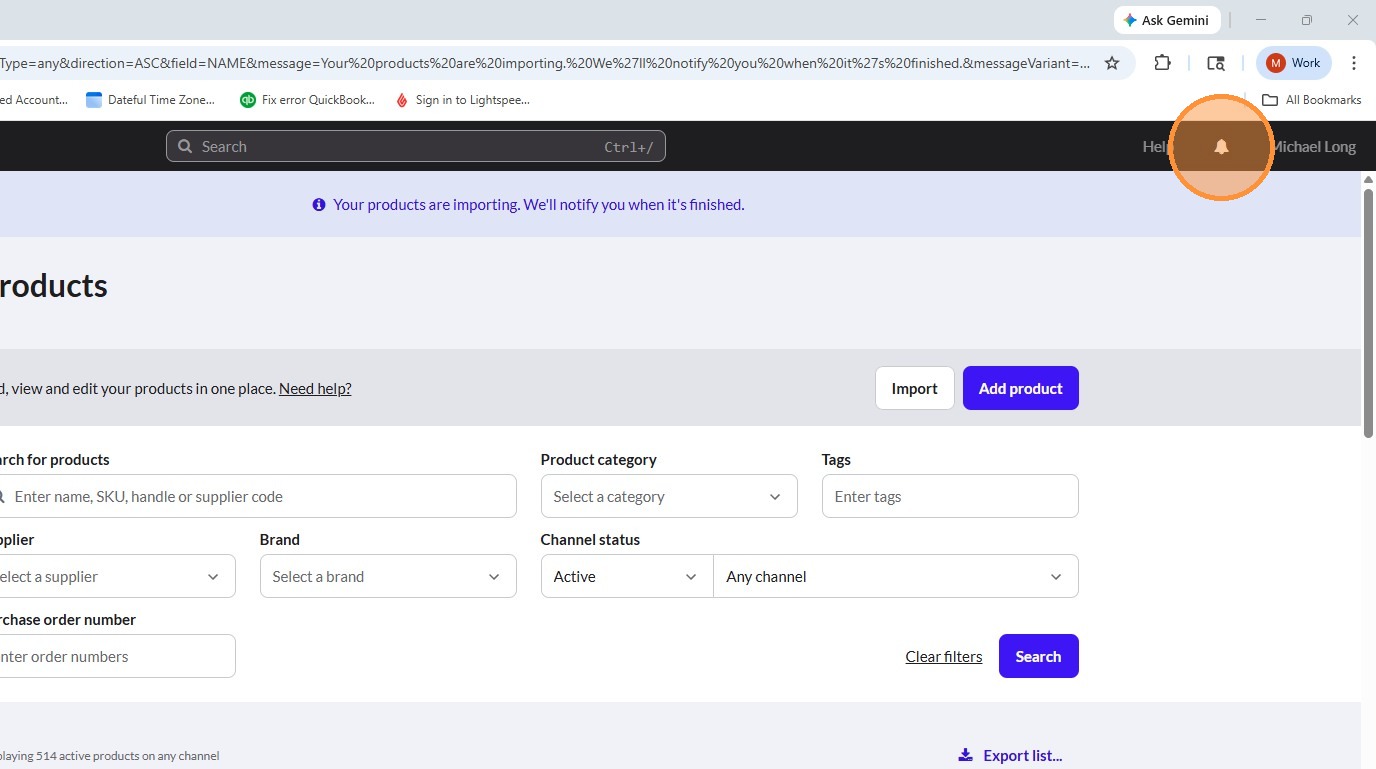
17. You will see that import of two new products has completed.
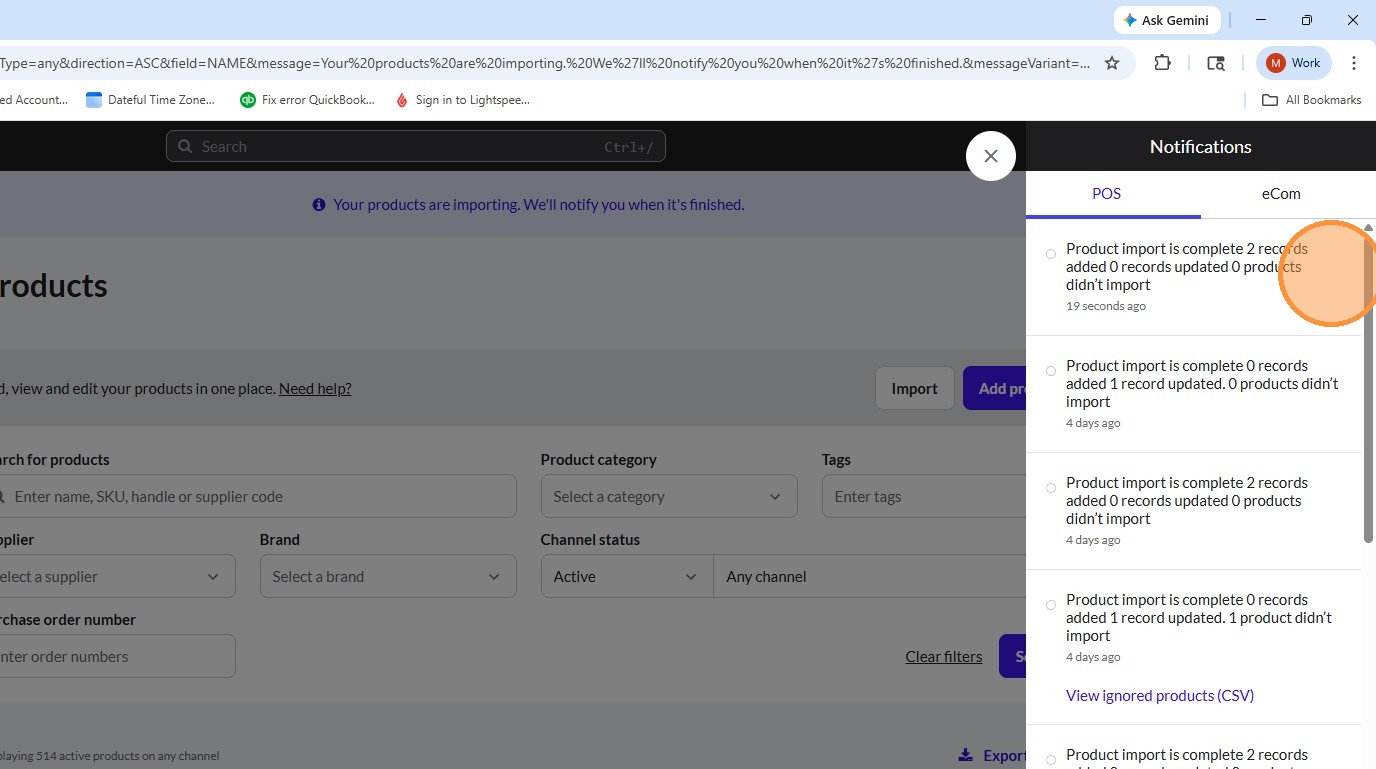
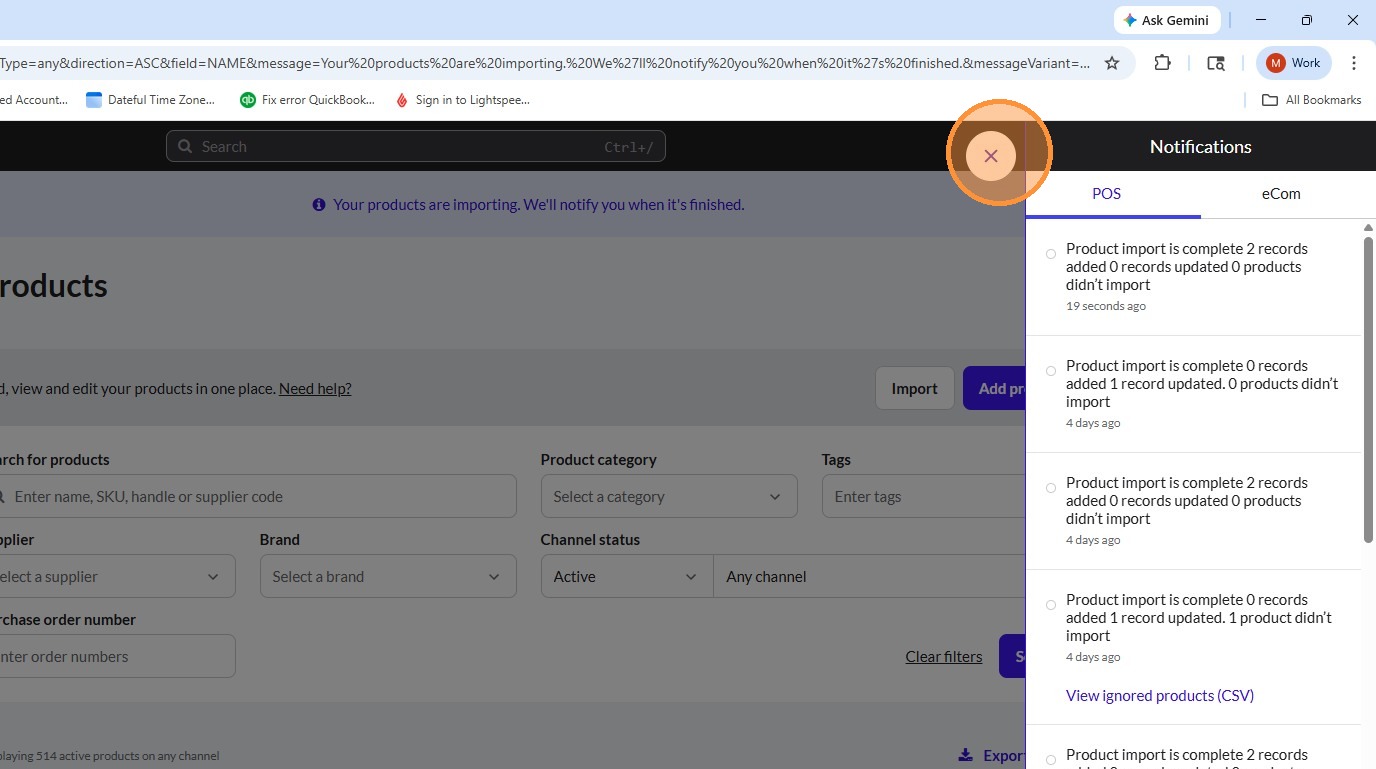
18. Click the "X" icon to close the window.
19. Go back into "Products" in LSX.
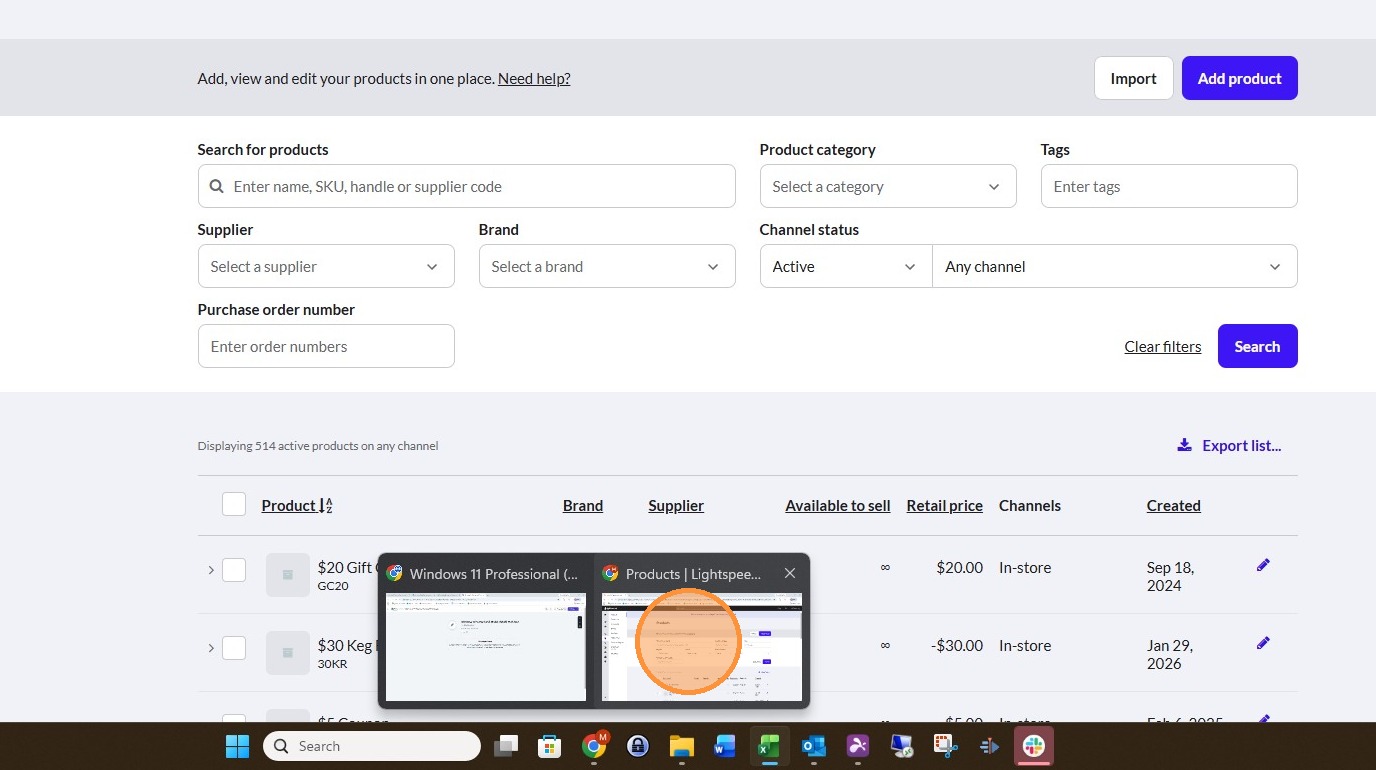
20. Click in the text box named "Search for products".
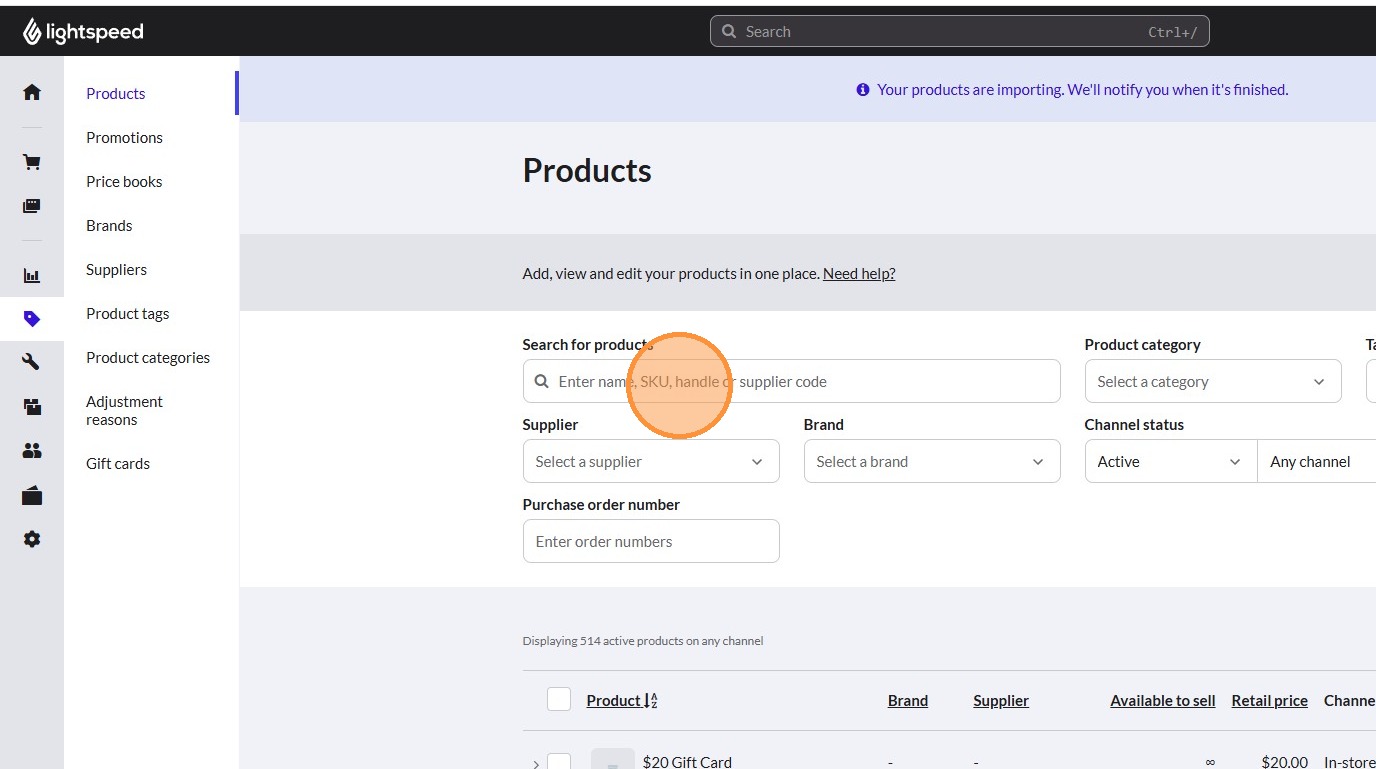
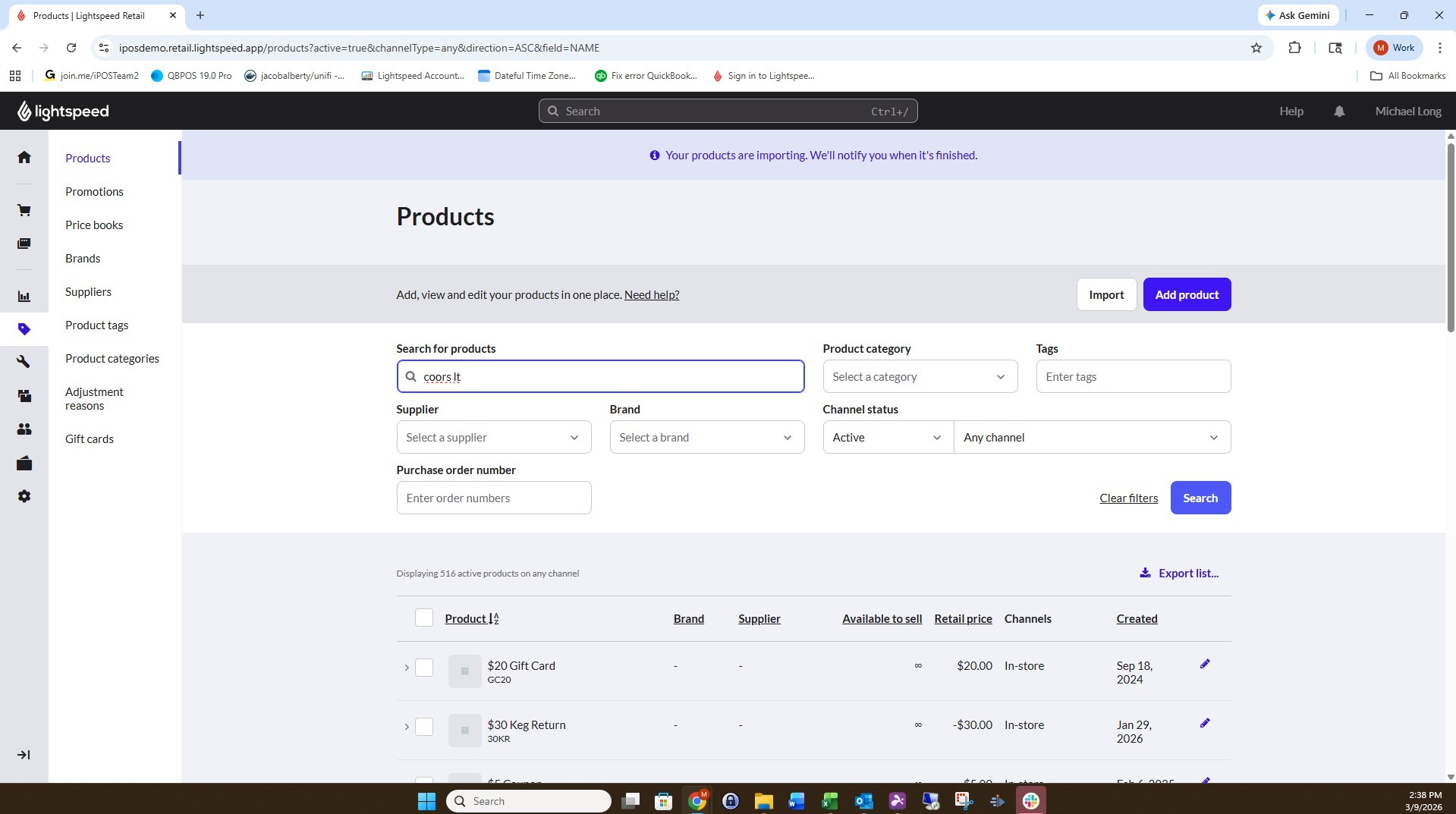
21. Type "coors lt".
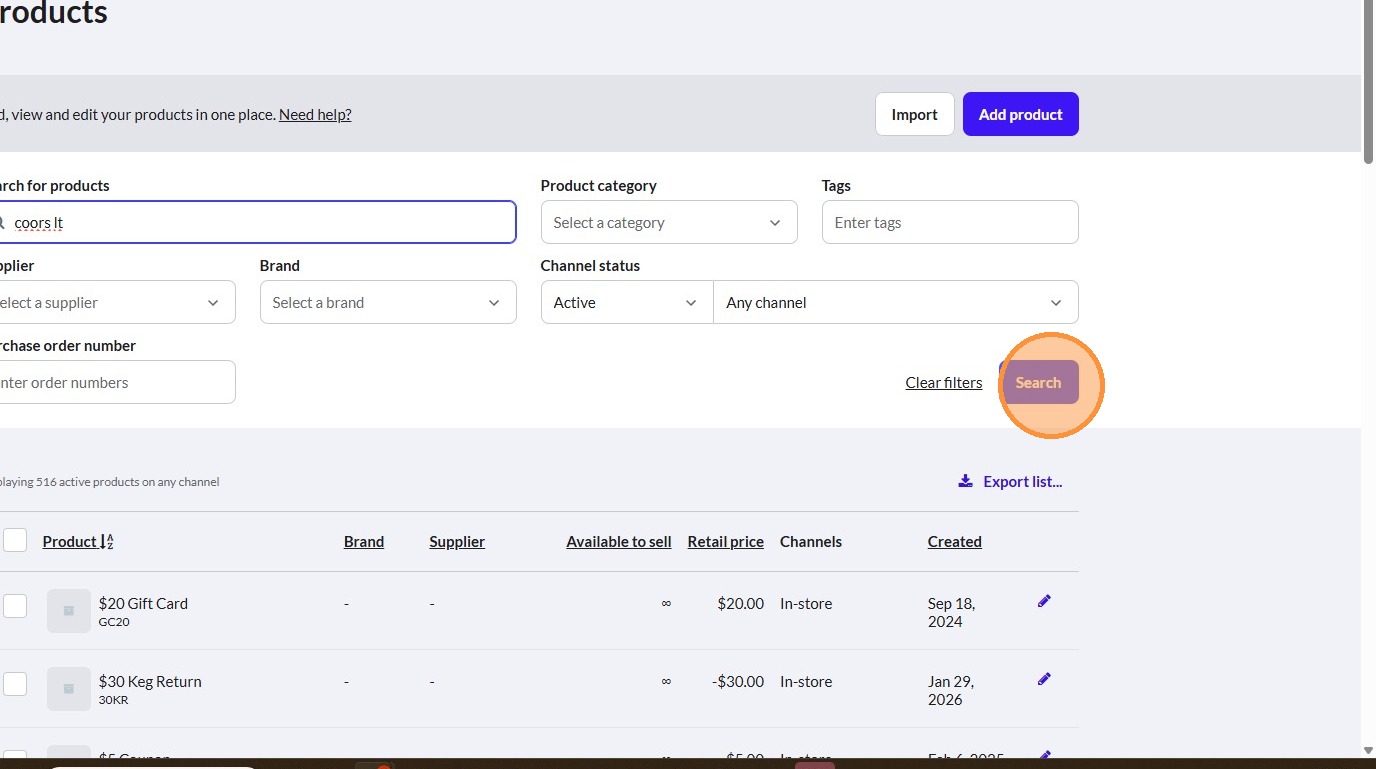
22. Click "Search".
23. Click "Export list".
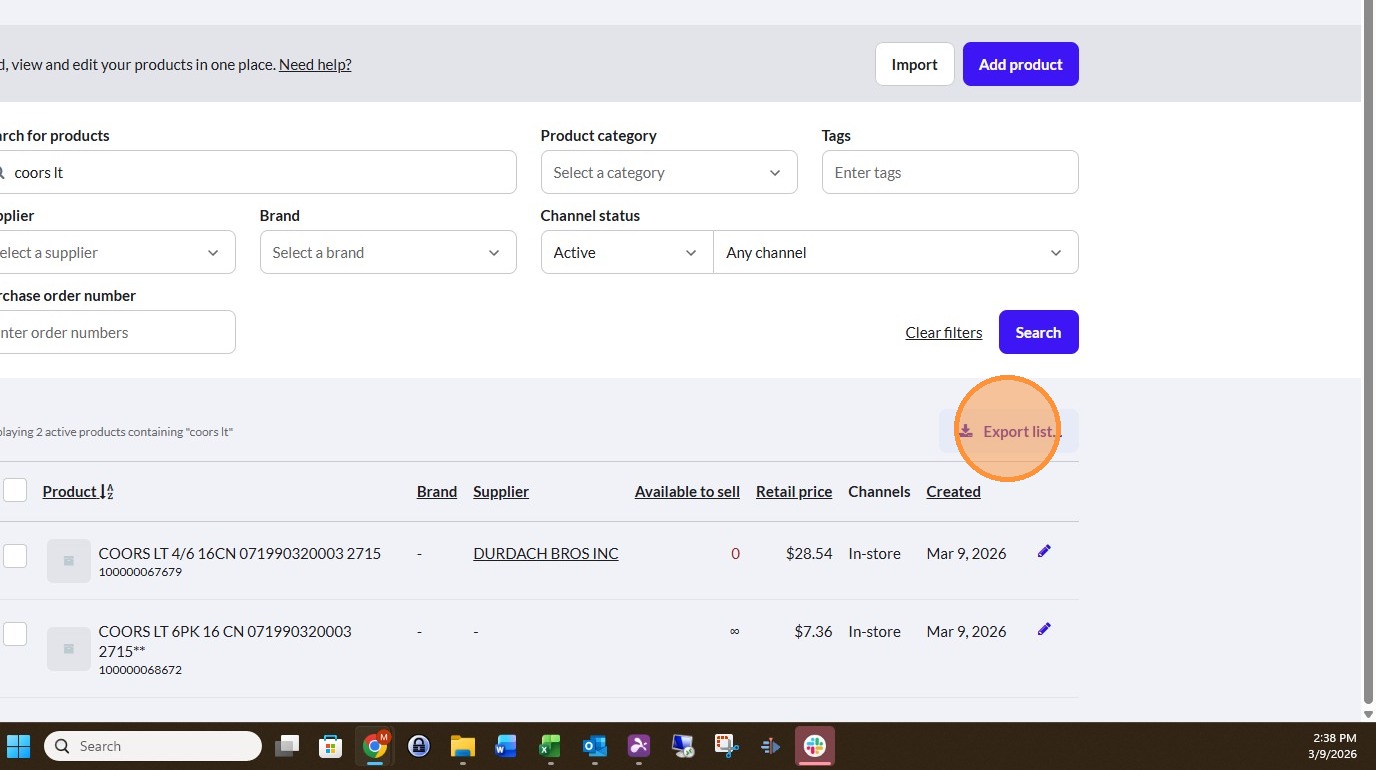
24. Click "XLSX format".
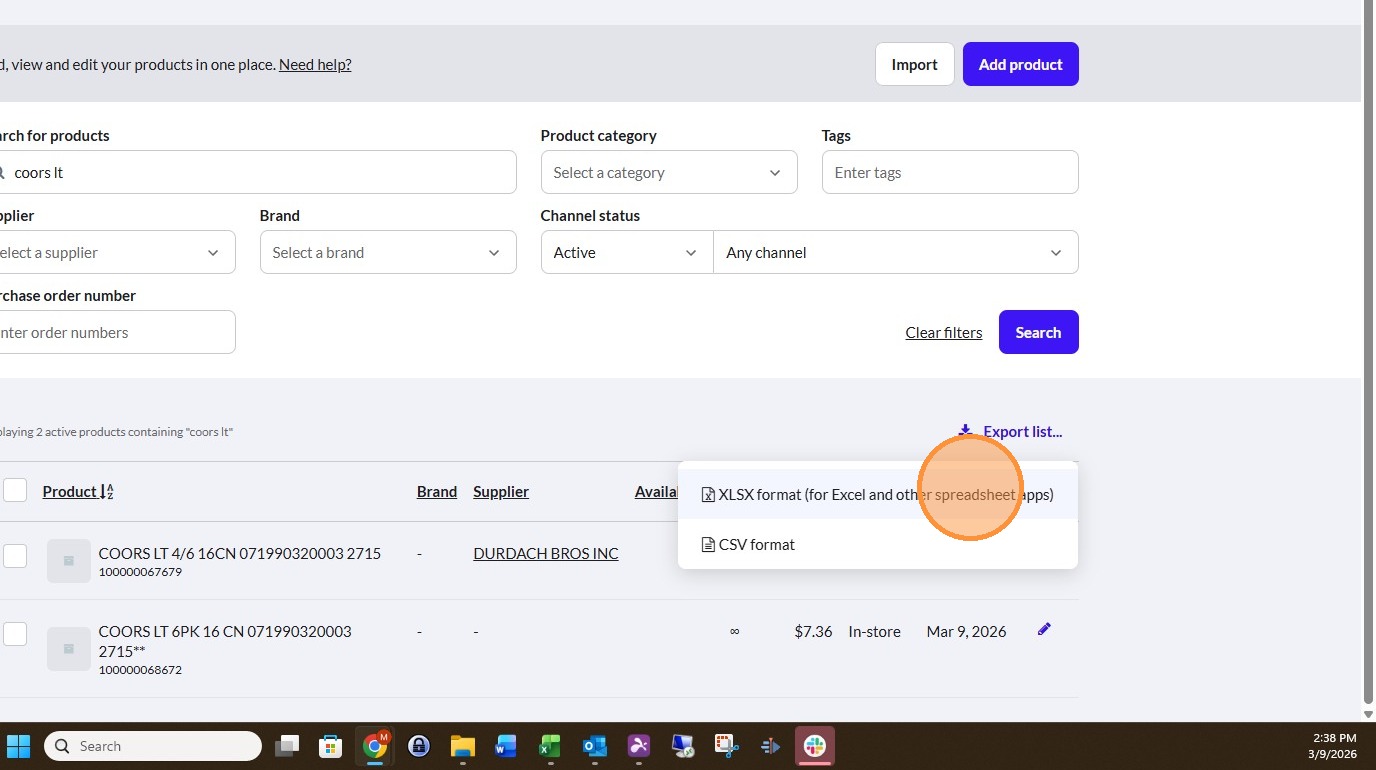
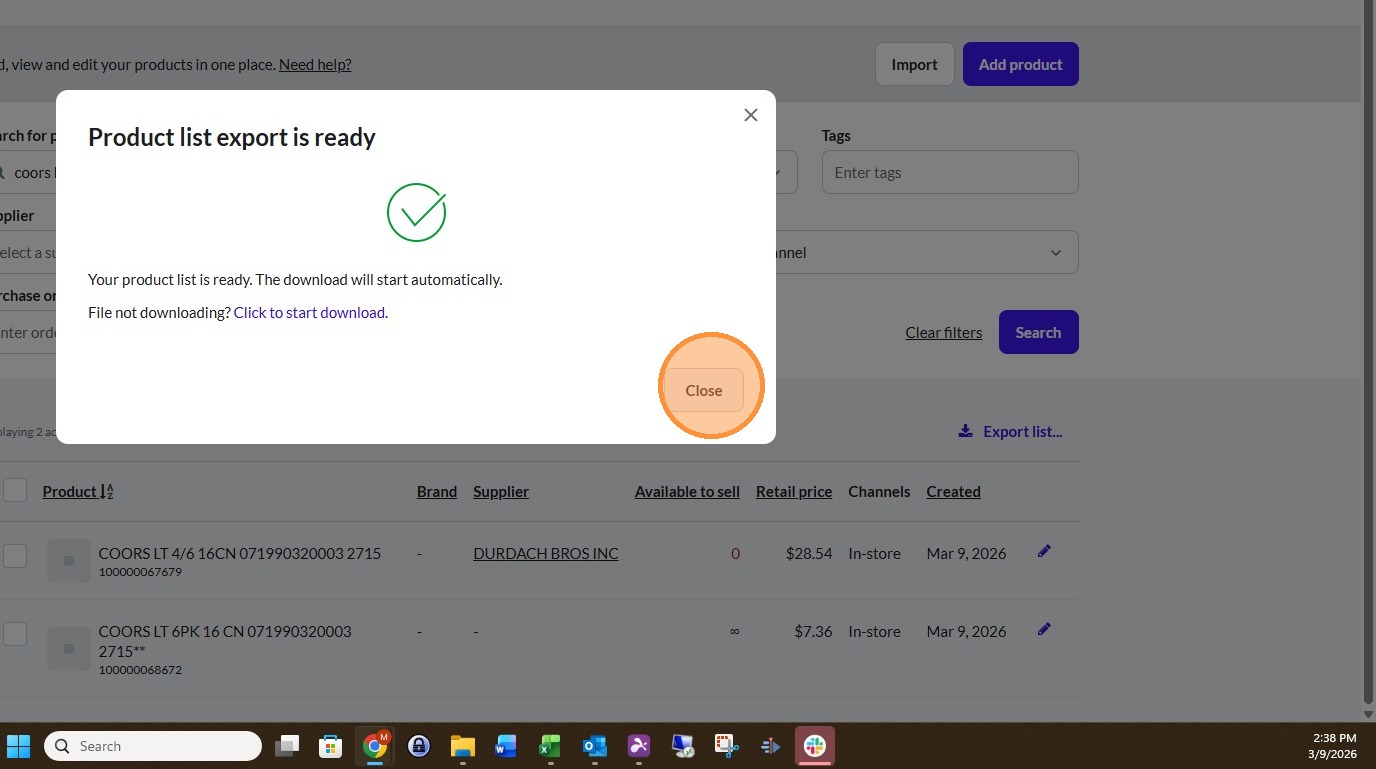
25. Once the export has been prepared for download, click "Close".
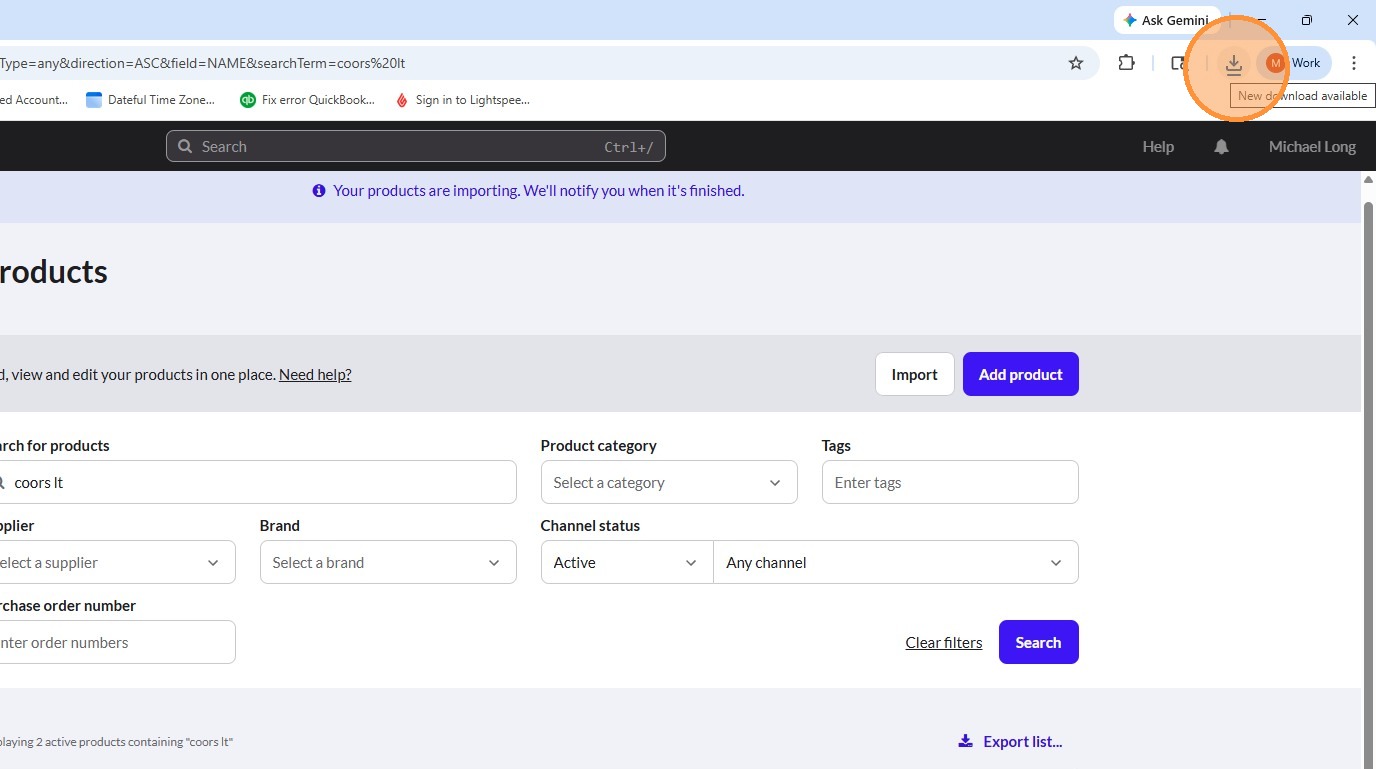
26. Click the download icon in the upper right hand corner of Google Chrome.
27. Click the name of the file that was just downloaded
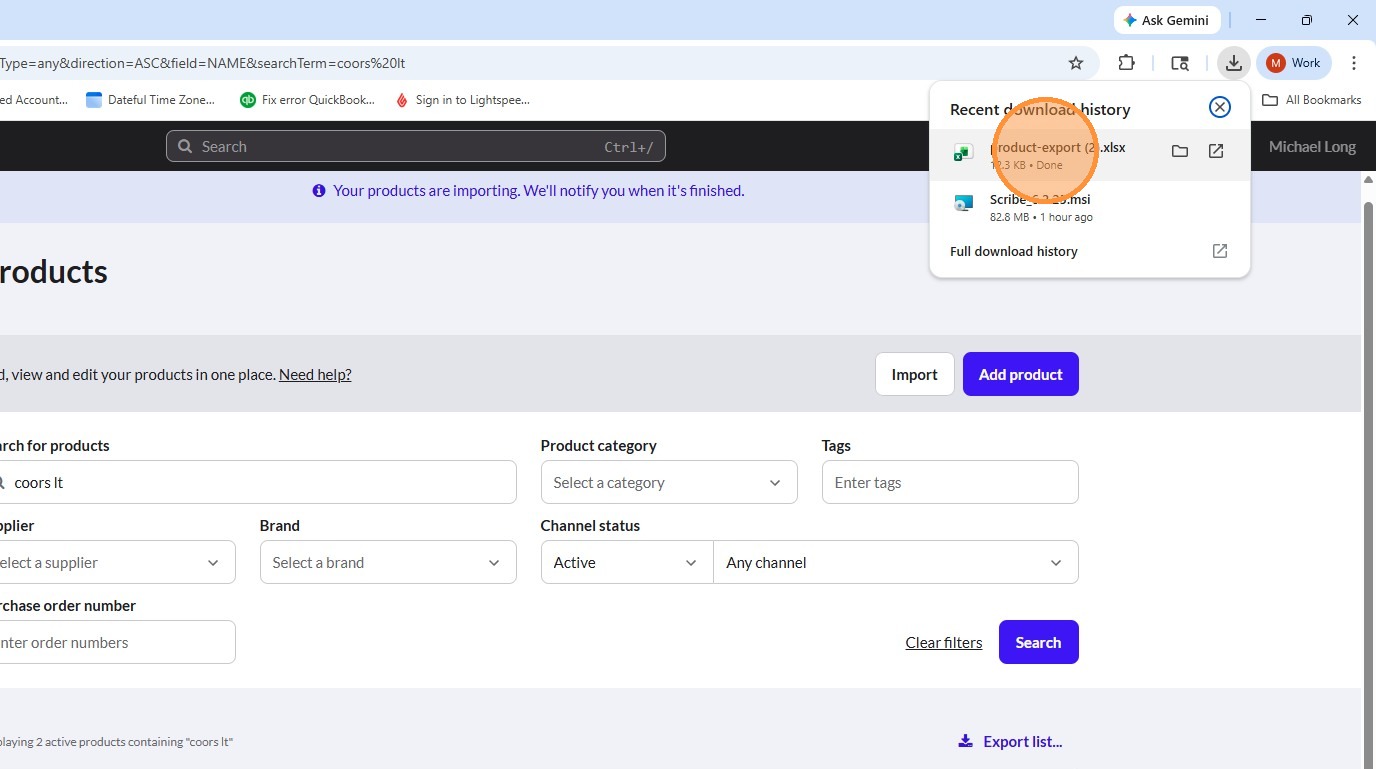
28. Click "Enable Editing".
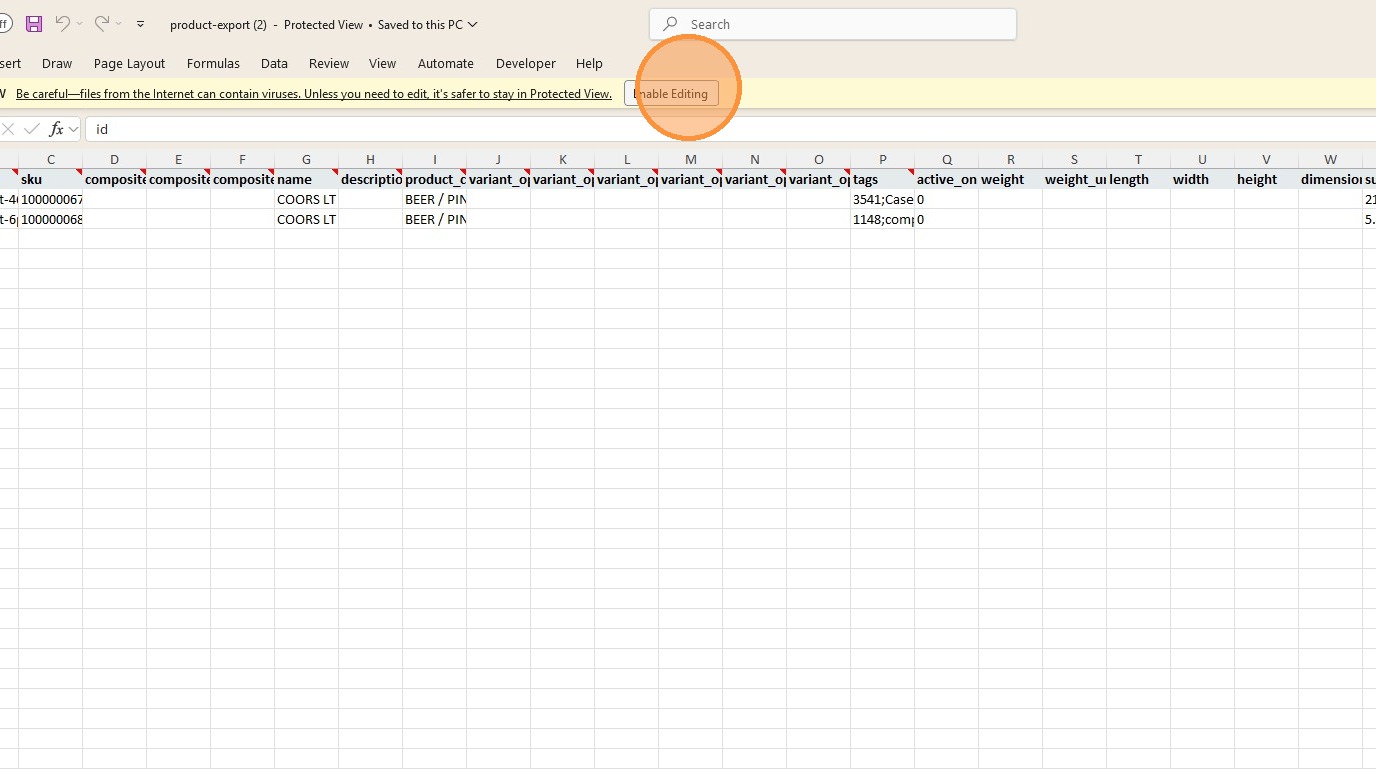
29. Select columns "A" and "B" which are "id" and "handle".
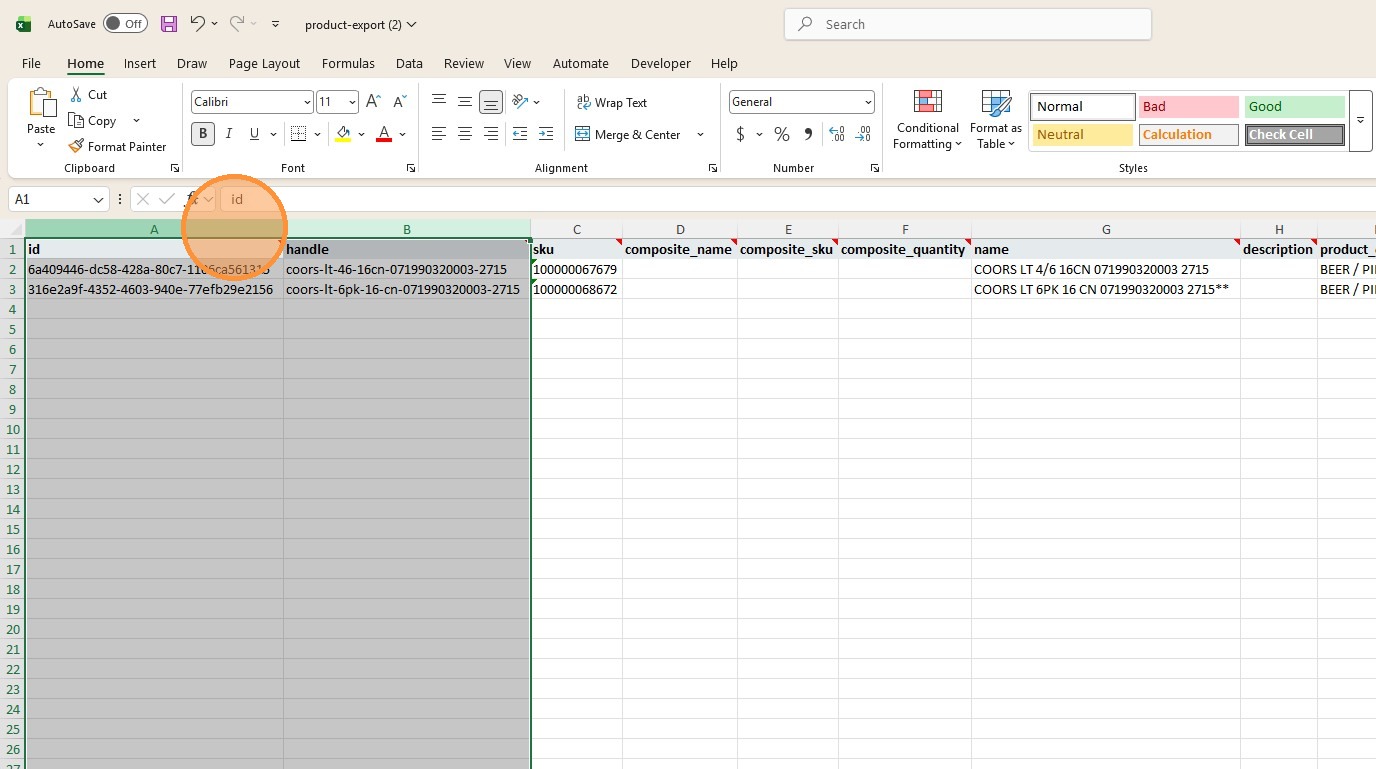
30. Right click and then click "Delete".
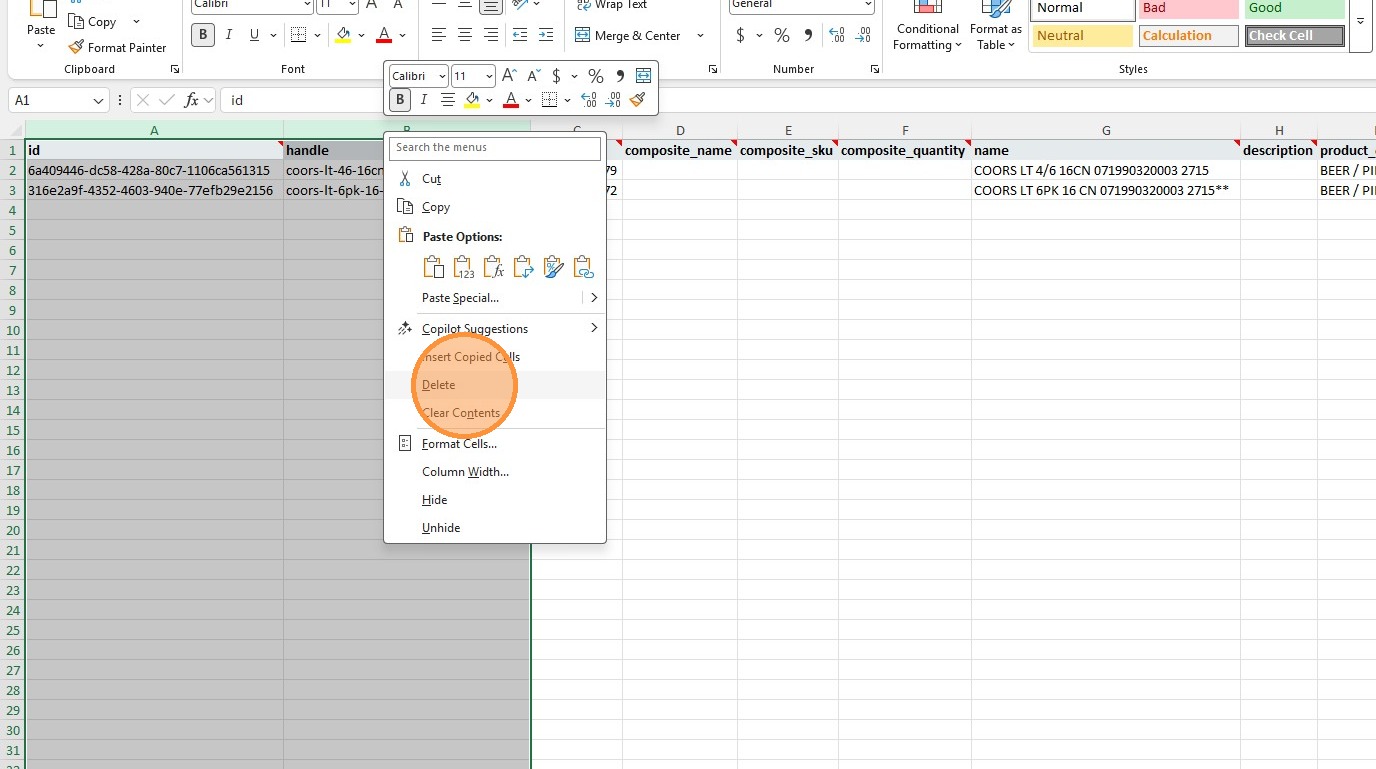
31. Remove all other columns that are not needed to be reimported to LSX.
32. We are going to copy the data in cell "A2" (which is the "SKU") by clicking that cell to select it. This is the standard product in row "2".
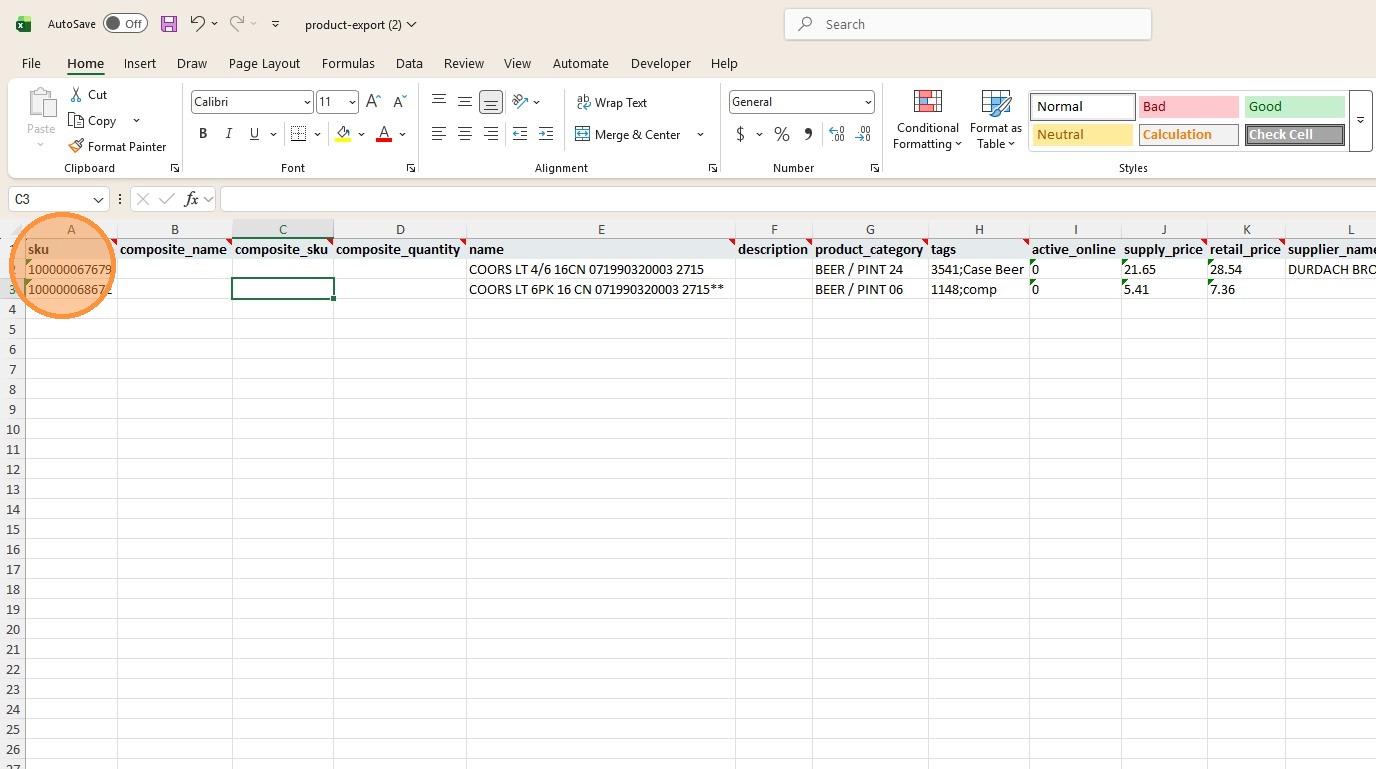
33. Press "Ctrl" + "C" to copy the data.
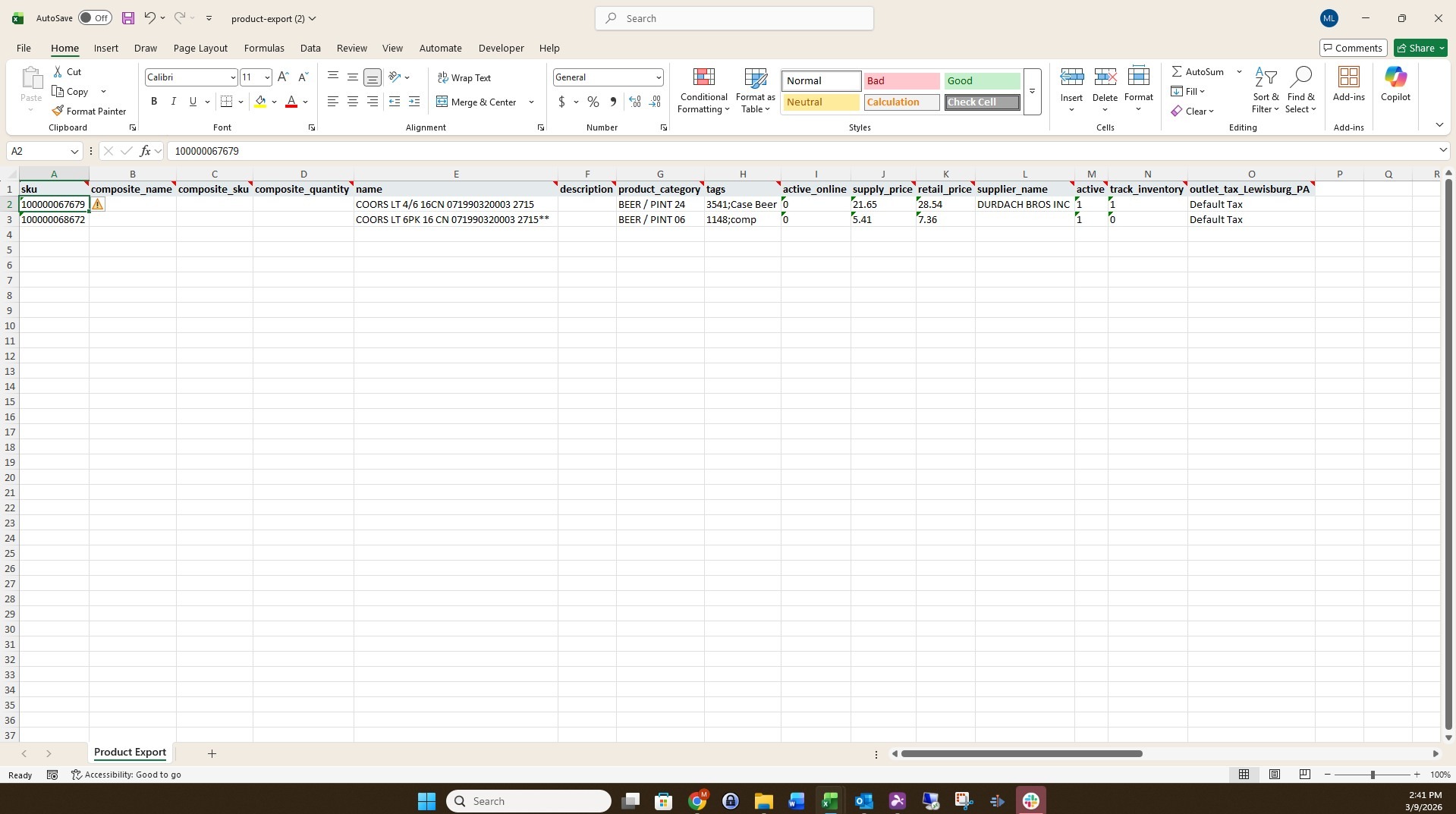
34. We are going to paste that data into cell "C3" (which is the column named "composite_sku"). This is the composite product in row "3".
35. Click cell "C3".
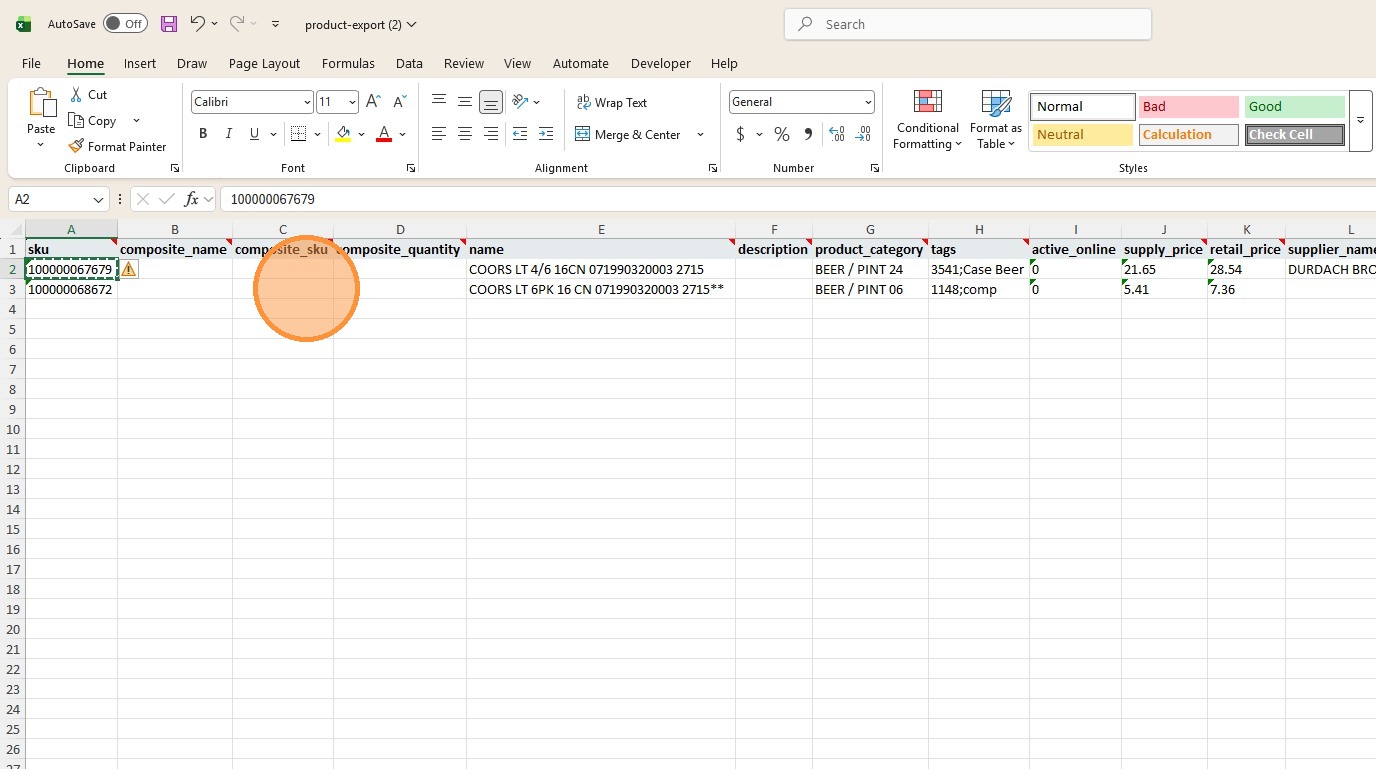
36. Press "Ctrl" + "V" to paste the data into the cell.
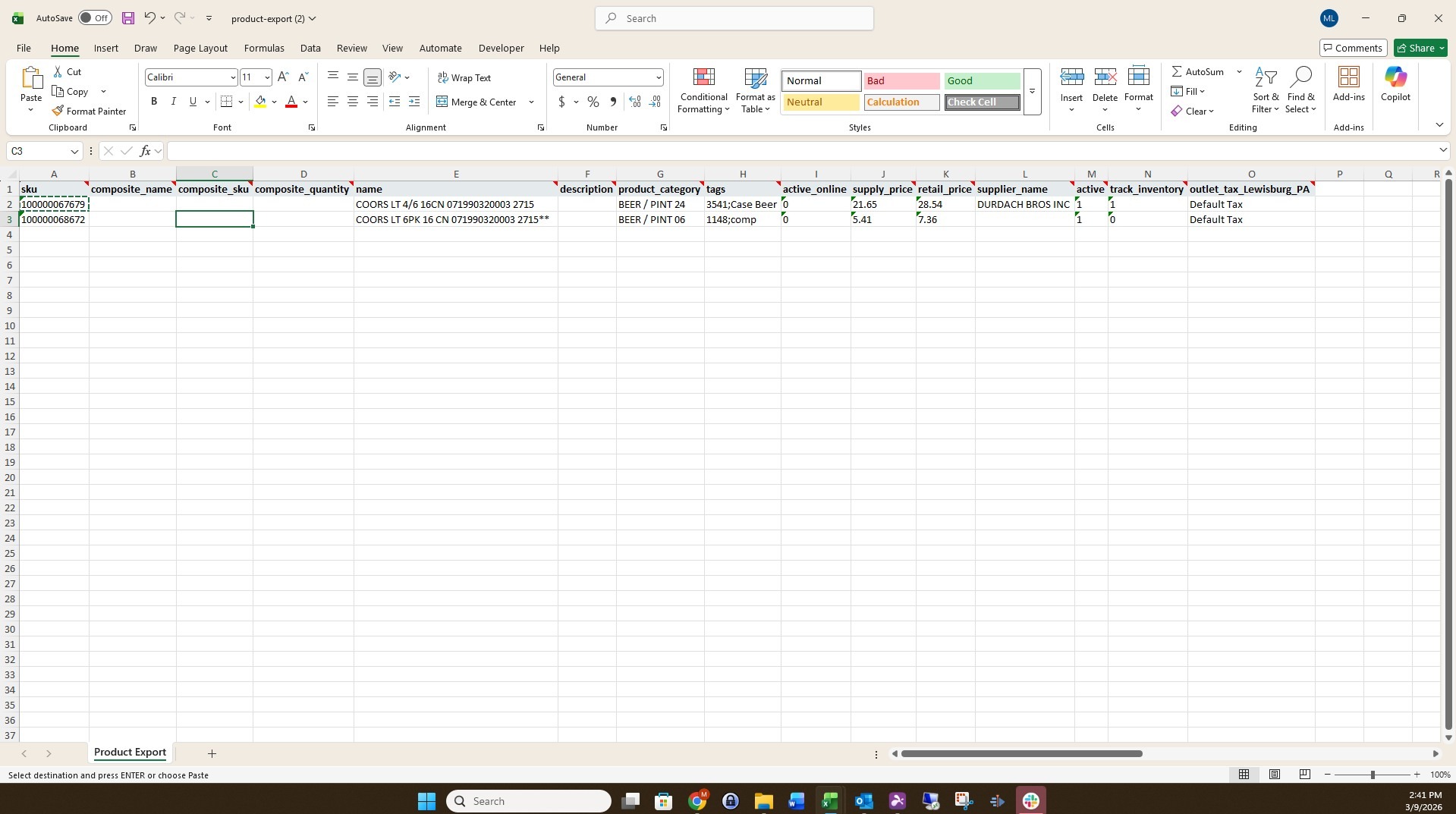
37. Click cell "E2" (which is the column named "name").
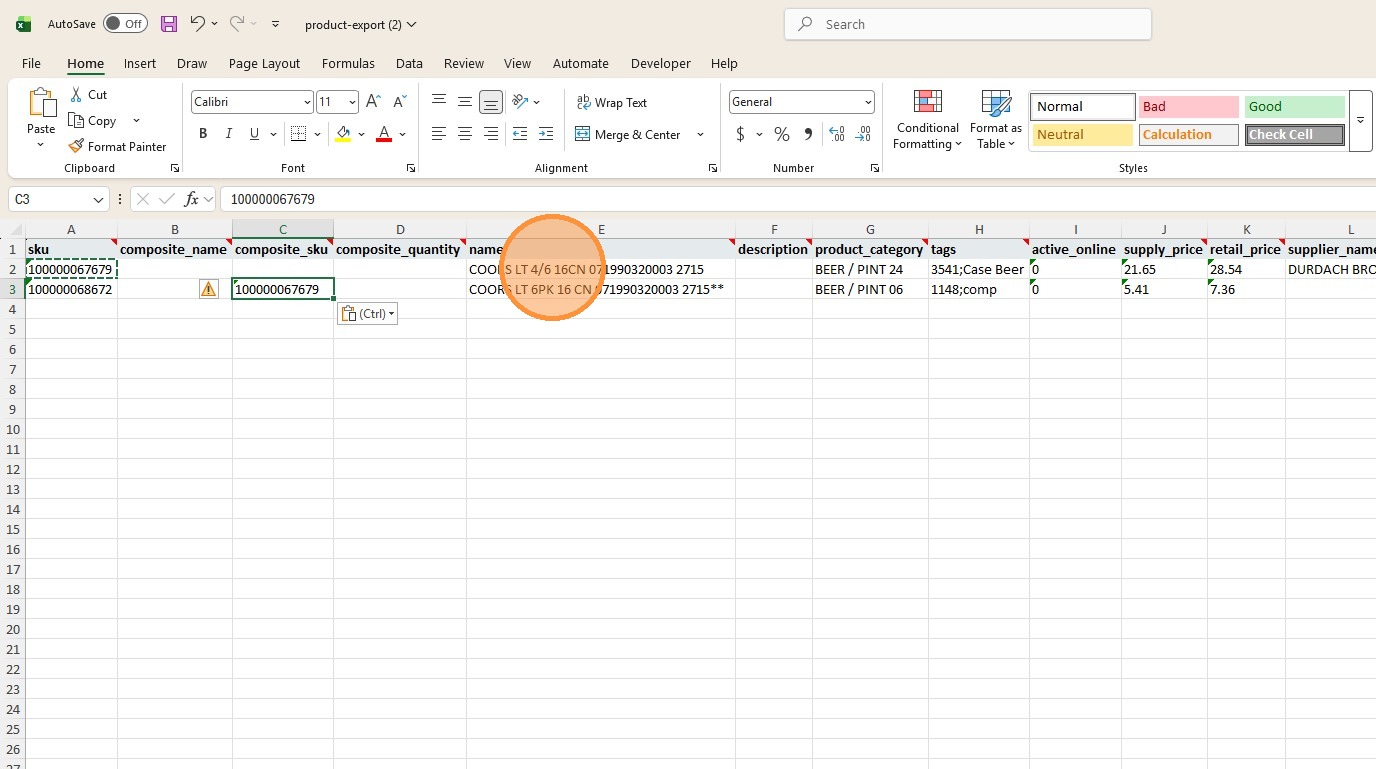
38. Press "Ctrl" + "C" to copy the name of the standard product.
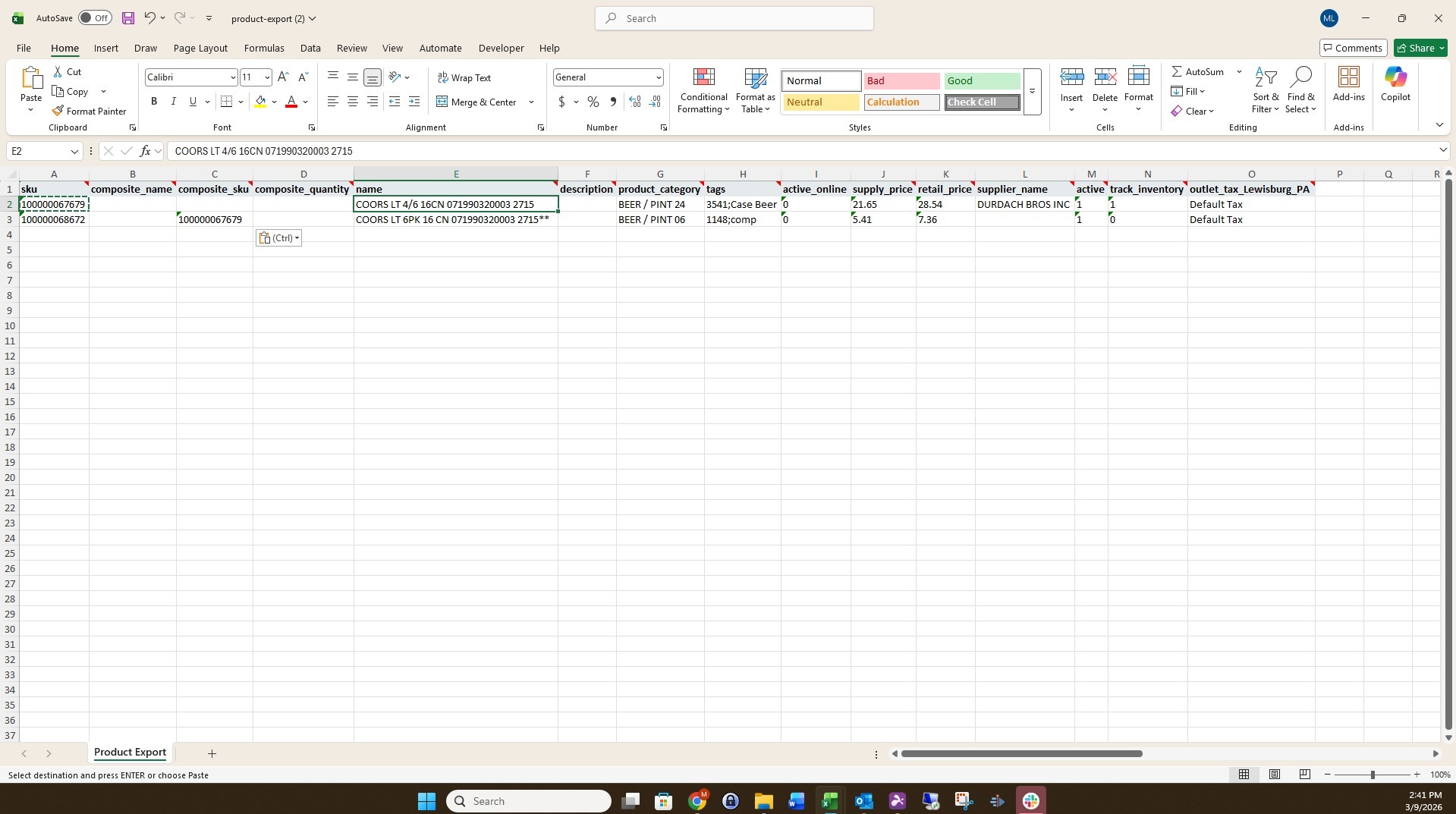
39. Click cell "B3".
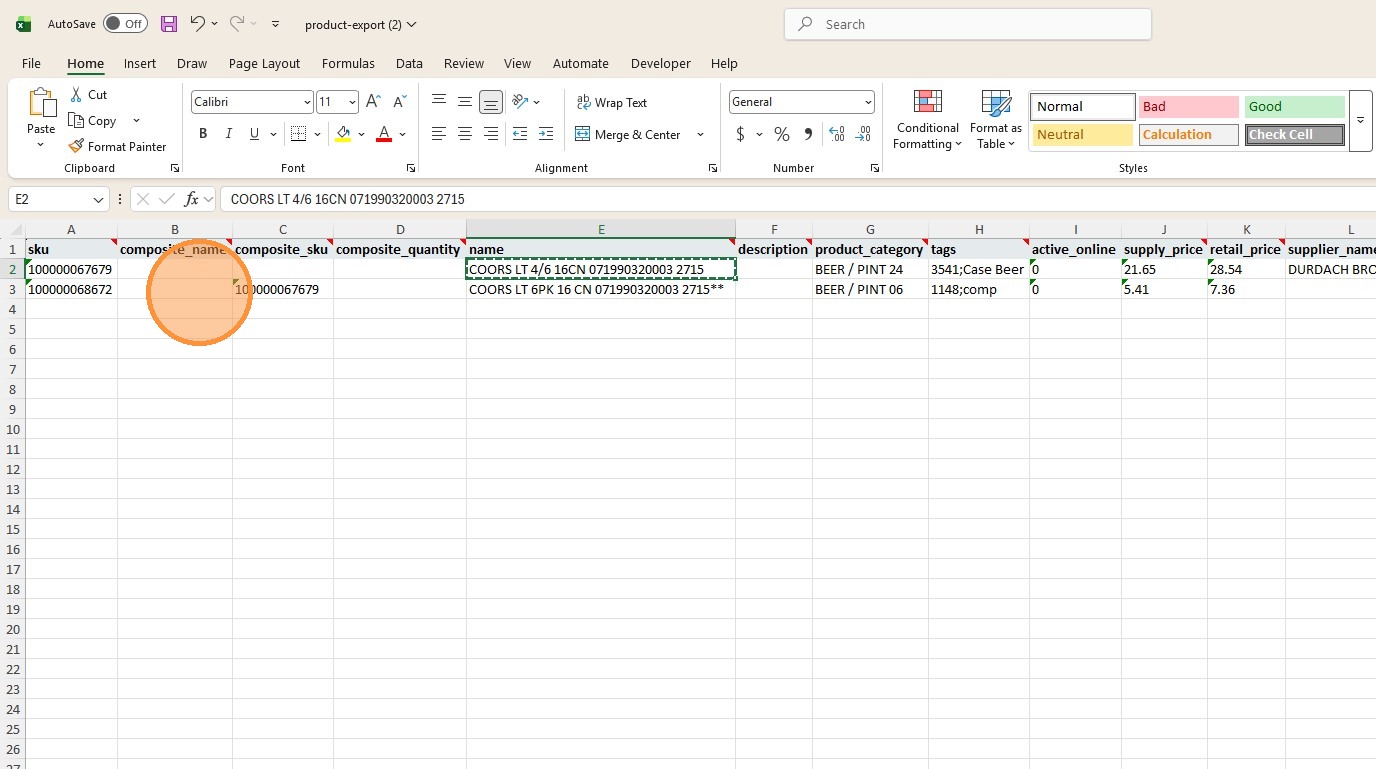
40. Press "Ctrl" + "V" to paste the name of the standard product into the cell.
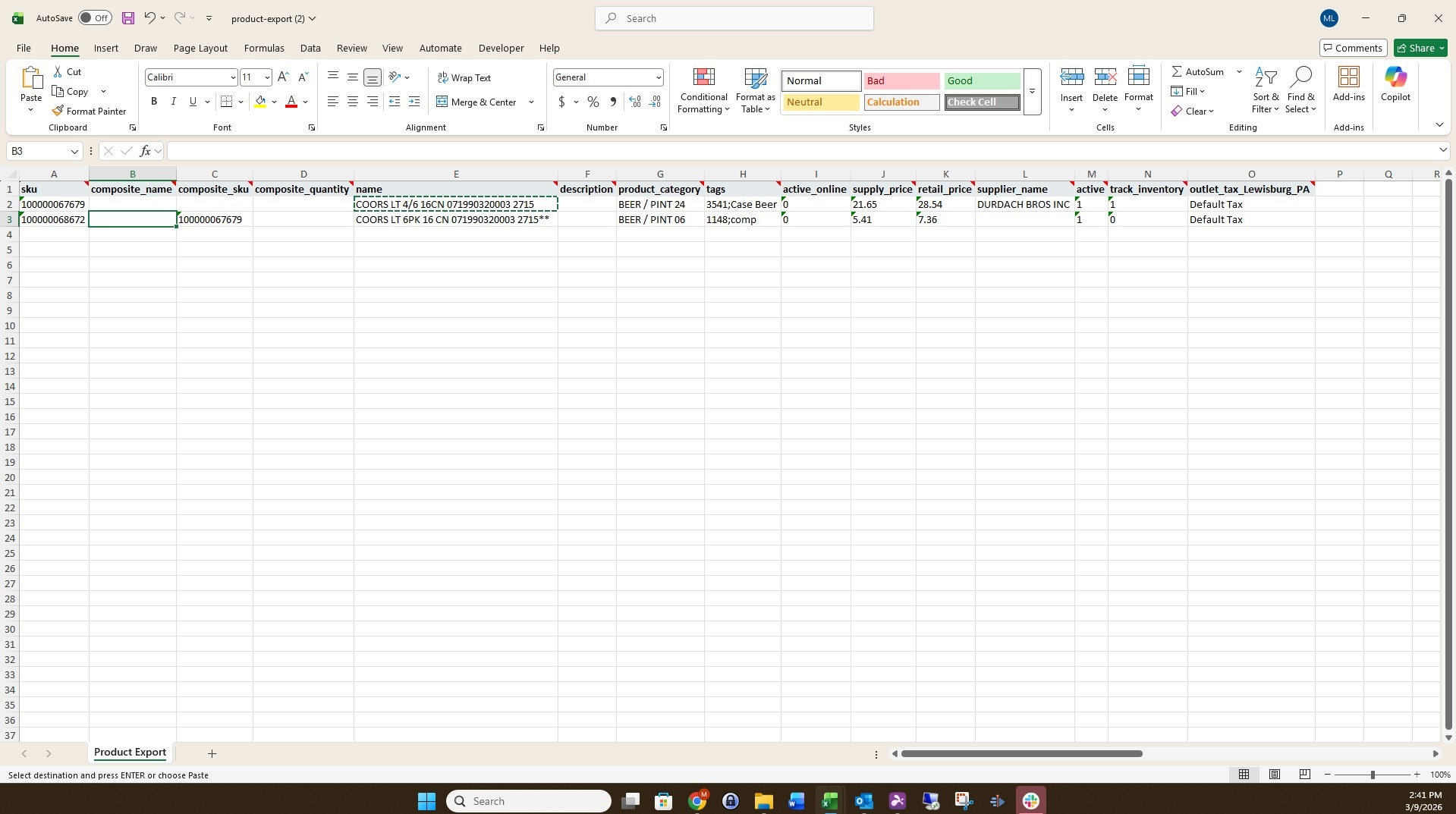
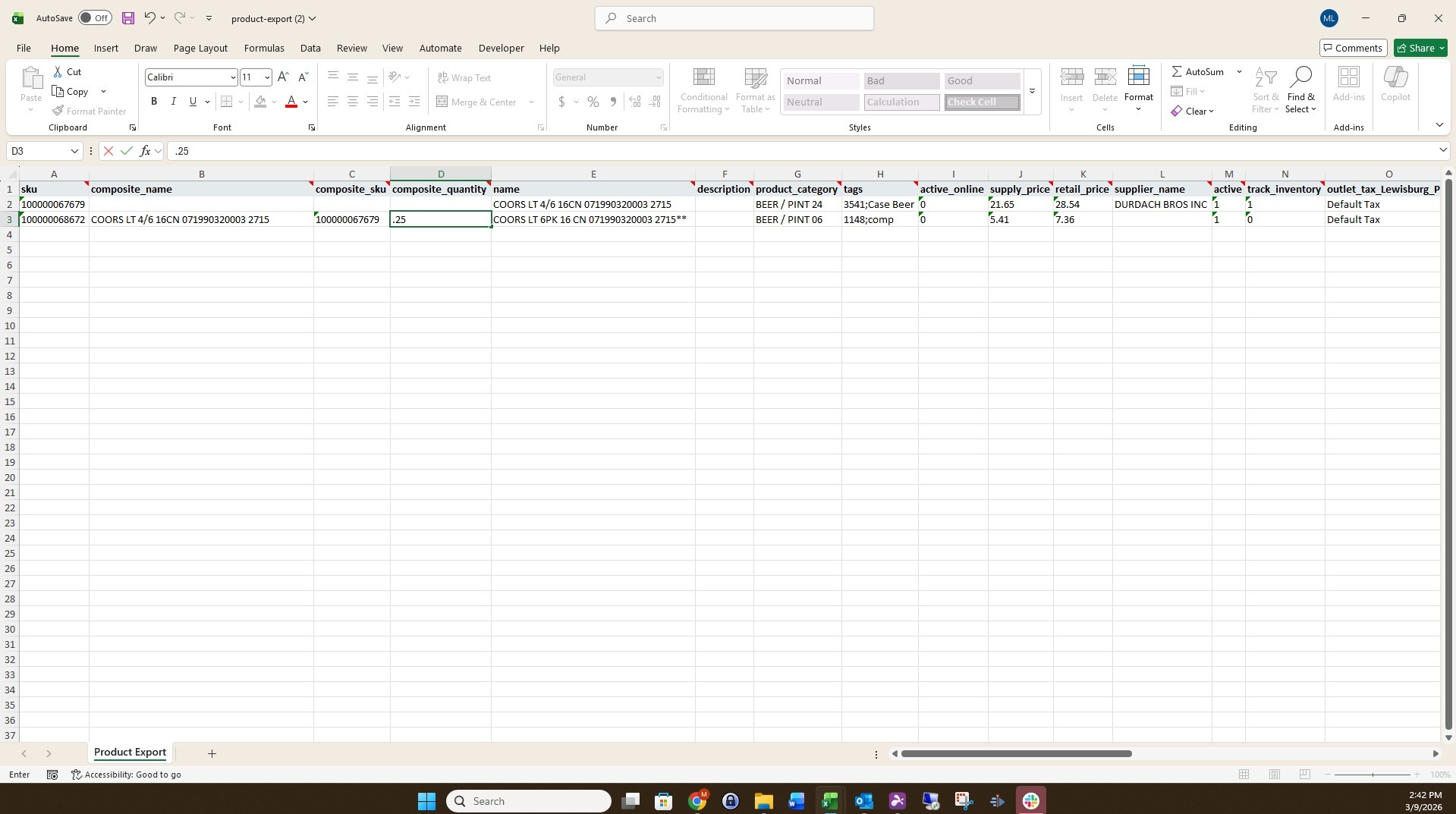
41. Click cell "D3" (which is the column named "composite_quantity").
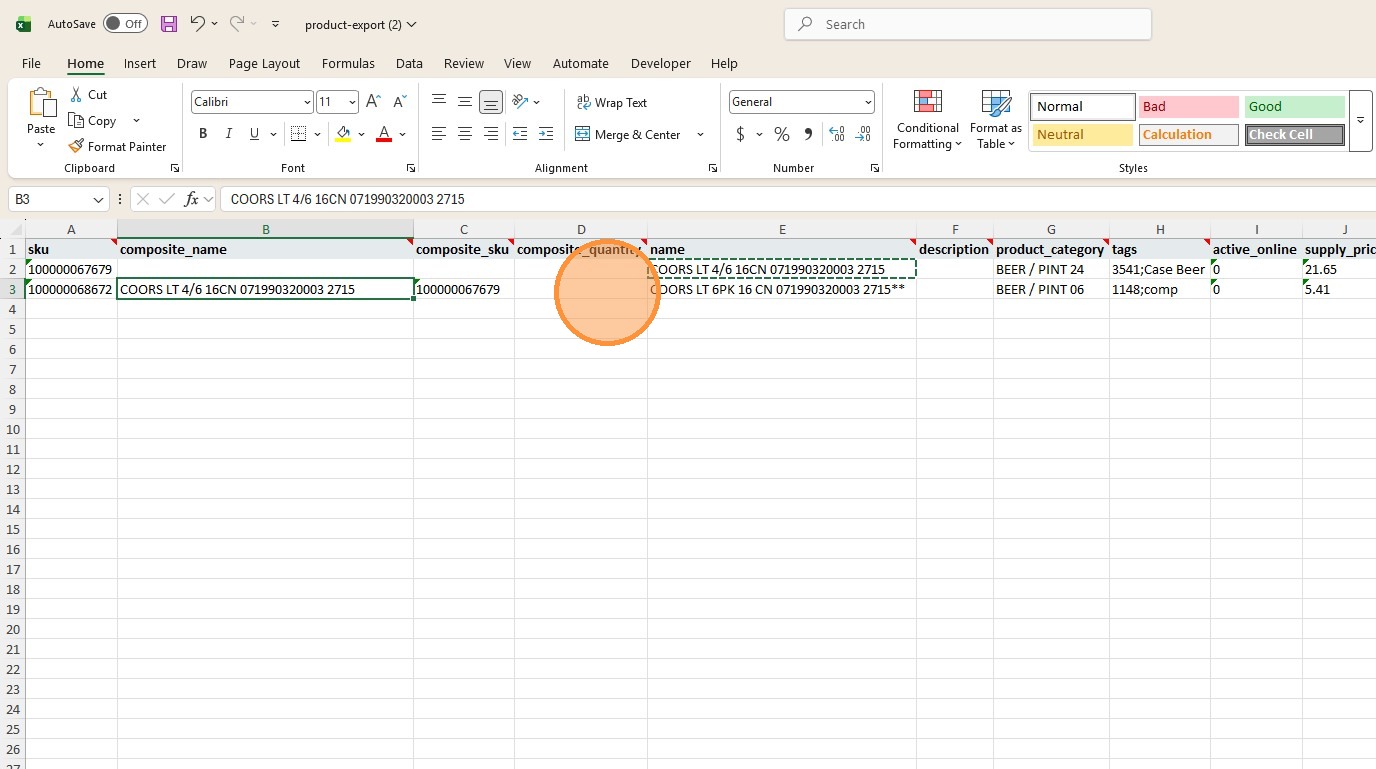
42. Enter the amount of the standard product that is used for the composite product. In this example we will enter ".25" since the composite product is 1 pack out of a case of 4 packs.
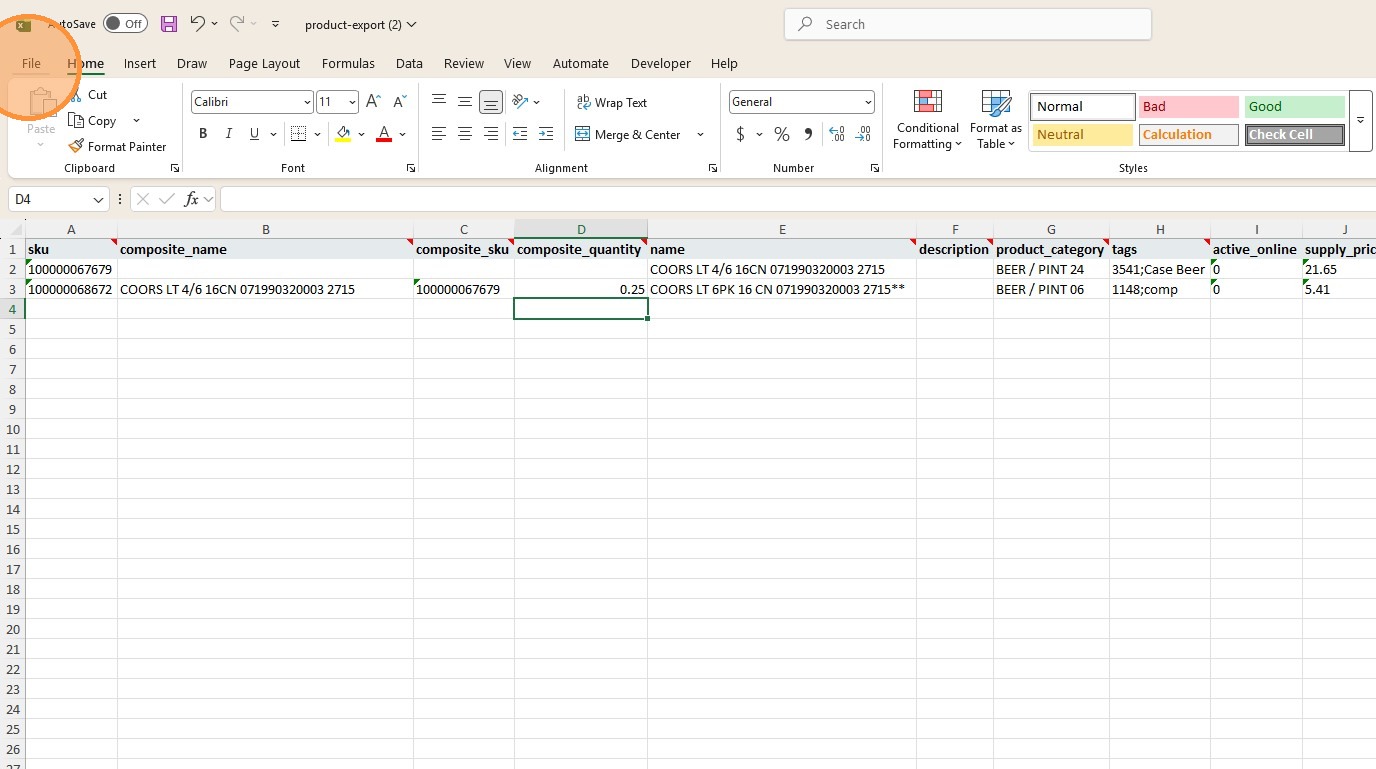
43. Click "File Tab".
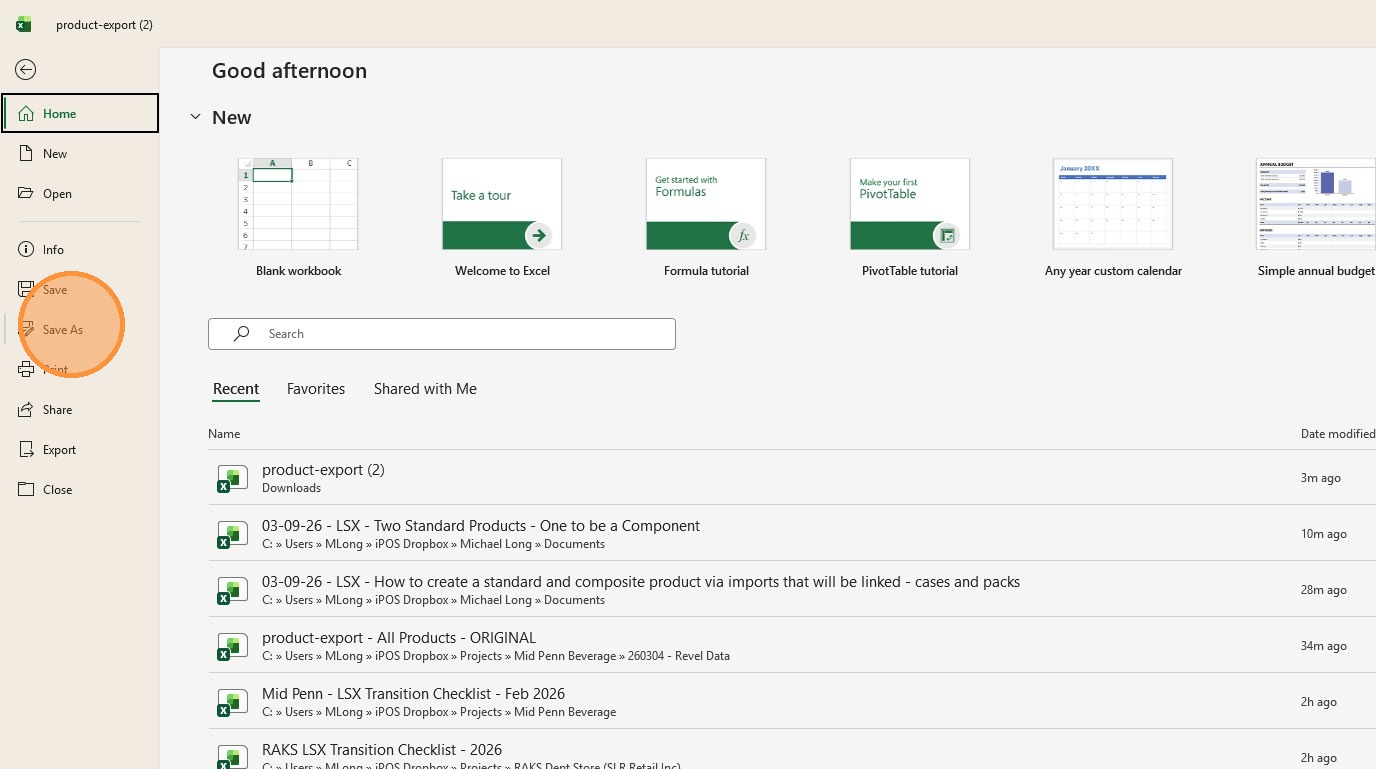
44. Click "Save As".
45. Click "Browse".
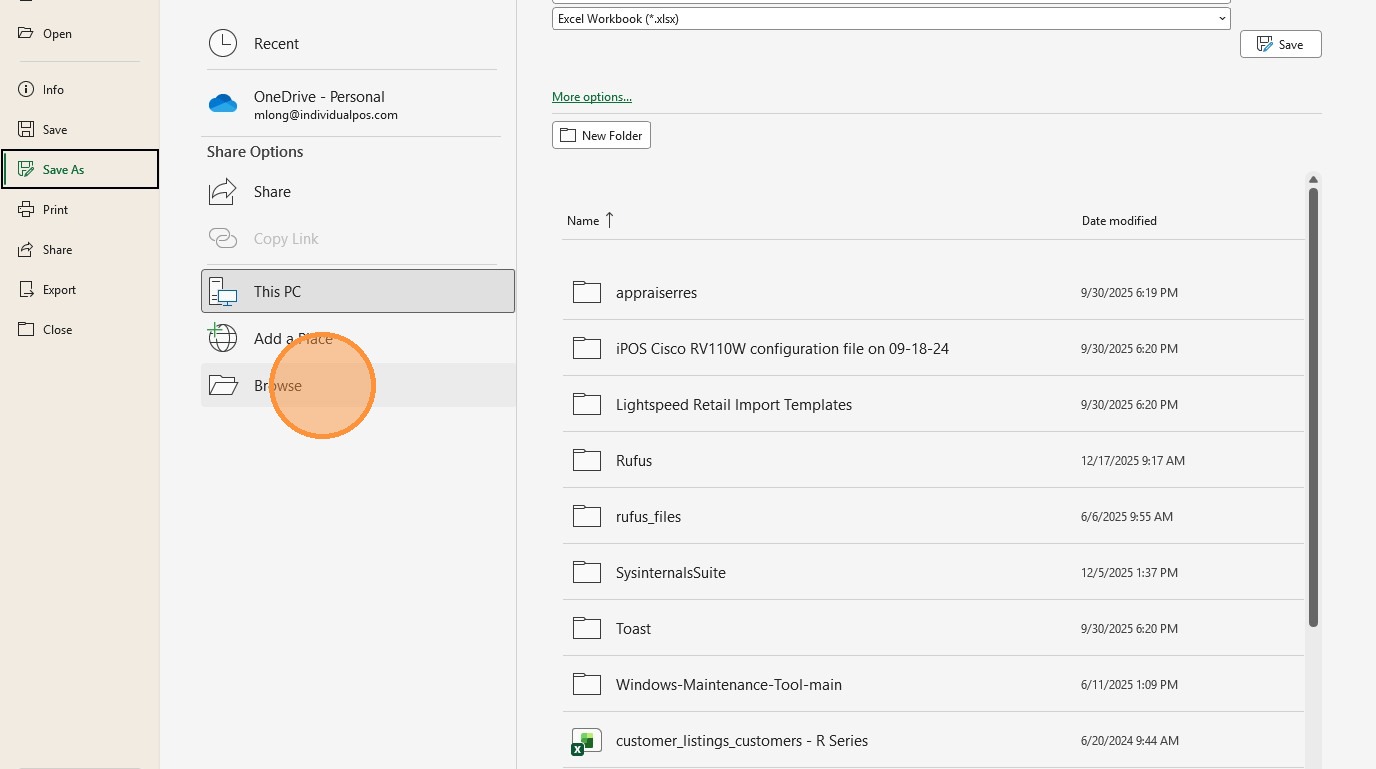
46. Click the name of the folder that you will be saving the spreadsheet to. In this example it is named "Michael Long".
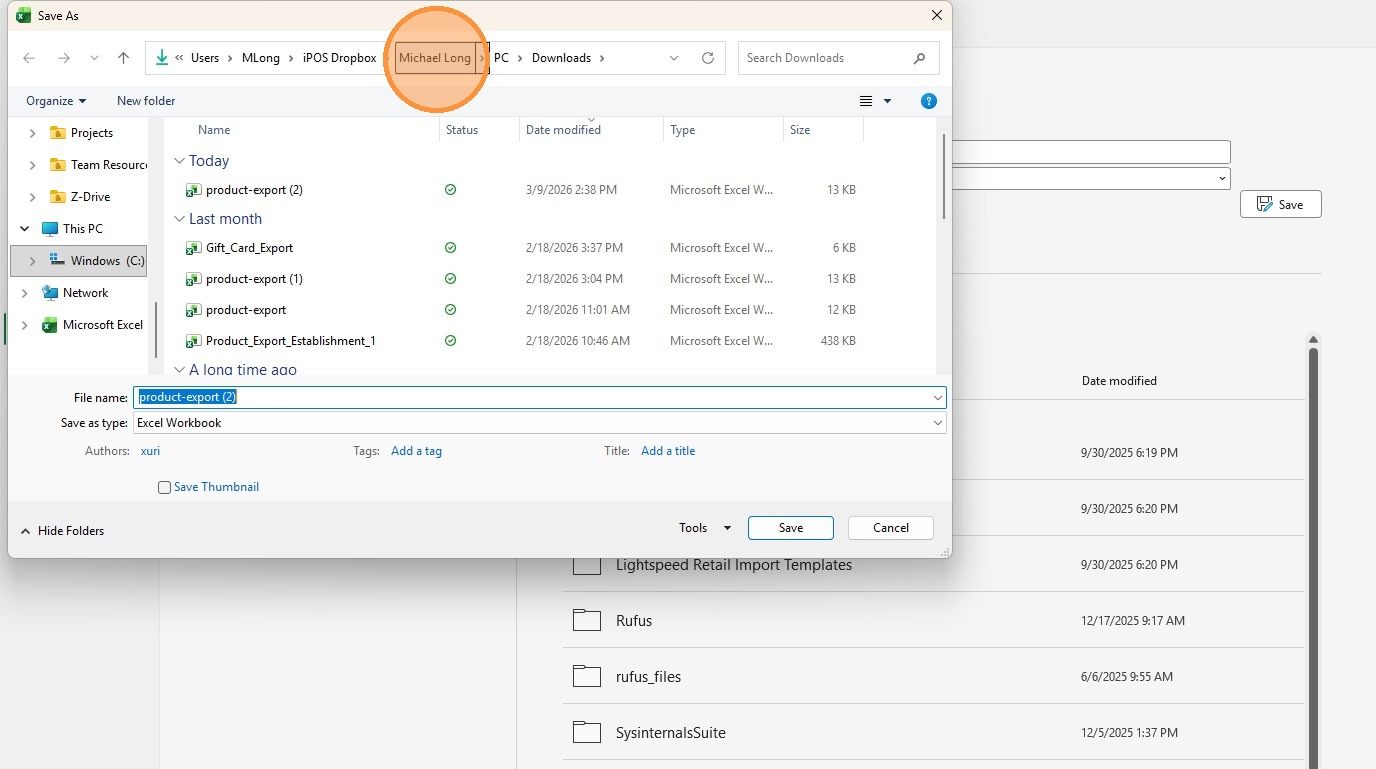
47. Click the text box named "File name:".
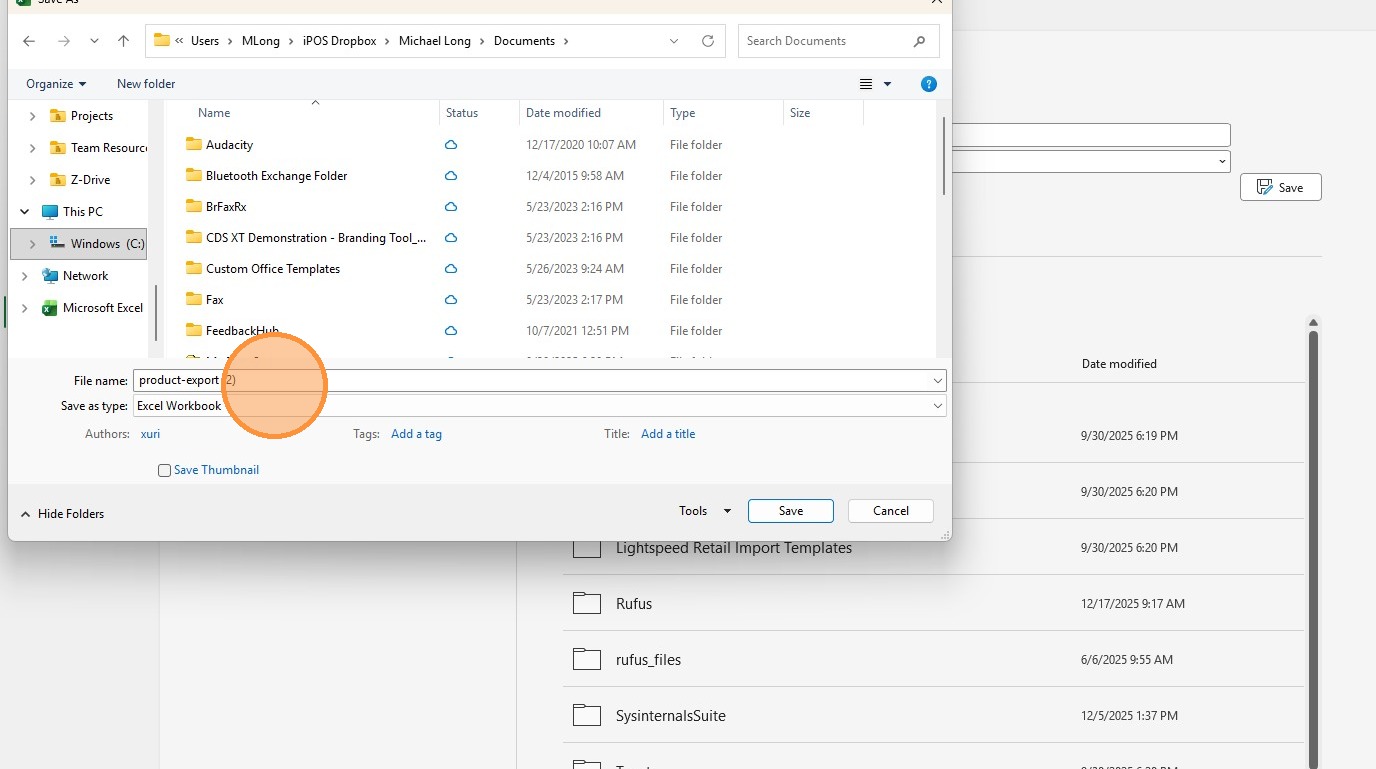
48. Enter the name that you want for this spreadsheet and then click "Save". In this example, we are naming the file "03-09-26 - LSX - Two Imported Standard Products - Change The Pack To A Composite Product".
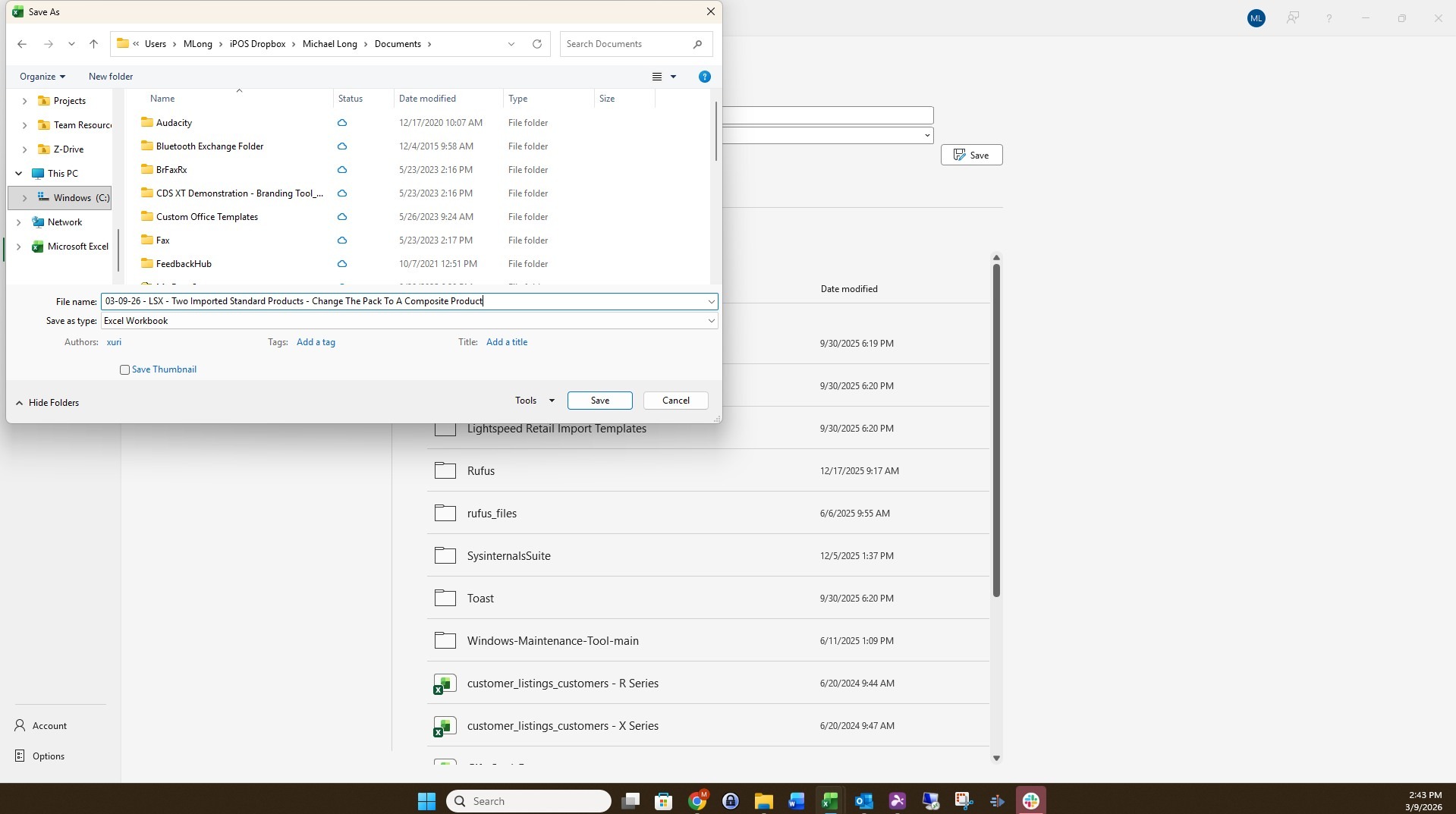
49. Once the spreadsheet has been saved, click "Close".
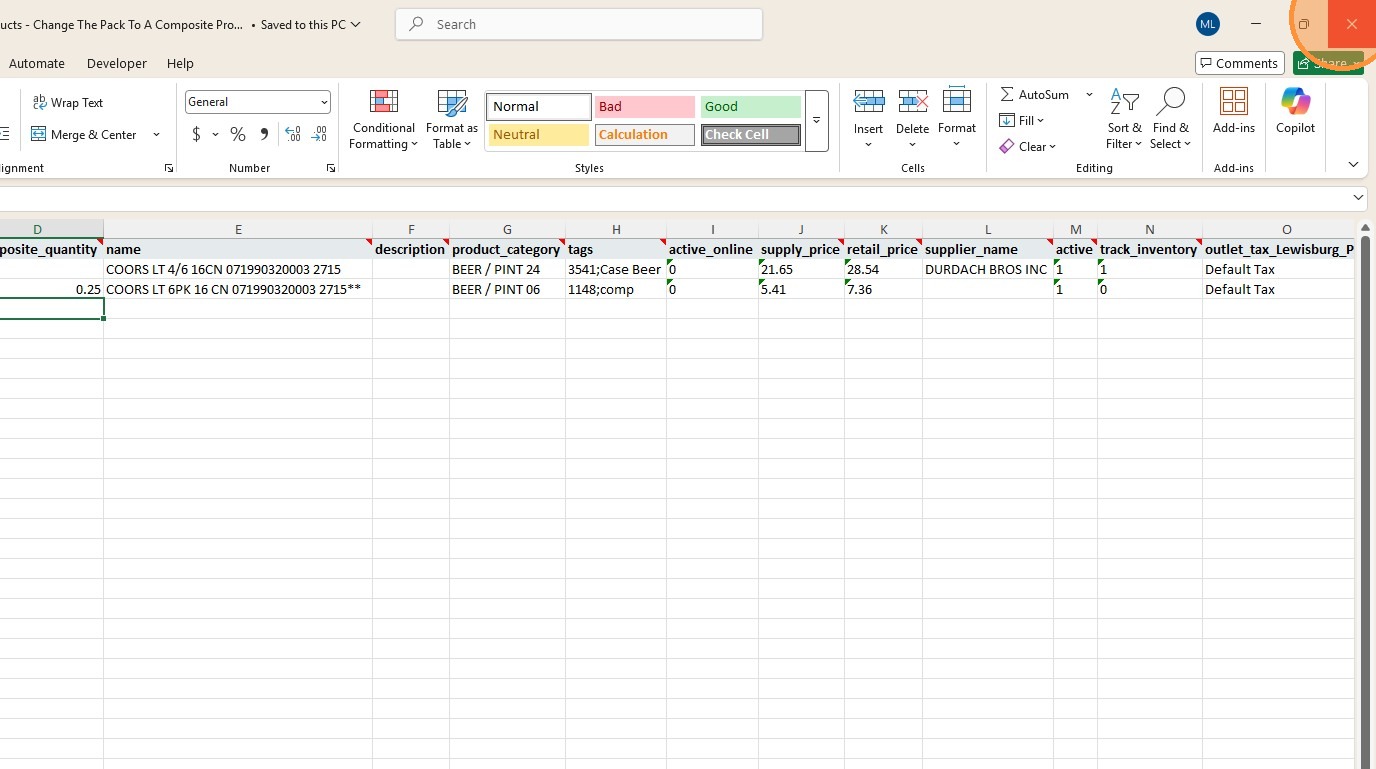
50. Open "Excel" by clicking its icon on the taskbar.
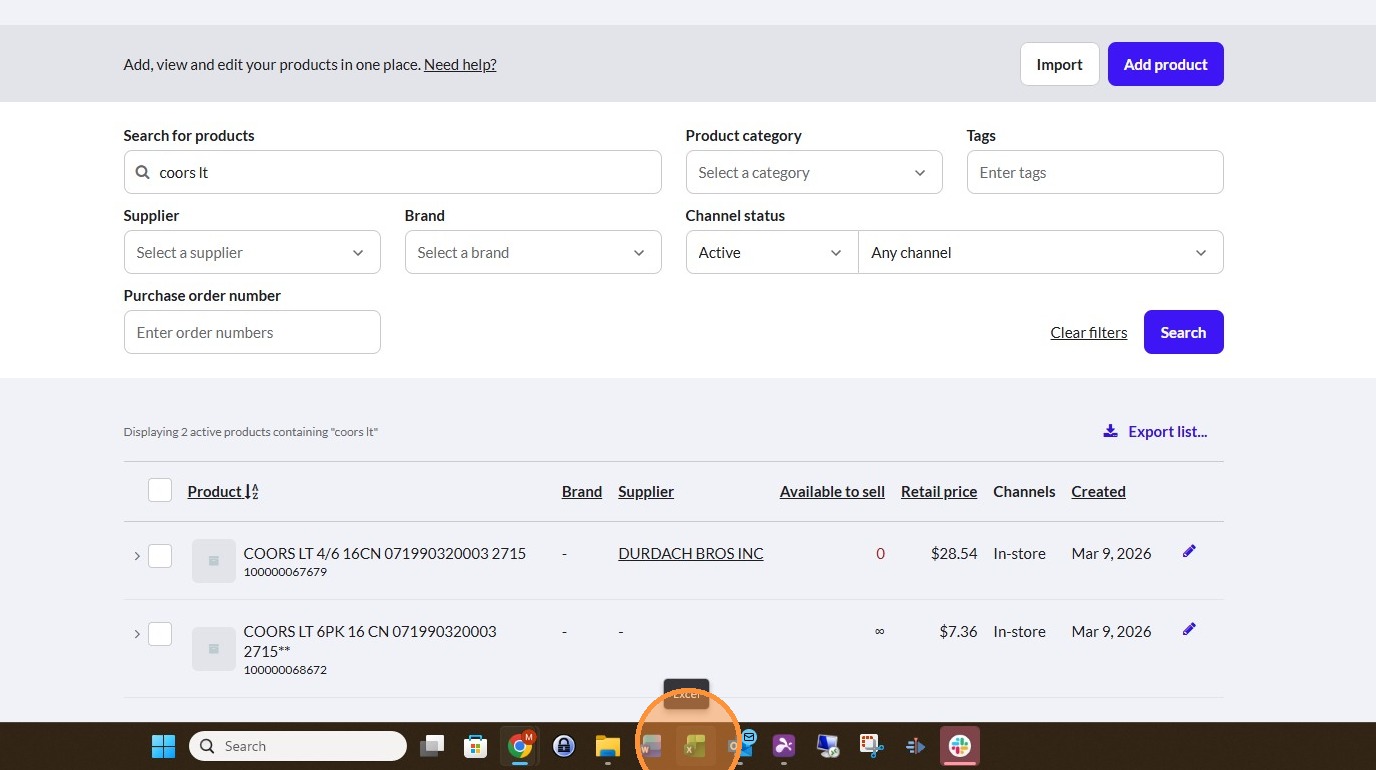
51. Click the name of the spreadsheet that was just saved to open it in Excel.
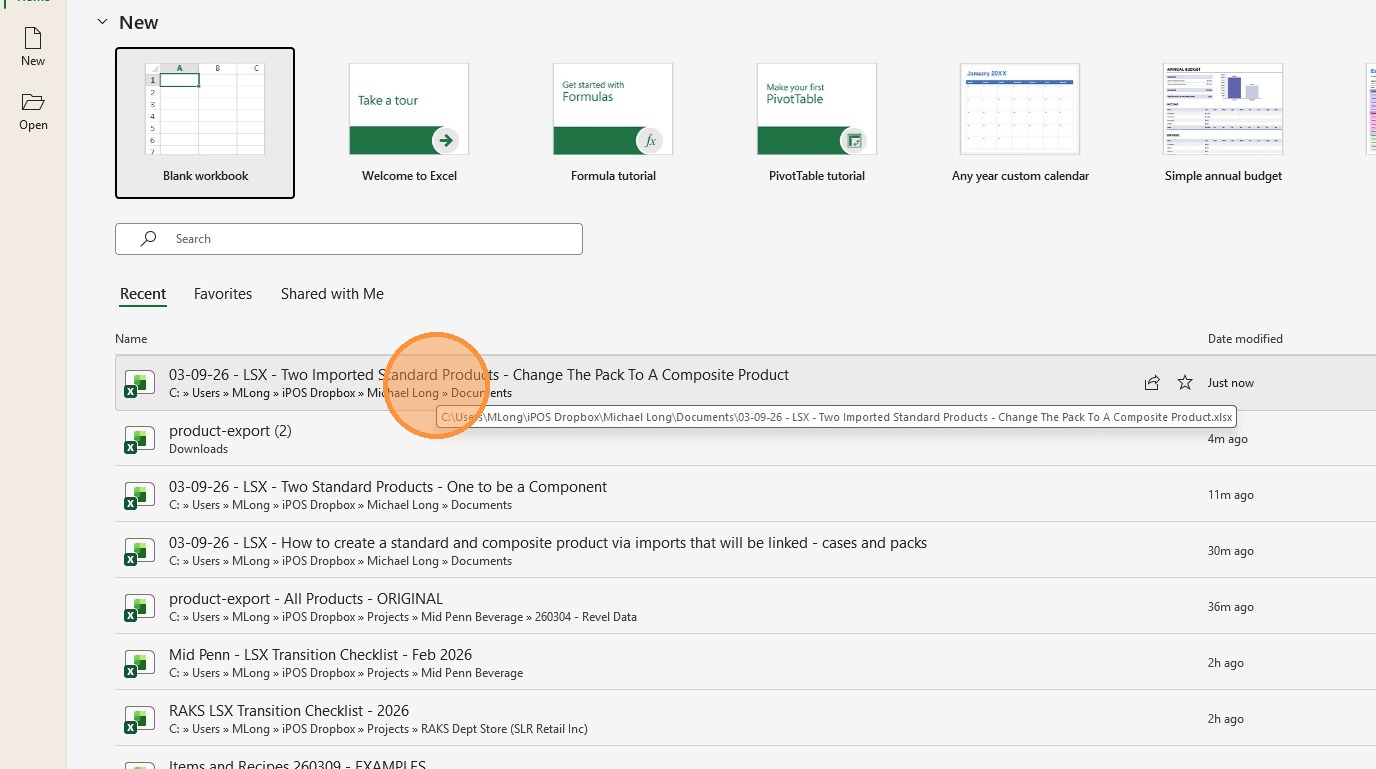
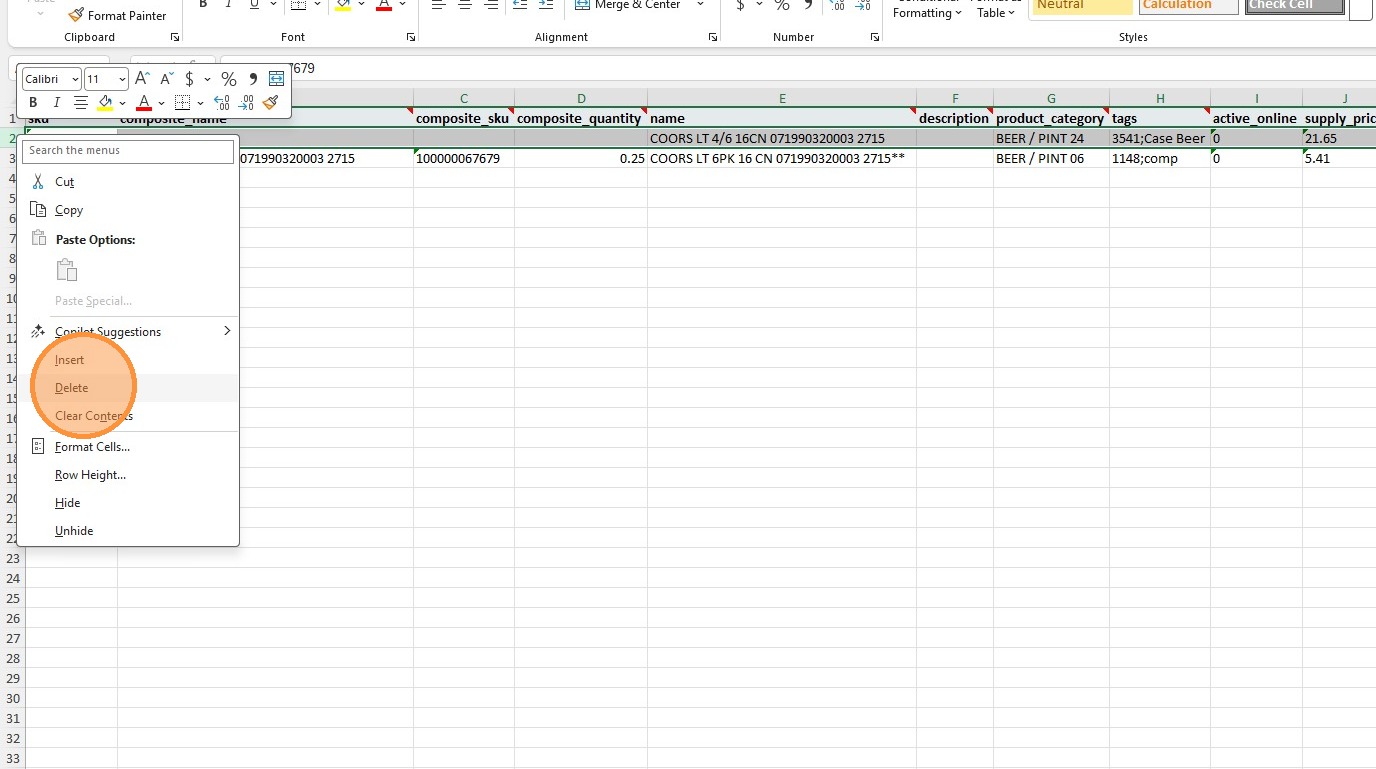
52. We will click row "2" to select it since we will be deleting that standard product from the spreadsheet now that we have the needed data from it to configure the composite product.
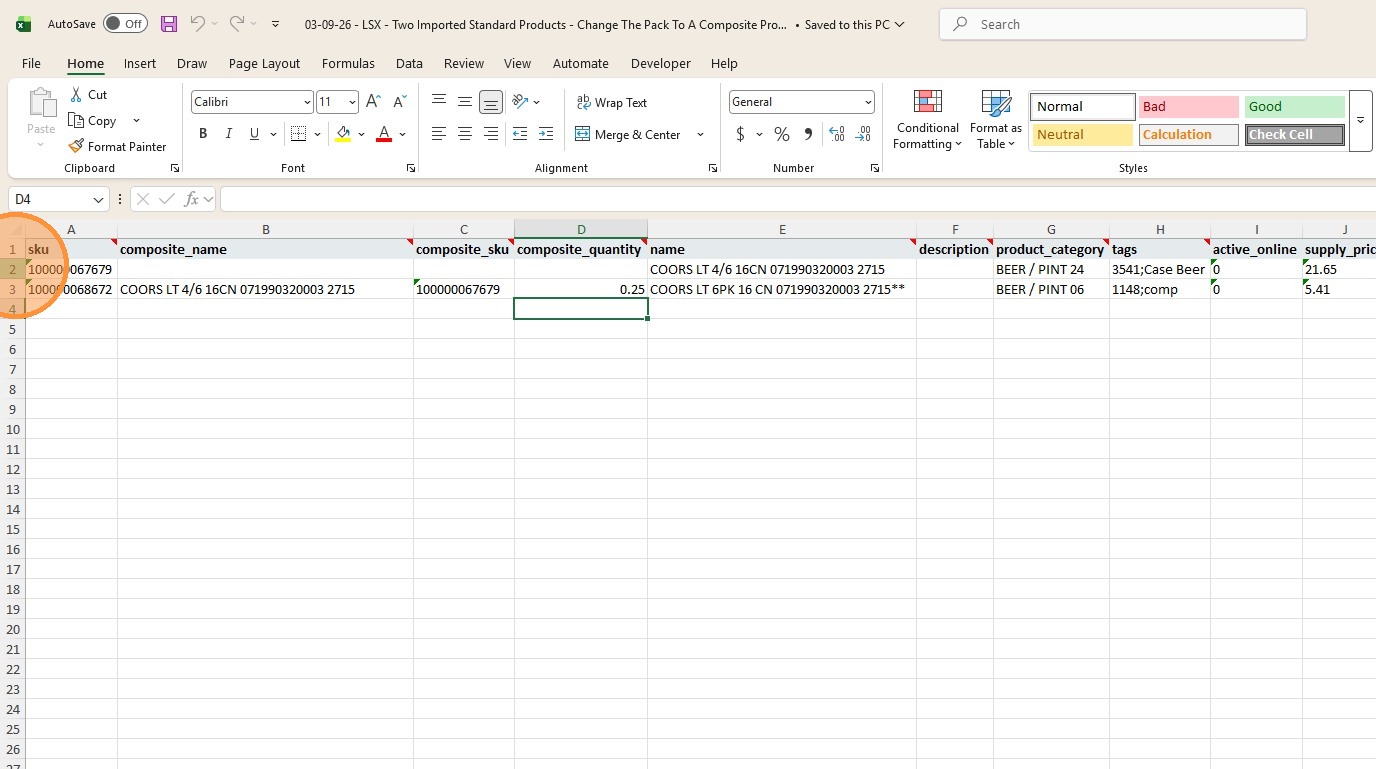
53. Right click row "2".
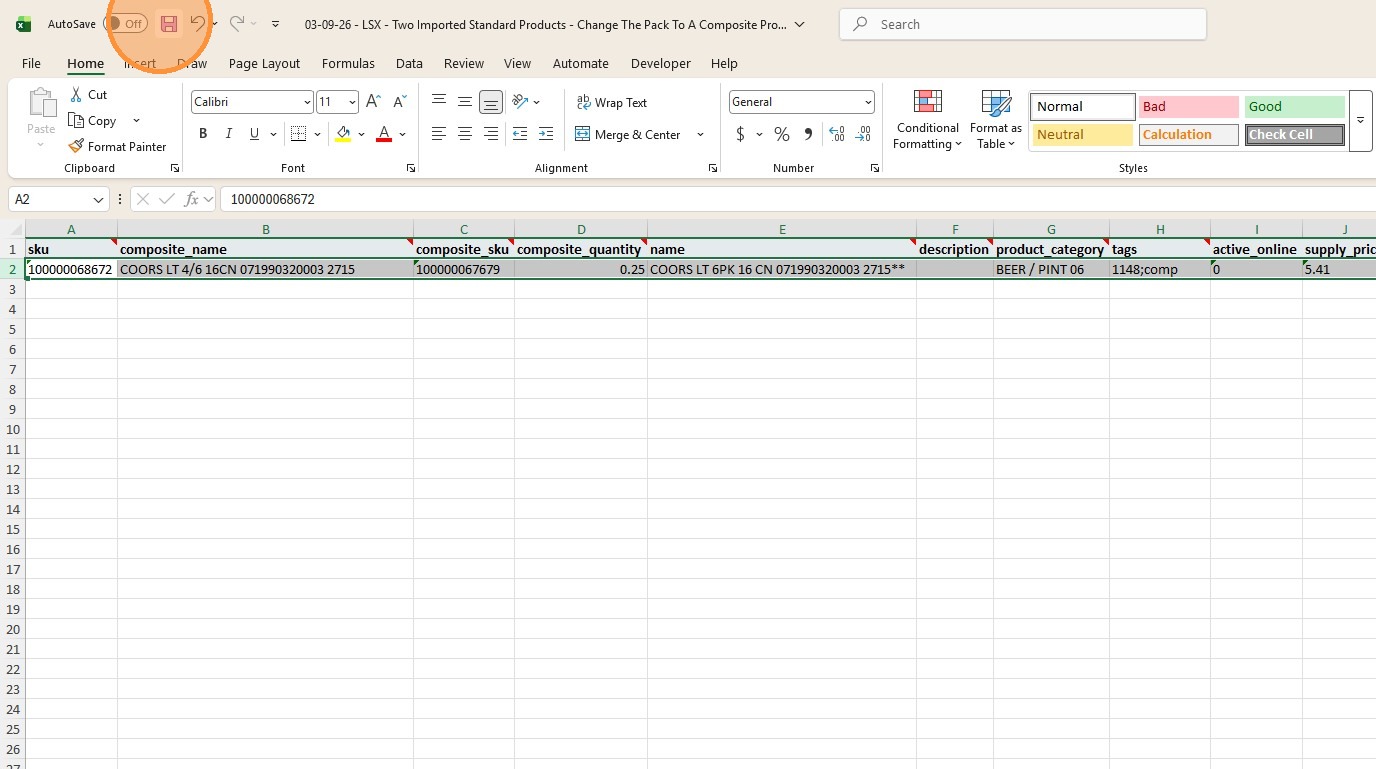
54. Click "Delete" to delete that row.
55. Click "Save" to save the updated spreadsheet that only includes the product that will now be set to a composite product.
56. Click "Close" to close the spreadsheet and Excel.
57. In Lightspeed Retail X Series, go into "Products" and then click "Import".
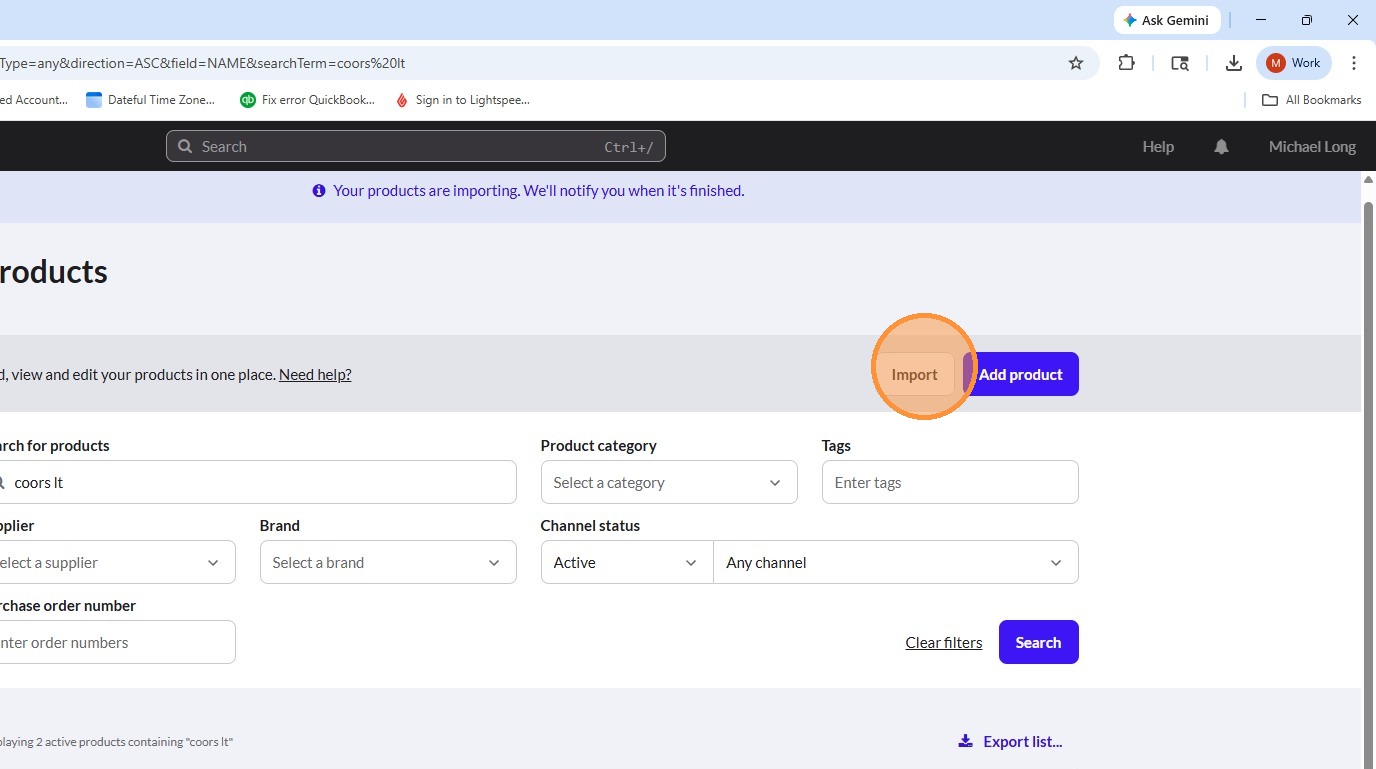
58. Click "Select file to upload".
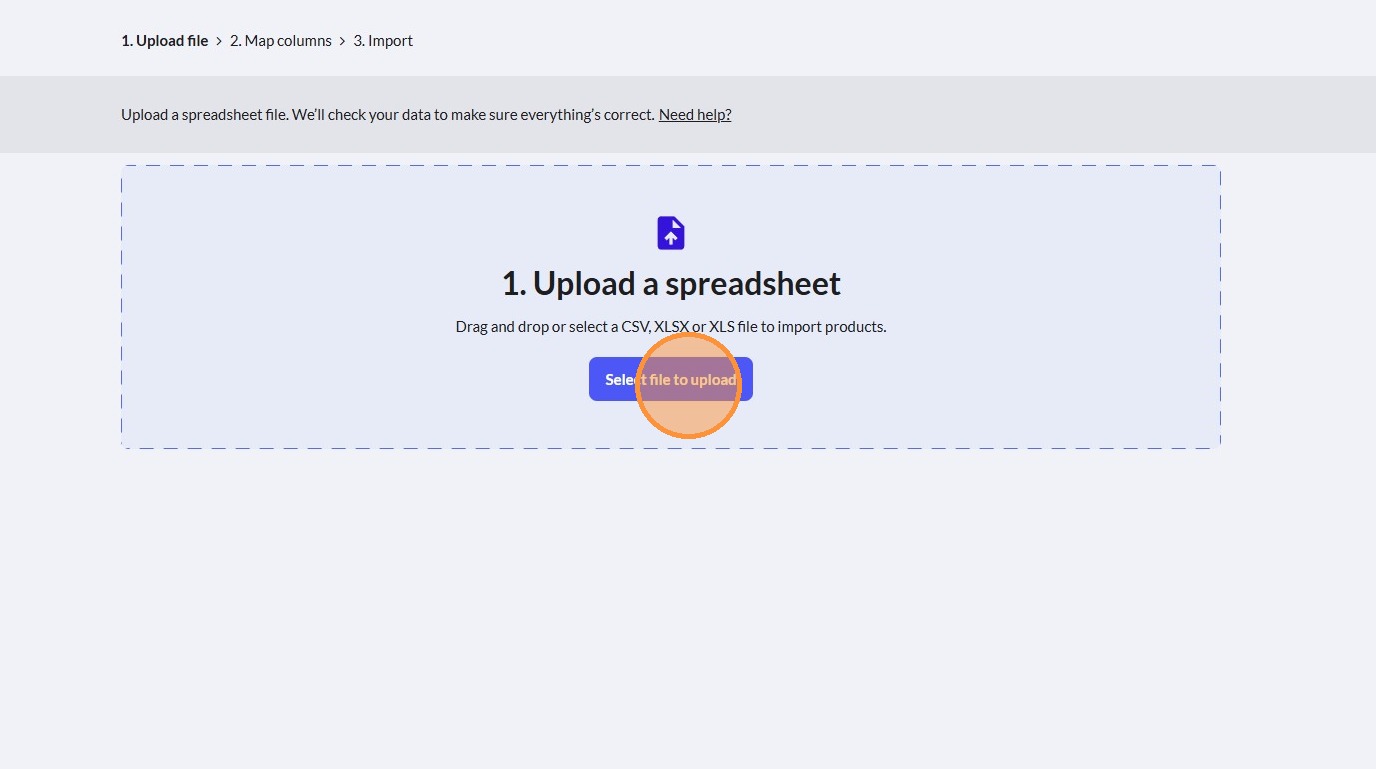
59. Locate the spreadsheet that will be imported and click its file name.
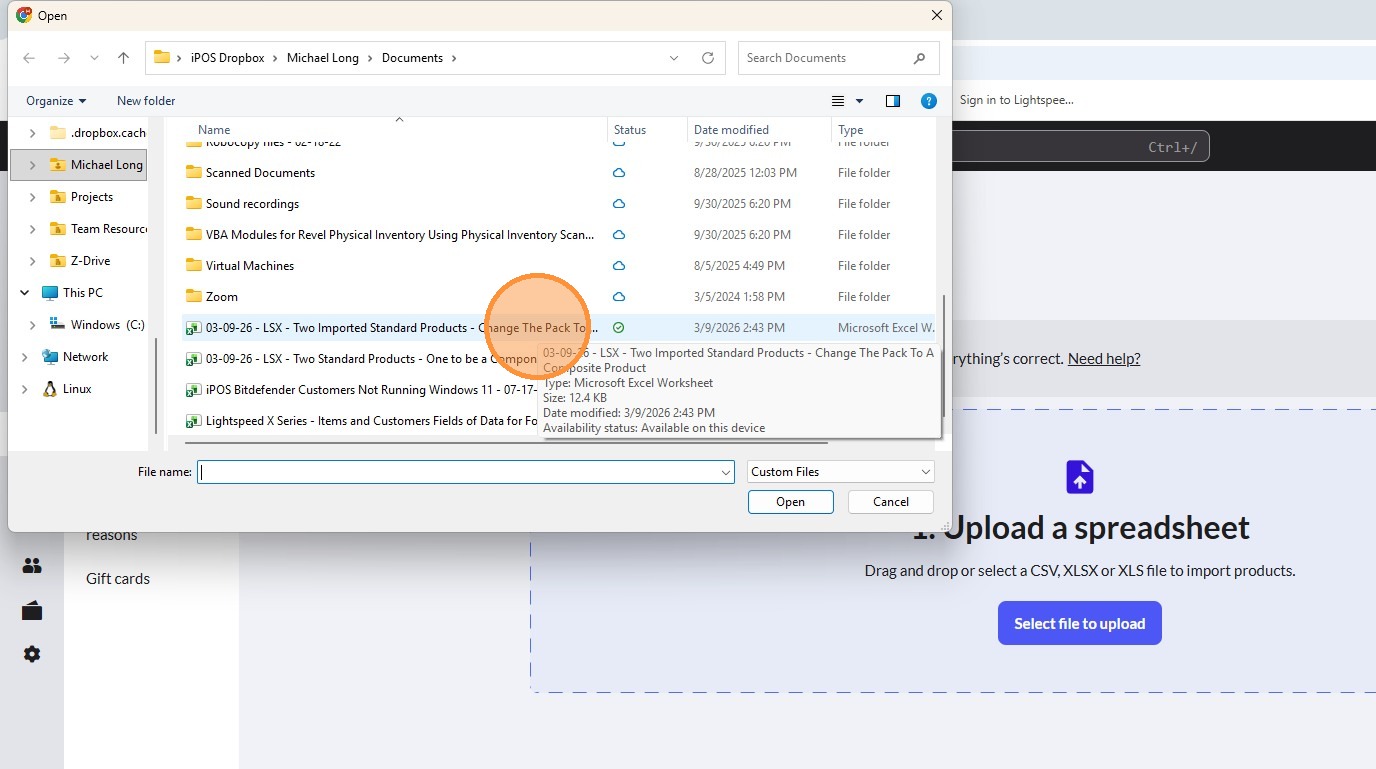
60. Click "Open".
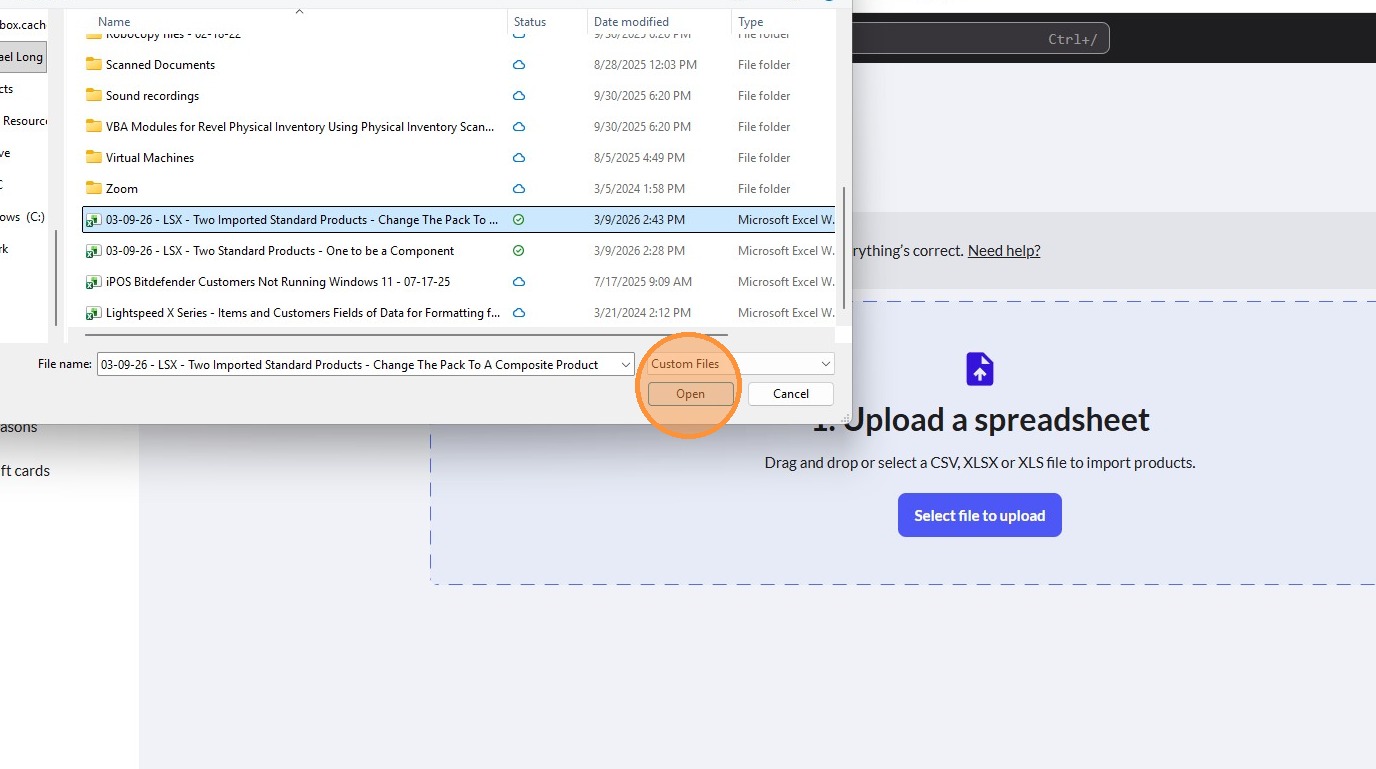
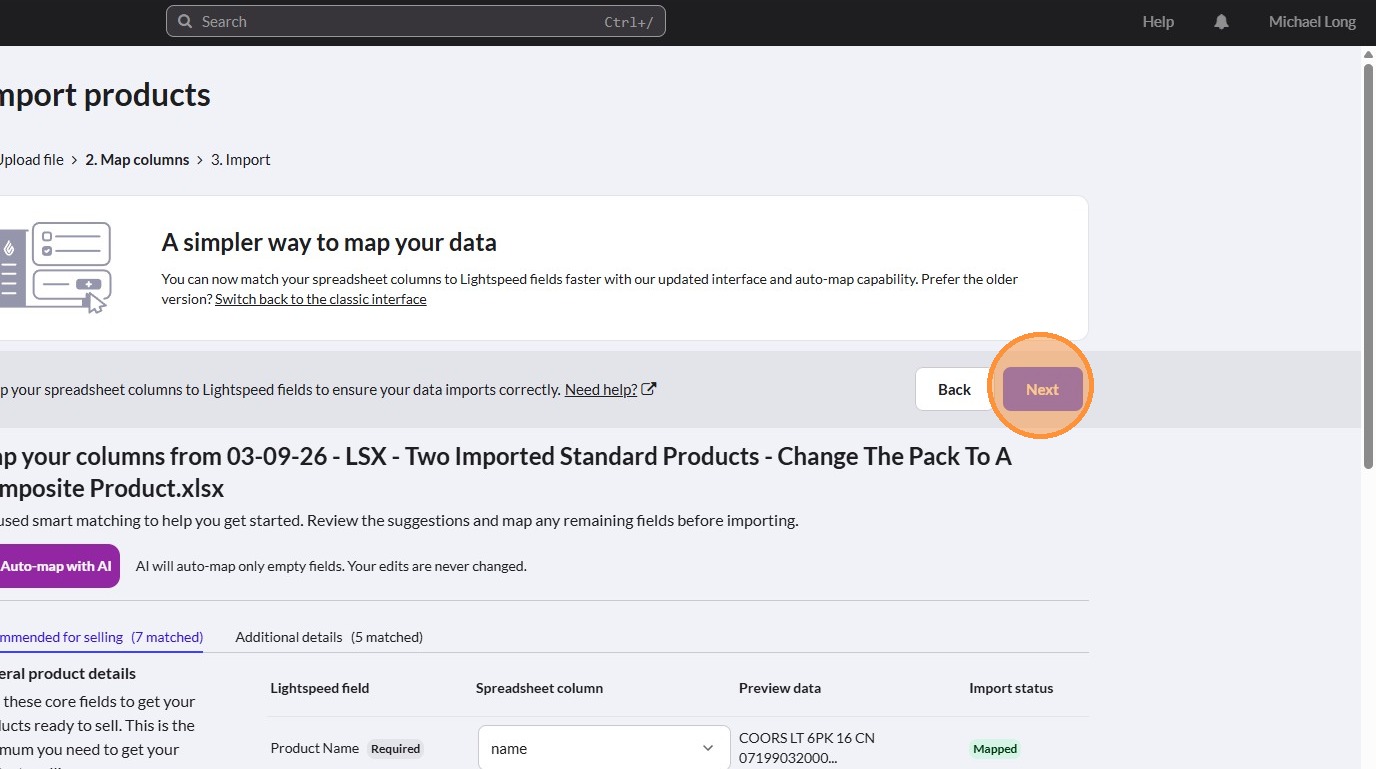
61. Click "Next" to start the import summary.
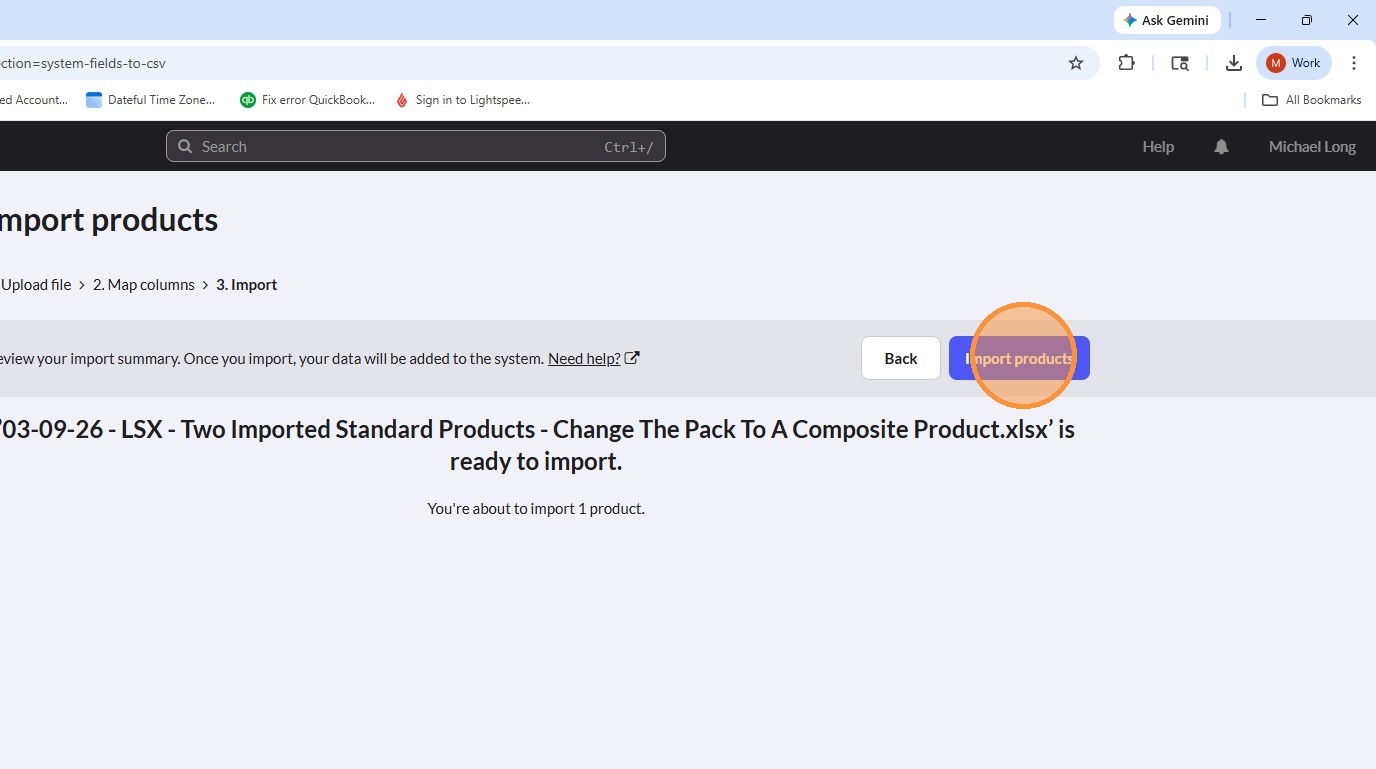
62. Once the import summary has finished, click "Import products" to start the import.
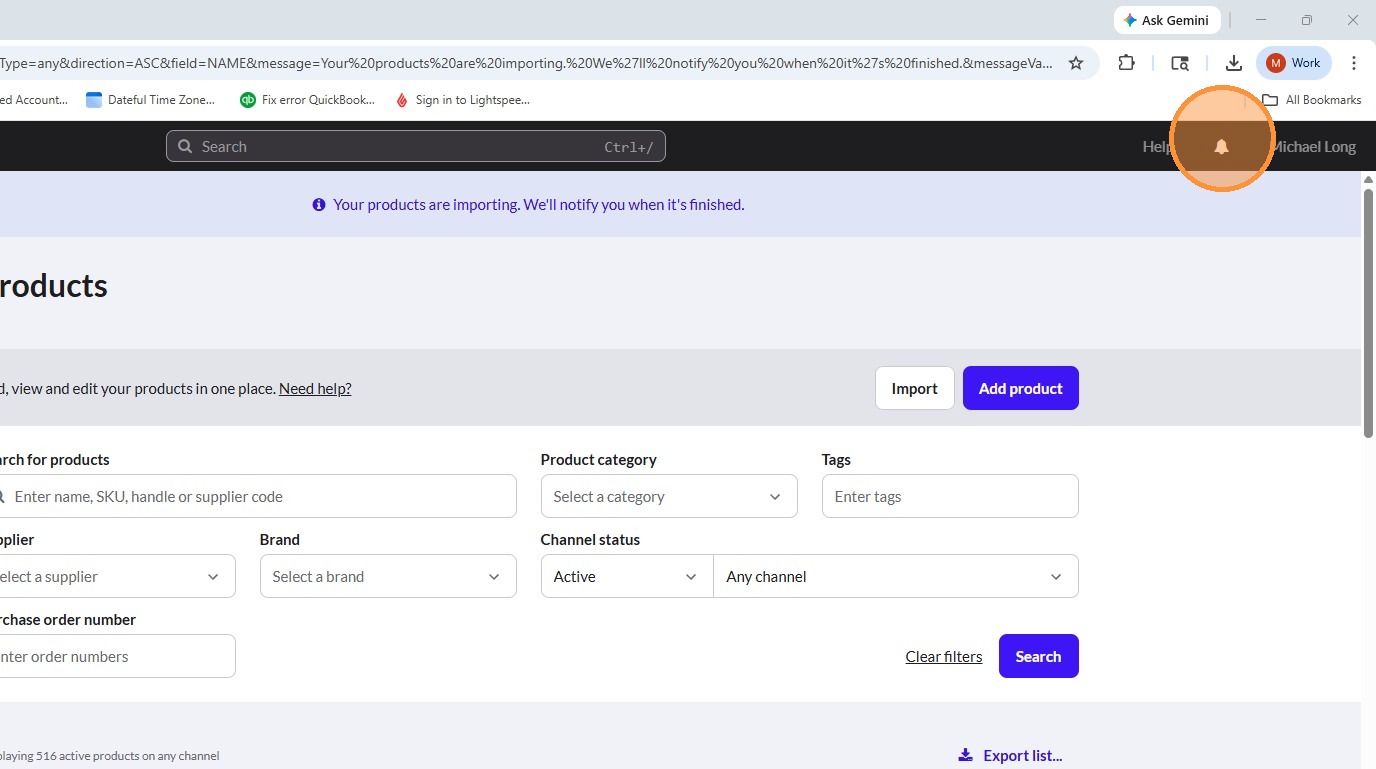
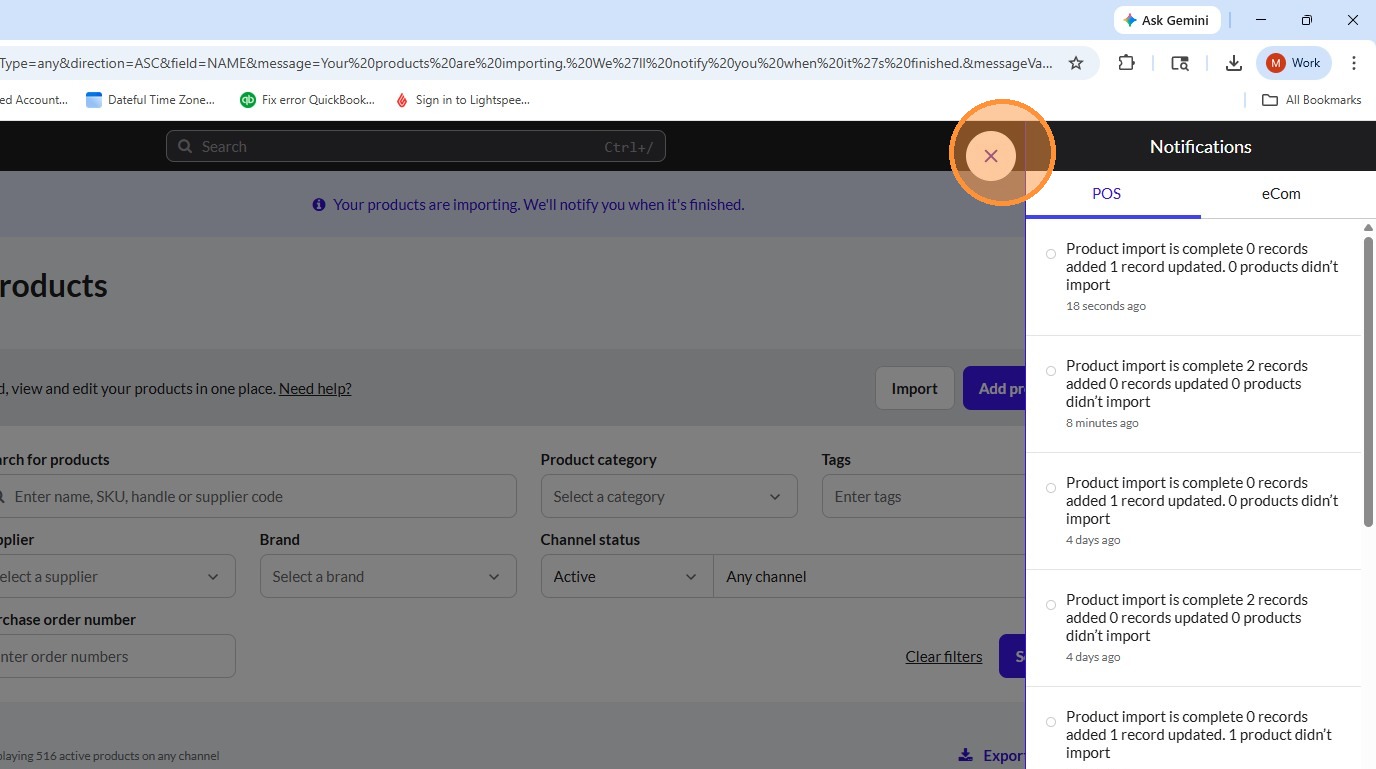
63. Click "View notifications" (which is the bell icon) in the upper right hand corner.
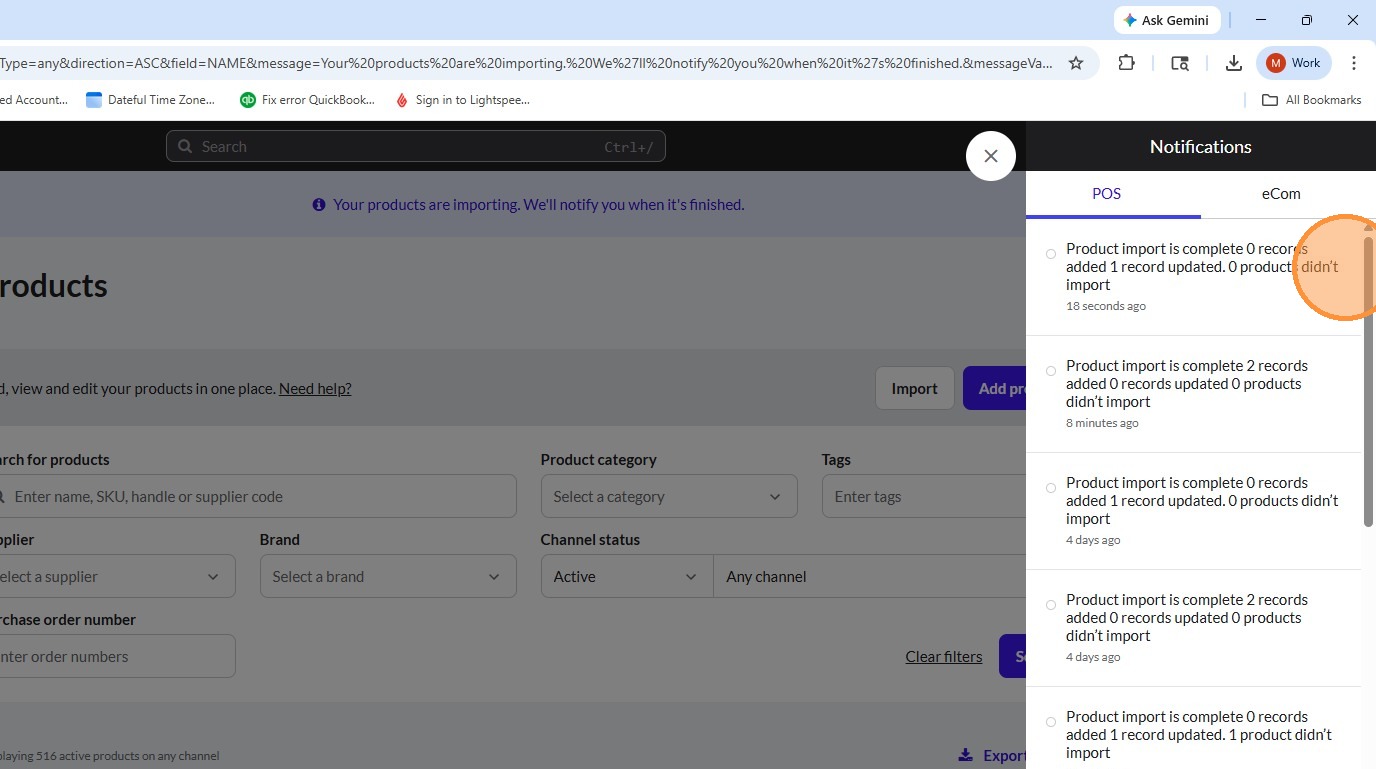
64. Once the import of the composite product has completed, you will see the update named "Product import is complete 0 records added 1 record updated. 0 products didn’t import.". Please note that how quickly the import is performed depends upon how many items are being updated.
65. Click the "X" icon to close the notifications window in Lightspeed Retail X Series.
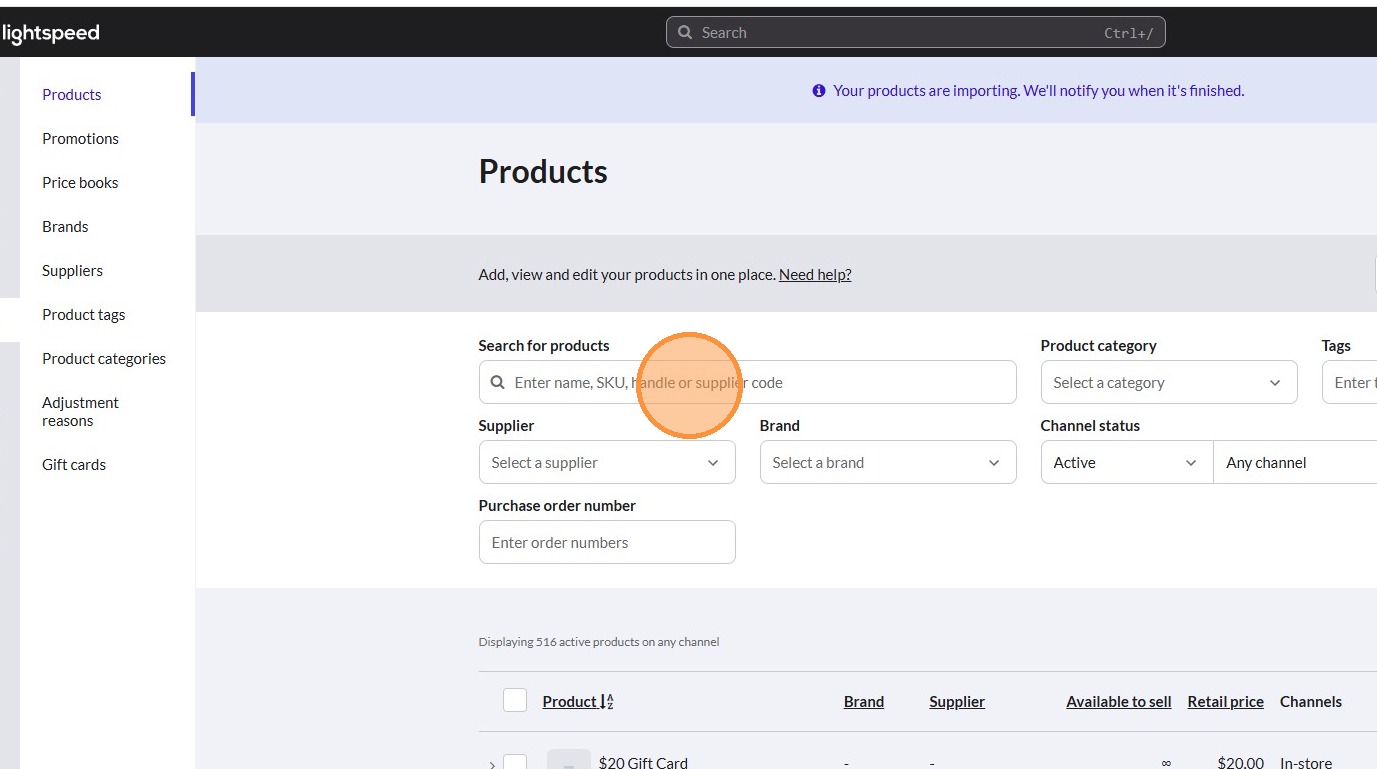
66. In the "Products" section, click the search box named "Search for products".
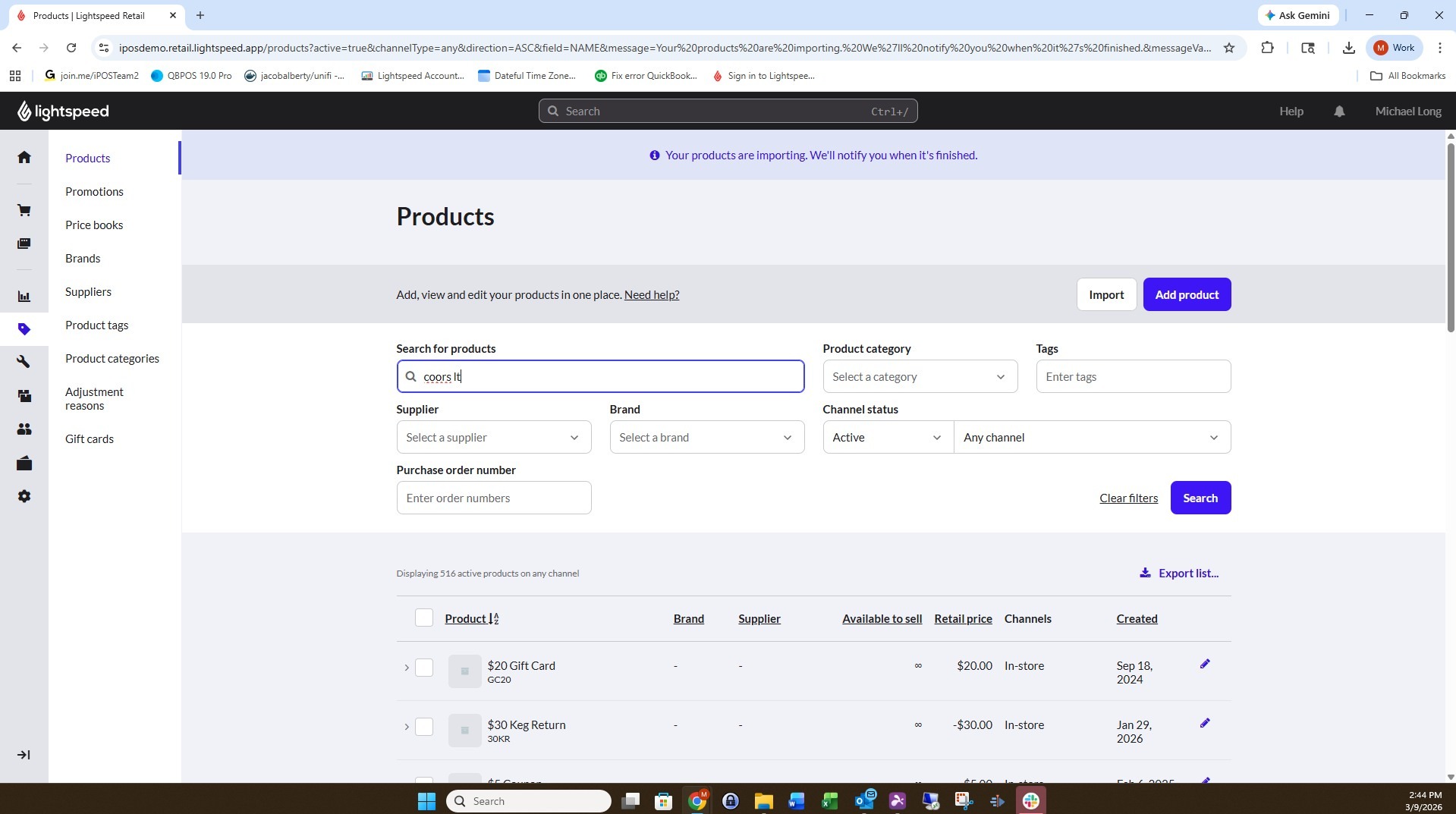
67. Type "coors lt" and then hit "Enter" or click "Search".
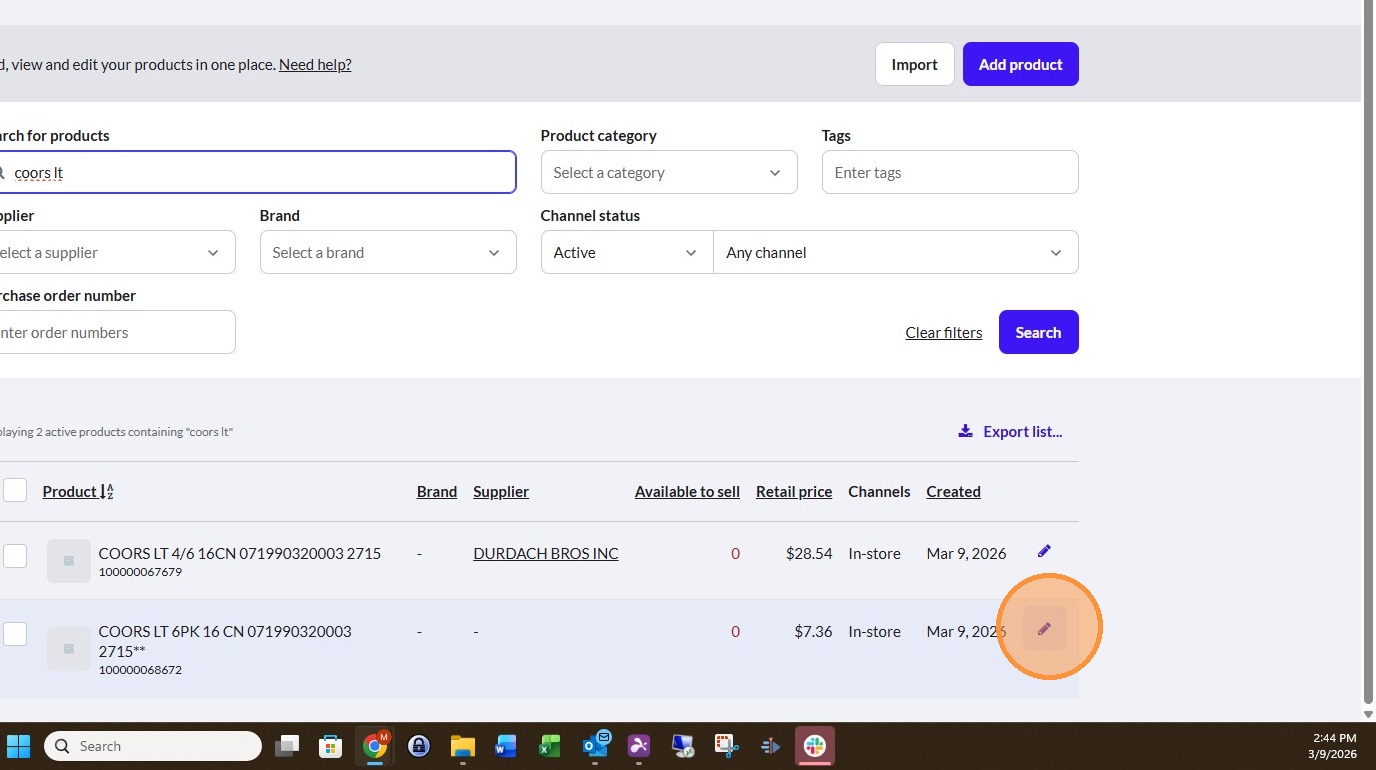
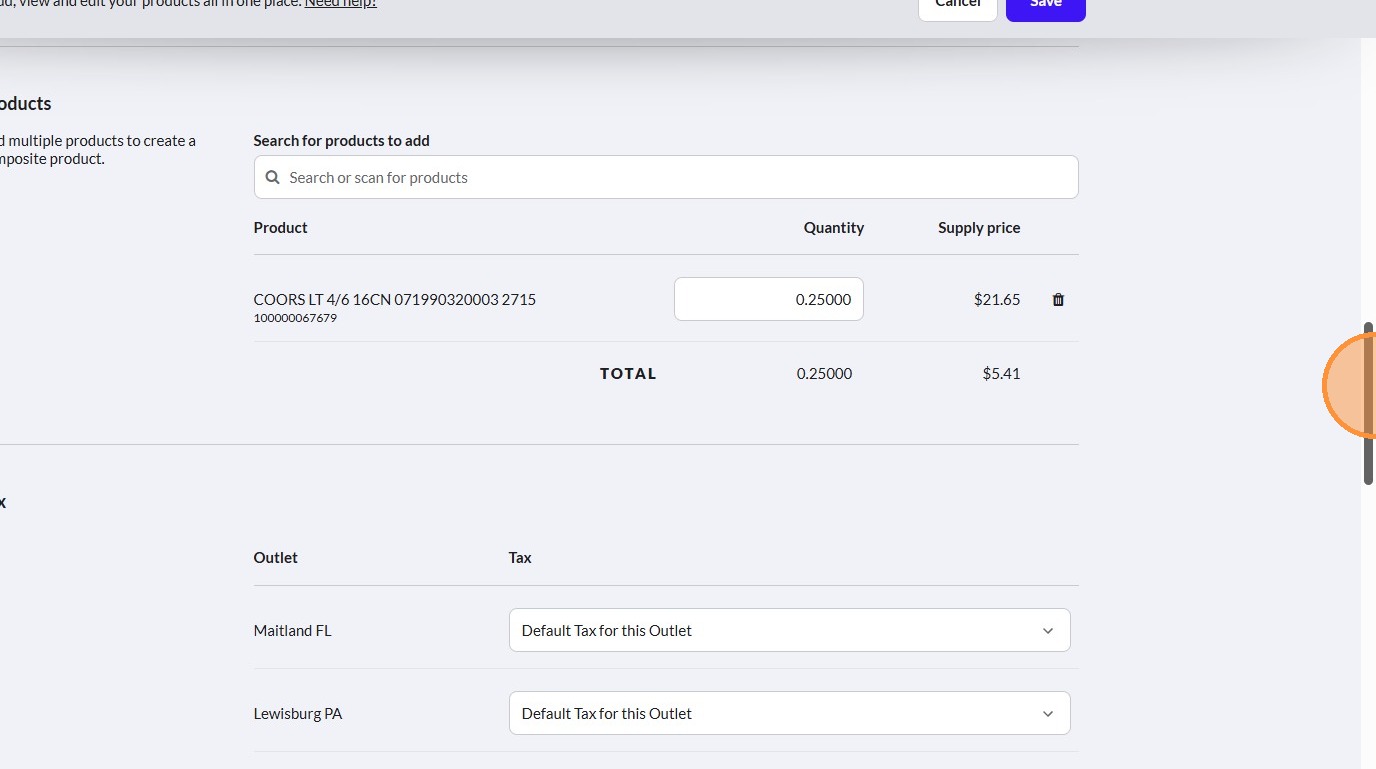
68. Find the product that has now been configured as a composite product and then click "Edit product". In this example the product name is "COORS LT 6PK 16 CN 071990320003 2715**".
69. Scroll down until you get to the section named "Products".
70. Verify that the name of the standard product and the quantity that the composite product is coming from is correct. In this example the standard product is named "COORS LT 4/6 16CN 071990320003 2715".
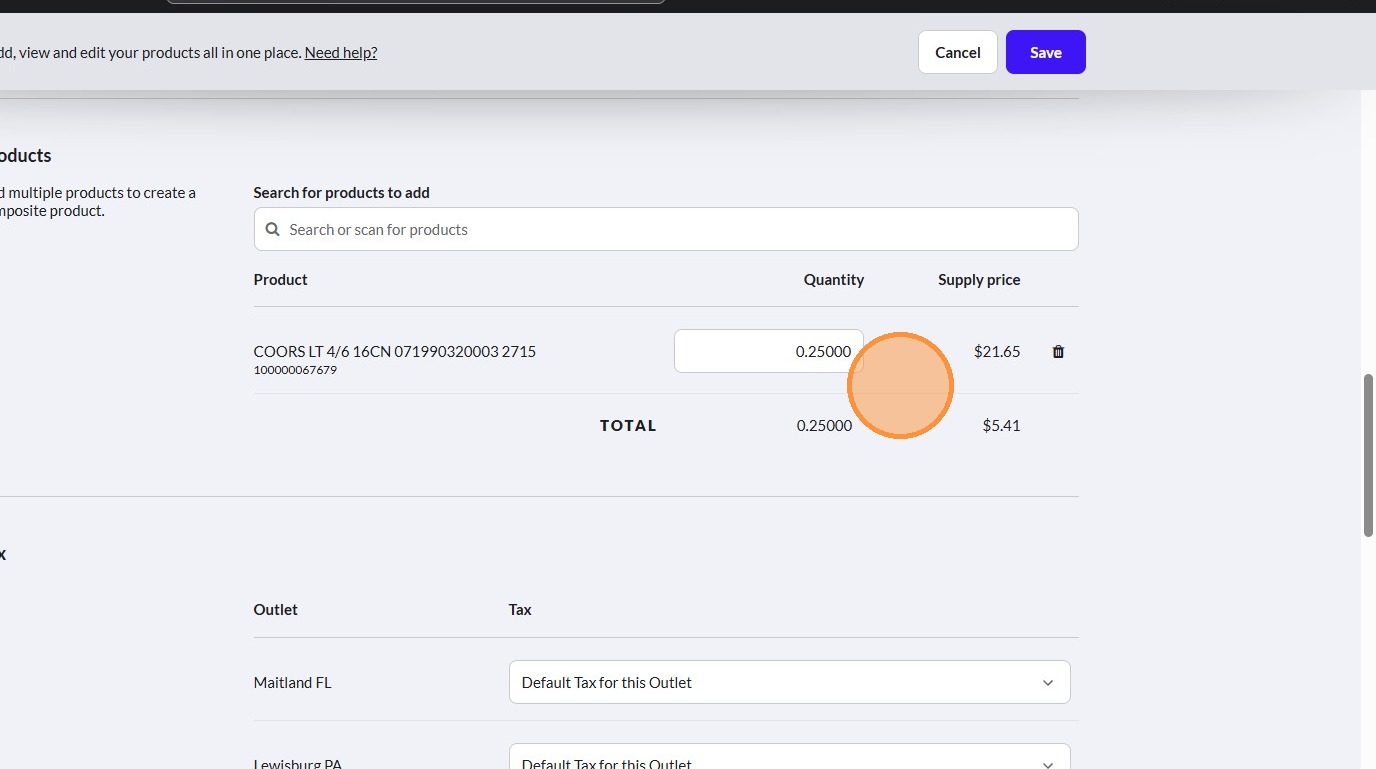
We have now completed creating and importing two standard products (a case and a pack), exporting those two standard products, configuring the standard product (which is the pack) that will now be a composite product, import the composite product back into Lightspeed Retail X Series, and then verify the configuration of both the standard product (case) and composite product (pack).
Comments
0 comments
Article is closed for comments.