1. Log into your Lightspeed Retail R-Series account.
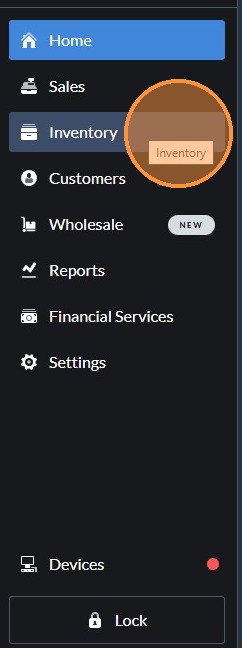
2. In the left hand window pane, click "Inventory".
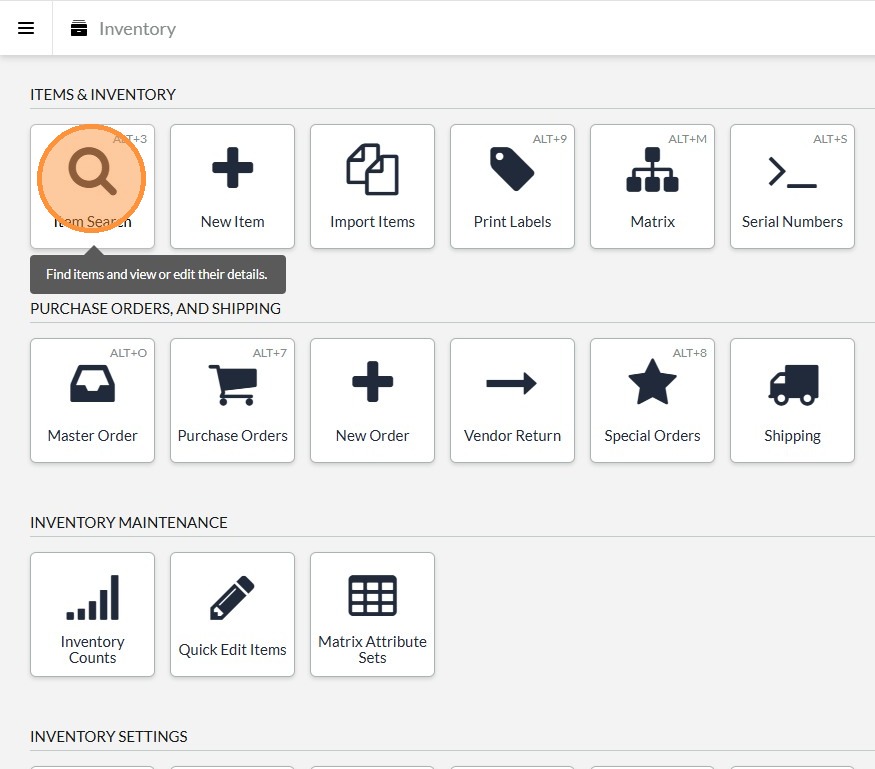
3. In the main window pane under the section named "ITEMS & INVENTORY", click "Item Search".
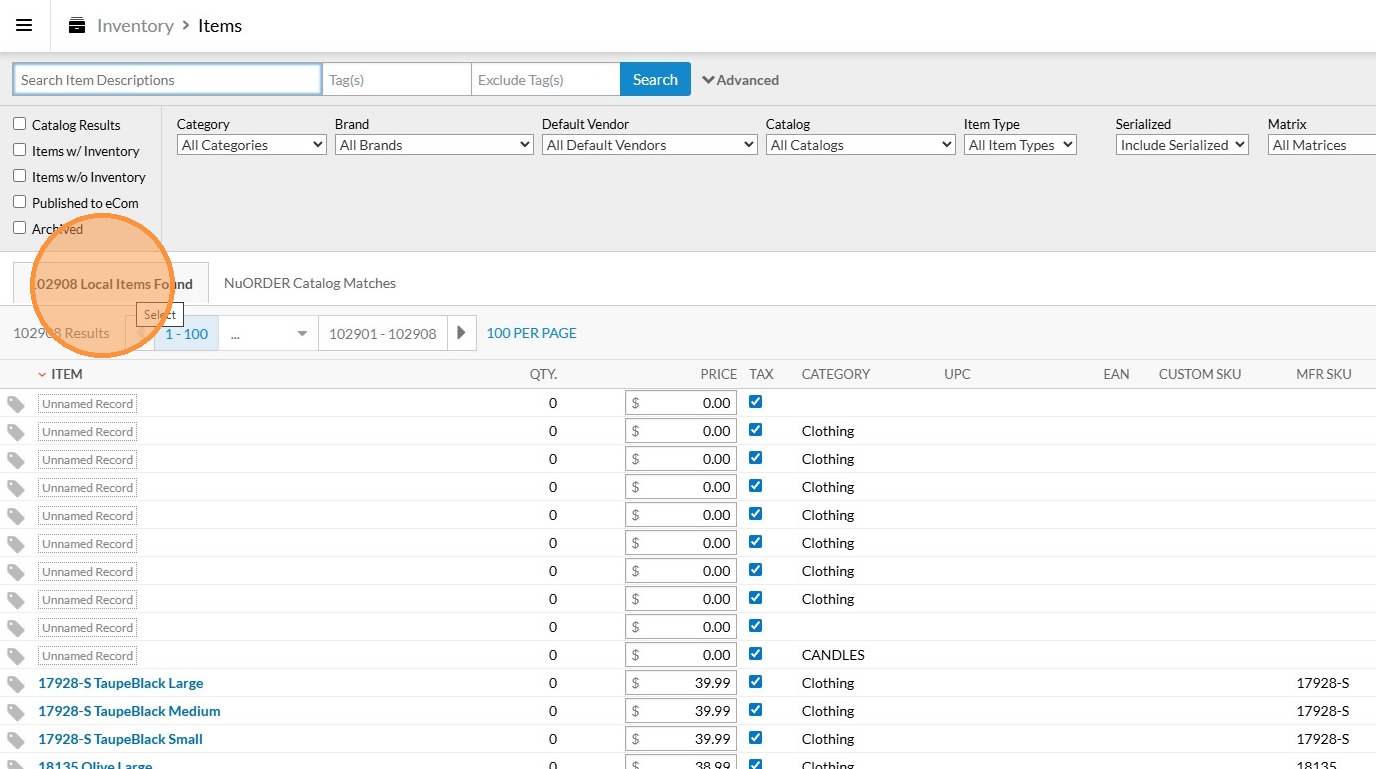
4. You will see your total number of items shown here.
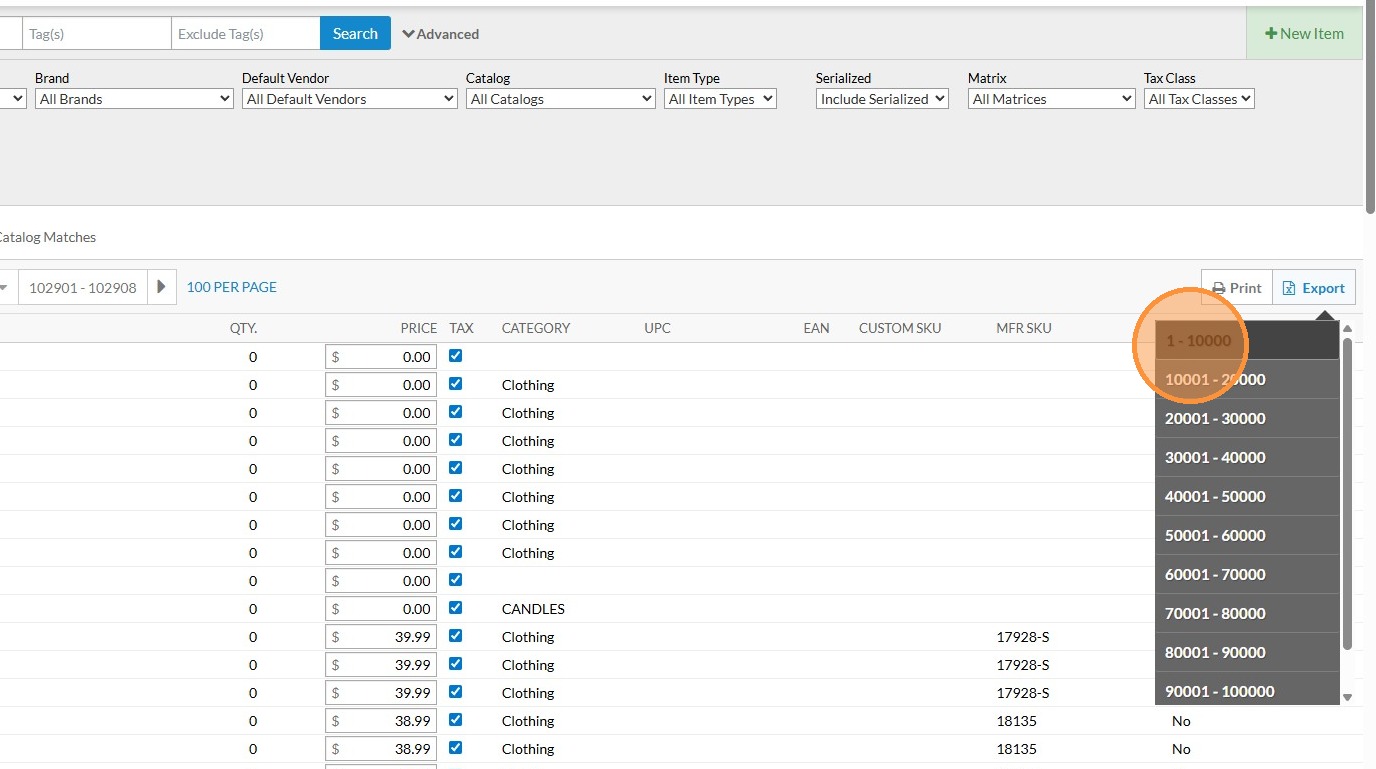
5. In the upper right hand corner of the item listing, click "Export"
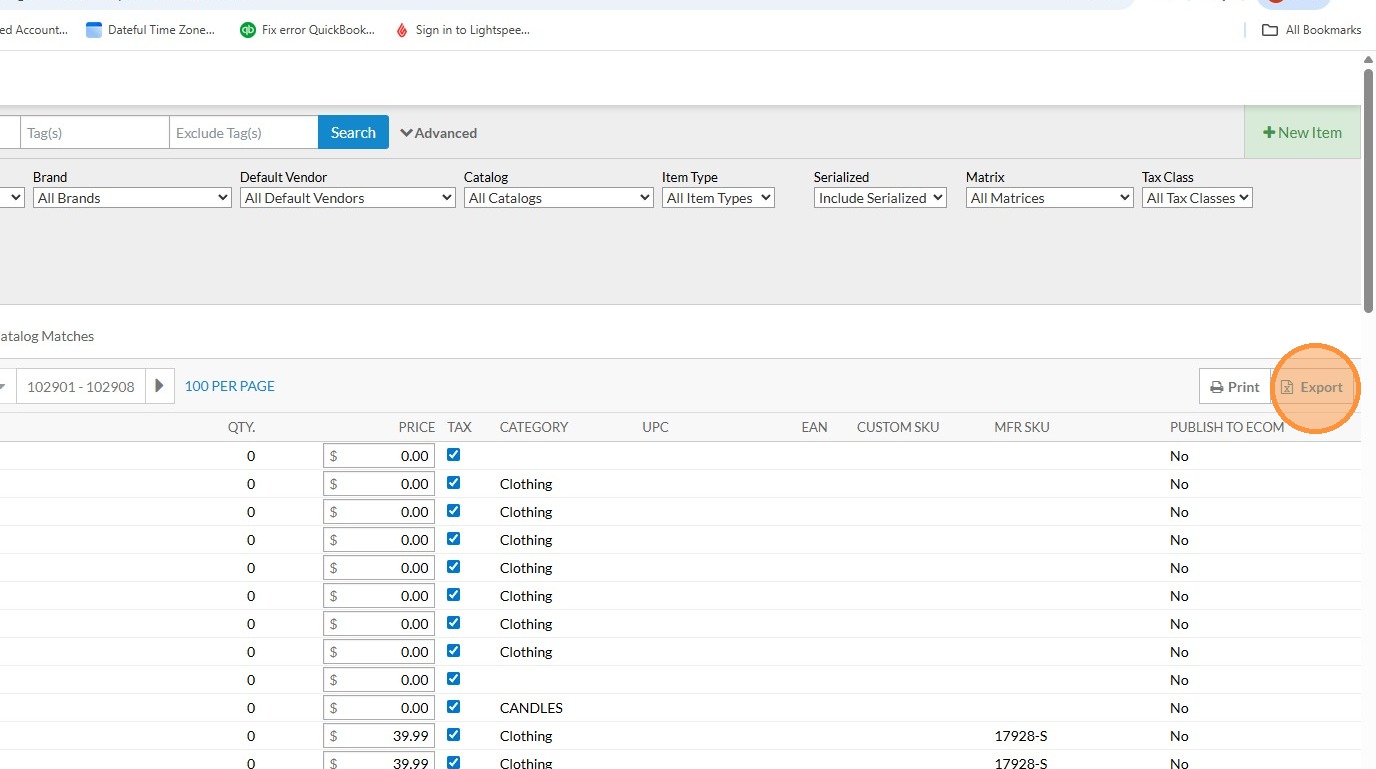
6. You will be presented with a drop down box showing your items that are able to be exported in 10,000 item increments. Click the range of items that you would like to export. In this example, we will be exporting items 1 to 10,000.
7. Click your downloads icon in Google Chrome and open the file that was exported. In this example, the file name will be "item_listings_local_matches_1_10000.csv". The range of the items exported are at the end of the file name.
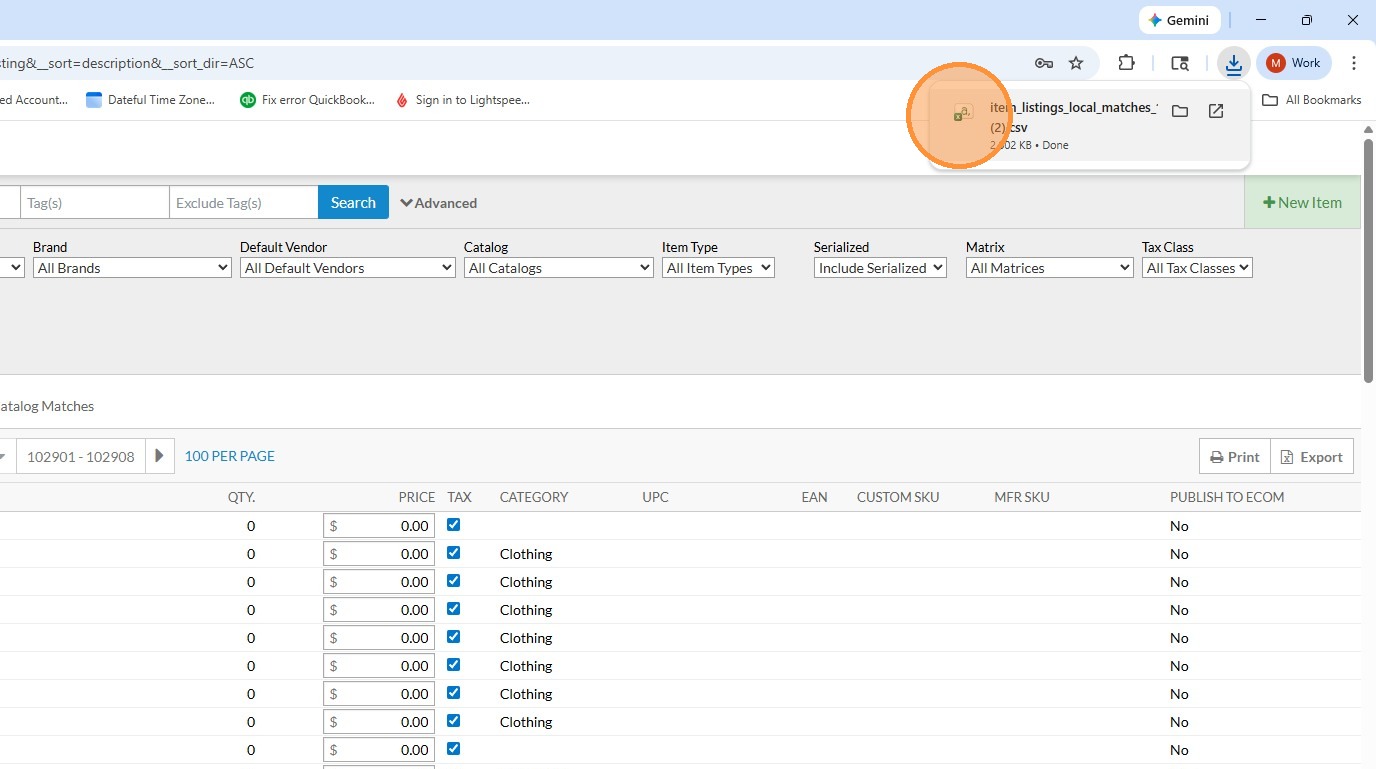
8. You can now open the downloaded product export.
9. Repeat steps 5 through 8 if you need to download additional products in groups of 10,000 from your LSR account.
Comments
0 comments
Article is closed for comments.